Table of Contents >> Show >> Hide
- Before You Delete: What Actually Happens?
- How to Delete a Discord Channel on Android
- Quick Version: Delete a Discord Channel on Android
- Why You Might Not See “Delete Channel”
- Deleting Different Types of Discord Channels on Android
- What to Do Before Deleting a Channel
- Delete vs. Hide vs. Mute: Which One Should You Use?
- Common Mistakes to Avoid
- Troubleshooting: The Delete Option Still Is Not There
- Security and Moderation Tips
- Real-World Examples
- Extra Experience Section: Lessons From Cleaning Discord Channels on Android
- Conclusion
Deleting a Discord channel on Android sounds like one of those tiny tech chores that should take five seconds. Then you open the app, tap three different menus, accidentally join a voice channel, panic-mute yourself, and wonder whether Discord hid the delete button inside a digital sock drawer. Good news: once you know where to look, the process is simple.
This easy guide explains how to delete a Discord channel on Android, what permissions you need, why the delete option may not appear, and what to do before you vaporize a text, voice, forum, stage, or announcement channel forever. Because yes, “forever” is doing some heavy lifting here. When a Discord channel is deleted, the channel and its message history are gone from the server. There is no magical “Oops, bring it back” button waiting in the wings.
Whether you are cleaning up a messy gaming server, removing an old project channel, archiving a class group, or finally deleting that abandoned “memes-2-but-better” channel, this guide will walk you through the Android steps clearly.
Before You Delete: What Actually Happens?
When you delete a Discord channel, you remove that channel from the server for everyone. Members will no longer see it, bots will no longer post in it, and any messages, files, pins, and channel-specific settings tied to that channel will no longer be accessible through normal Discord use.
That is different from muting a channel, hiding it from certain roles, renaming it, moving it into another category, or deleting a few messages. Think of muting as putting a channel on “do not disturb.” Think of deleting as launching it into space without a return ticket.
You Need the Right Permissions
To delete a Discord channel on Android, you generally need to be the server owner, have the Administrator permission, or have a role with permission to manage channels. If you are a regular member, the delete option will not appear. Discord is many things, but it usually does not let random users bulldoze server architecture like a raccoon driving a forklift.
If you believe you should have permission but cannot find the option, check with the server owner or review your role permissions. Some servers carefully separate moderator powers, so you might be able to manage messages but not delete channels.
How to Delete a Discord Channel on Android
The Discord Android app changes its layout from time to time, so wording may vary slightly. Still, the basic path is usually the same: open the server, find the channel, open channel settings, choose delete, and confirm.
Step 1: Open the Discord App on Android
Launch the Discord app from your Android phone or tablet. Make sure you are logged into the account that has permission to manage the server. If you manage multiple accounts, double-check before you start tapping like a caffeinated woodpecker.
Step 2: Select the Server
Tap the server icon from the server list. On Discord mobile, server icons usually appear along the side or inside the servers area, depending on your current app layout. Choose the server that contains the channel you want to remove.
This matters because deleting the wrong channel in the wrong server is the kind of mistake that turns a calm afternoon into a group chat courtroom drama.
Step 3: Find the Channel You Want to Delete
Scroll through the server’s channel list and locate the channel. Text channels normally use a hashtag symbol, voice channels use a speaker icon, forum channels may appear with a forum-style icon, and announcement channels may use a megaphone-style icon.
Before going further, confirm the name carefully. If you have channels called “general,” “general-chat,” “general-chat-old,” and “general-chat-final-final,” take a moment. Your future self will thank you.
Step 4: Open the Channel Options
On many Android versions of Discord, you can long-press the channel name to open a small menu. From there, tap Edit Channel, Channel Settings, or a similar option. In some app layouts, you may need to open the channel first, tap the channel name at the top, and then tap the settings icon.
If you are deleting a voice channel, long-pressing the voice channel name from the channel list is often the easiest route. Do not tap it normally unless you actually want to join the voice channel and announce your presence with maximum awkwardness.
Step 5: Tap the Menu or Scroll to Delete
Inside the channel settings screen, look for a three-dot menu, usually in the top-right corner, or scroll down toward the bottom of the settings page. You should see an option labeled Delete Channel.
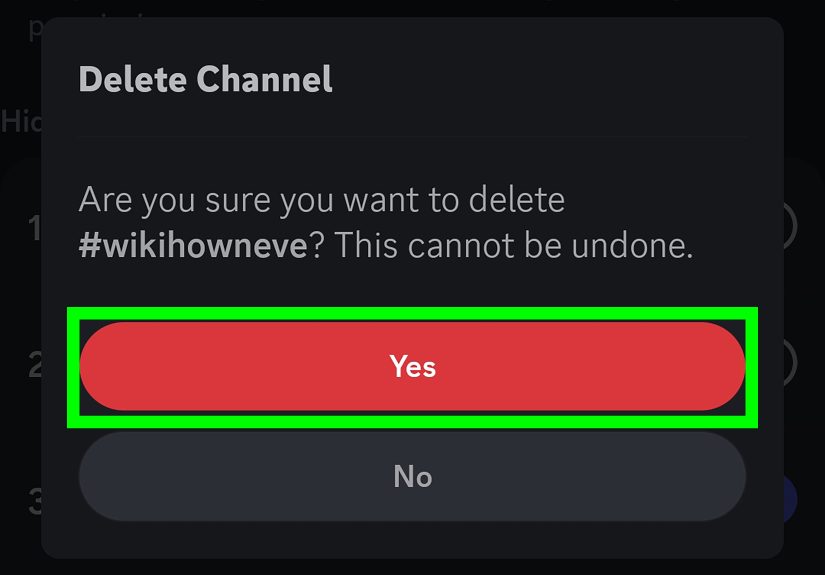
Tap it only when you are sure you are editing the correct channel. Discord may ask you to confirm the action. That confirmation is not decorative; it is Discord politely asking, “Are we absolutely doing this?”
Step 6: Confirm the Deletion
Tap Delete, Confirm, or the equivalent confirmation button. Once confirmed, the channel disappears from the server. Members will no longer be able to access it, and its content will not be recoverable through the app.
Quick Version: Delete a Discord Channel on Android
- Open the Discord app on Android.
- Select the server.
- Find the channel you want to delete.
- Long-press the channel name or open the channel settings.
- Tap Edit Channel or Channel Settings.
- Tap the three-dot menu or scroll down.
- Choose Delete Channel.
- Confirm the deletion.
Why You Might Not See “Delete Channel”
If the delete button is missing, do not immediately blame your phone. Android is innocent until proven laggy. Several common reasons can hide the delete option.
You Do Not Have Permission
The most common reason is missing permissions. You may need Administrator access, server ownership, or a role that can manage channels. Ask the server owner to review your permissions if you are supposed to manage the server.
You Are Looking at the Wrong Menu
Discord mobile has several menus that look similar. Notification settings, channel info, member lists, and channel settings can all feel like cousins at the same family reunion. Make sure you are in the actual channel editing screen, not just viewing notification options.
The App Layout Changed
Discord updates its mobile interface occasionally. If the steps look slightly different, look for familiar labels like Edit Channel, Settings, a gear icon, or a three-dot menu. The delete option is usually tucked inside the channel management area.
You Are Trying to Delete a Direct Message
Discord channels exist inside servers. Direct messages are different. You can close or hide a DM conversation from your list, but that is not the same as deleting a server channel. If you are in a private conversation, you will not see the same channel deletion controls.
The Channel Is Part of a Special Setup
Some servers use categories, synced permissions, community features, bots, announcement channels, or onboarding channels. You may still be able to delete the channel, but you should understand what it does first. Removing a rules channel, welcome channel, or bot command channel can confuse new members faster than a “terms and conditions” page written in ancient runes.
Deleting Different Types of Discord Channels on Android
How to Delete a Text Channel
For a text channel, long-press the channel name in the channel list, open the channel settings, tap the three-dot menu if needed, and choose Delete Channel. Confirm the deletion. This removes the text channel and its conversation history.
How to Delete a Voice Channel
For a voice channel, long-press the voice channel name instead of tapping it normally. Open Edit Channel or Channel Settings, then choose Delete Channel. This removes the voice room from the server. It does not delete people’s accounts, voices, or questionable karaoke memories.
How to Delete a Forum Channel
Forum channels are usually managed through the same channel settings path. Open the forum channel settings, find the delete option, and confirm. Remember that forum posts and discussions inside that forum may be removed with it.
How to Delete an Announcement Channel
Announcement channels can be important for community servers. Before deleting one, check whether other servers follow it or whether it is used for official updates. If you still want to remove it, use the same channel settings process and confirm deletion.
How to Delete a Category
Categories are not exactly the same as channels, but they organize channels. On Android, you may be able to long-press the category name, open category settings, and delete it. Be careful: deleting or reorganizing categories can affect how members understand your server layout. In some cases, it is better to move channels first, then remove the empty category.
What to Do Before Deleting a Channel
A clean server is great. A clean server that accidentally deleted three months of planning notes is less great. Before you delete a Discord channel on Android, run through this short checklist.
Save Important Information
Check pinned messages, shared files, links, announcements, rules, meeting notes, or bot instructions. If anything matters, copy it somewhere safe before deleting the channel.
Tell Members First
If the channel is active, post a quick notice before deleting it. Something as simple as “We are removing this channel tomorrow; please save anything important” can prevent confusion and dramatic “where did my channel go?” messages.
Check Bot and Webhook Connections
Bots may post logs, alerts, welcome messages, moderation notices, or game updates into specific channels. If you delete the channel without updating bot settings, the bot may stop working correctly or start complaining silently in the background, which is somehow worse.
Consider Renaming Instead
If you are not fully sure, rename the channel first. For example, change “event-planning” to “archive-event-planning” and restrict posting. This gives members time to grab old information before you permanently delete it.
Move It to an Archive Category
Discord does not offer a perfect one-click archive for every situation, but you can create an archive category, move old channels there, lock posting, and hide it from most roles. This is a useful middle step when you are not ready to delete.
Delete vs. Hide vs. Mute: Which One Should You Use?
Deleting is not always the best solution. Sometimes you simply need less noise, better organization, or fewer visible channels.
Delete the Channel When…
Use deletion when the channel is no longer needed, contains no important history, and will not be used by bots, members, or server features. Good examples include temporary event channels, duplicate channels, test channels, or channels created by mistake.
Hide the Channel When…
Hide a channel when only certain members should see it. For example, staff channels, private project rooms, or member-only areas are usually better handled with permissions than deletion.
Mute the Channel When…
Mute a channel when it is useful but noisy. Maybe your announcements channel is important, but your meme channel behaves like it has eaten twelve energy drinks. Muting solves the notification problem without deleting the content.
Common Mistakes to Avoid
Deleting the Wrong Channel
This is the big one. Always read the channel name twice. If your server has similar channel names, consider renaming the target channel temporarily before deleting it. It may feel silly, but it is less silly than explaining to 2,000 members why the real announcements channel has vanished.
Forgetting About Pinned Messages
Pins often contain the most useful information in a channel. Before deleting, open the pinned messages area and save anything important.
Assuming Deleted Channels Can Be Restored
They cannot be easily restored from the Android app. If you delete a channel, plan as if it is gone permanently. You can create a new channel with the same name, but that does not bring back the old message history.
Deleting Instead of Fixing Permissions
If the issue is that the wrong people can see or post in a channel, fix permissions instead. Deleting the channel is like throwing away your whole backpack because one zipper got stuck.
Troubleshooting: The Delete Option Still Is Not There
If you have permission but still cannot find the delete button, try these fixes:
- Update Discord from the Google Play Store.
- Close and reopen the app.
- Check whether you are in the correct server.
- Long-press the channel name instead of opening the channel normally.
- Look for a gear icon, three-dot menu, or “Edit Channel” option.
- Try from the desktop app if the Android layout is confusing.
- Ask the server owner to confirm your role permissions.
In many cases, the problem is not that Discord removed the feature. It is that the app placed it one menu deeper than expected, because apparently all apps must occasionally become tiny treasure hunts.
Security and Moderation Tips
If you run a public or semi-public Discord server, be careful about who can manage channels. The ability to delete channels is powerful. A trusted moderator may need it, but a new helper probably does not.
Review role permissions regularly, especially after promoting members. Avoid giving Administrator access unless it is truly necessary. For most teams, specific permissions are safer than handing someone the server equivalent of a master key and hoping they do not redecorate the castle.
You should also keep important server information backed up outside Discord. Rules, schedules, project plans, and resource lists can live in a shared document or private admin channel. That way, one accidental deletion does not wipe out your server’s brain.
Real-World Examples
Example 1: Removing an Old Event Channel
Suppose your server hosted a Halloween event and created a channel called “spooky-planning.” The event ended months ago, and the channel is now collecting digital dust. Before deleting it, save any useful templates, winner lists, or images. Then long-press the channel on Android, open settings, tap Delete Channel, and confirm.
Example 2: Cleaning Up Duplicate Voice Channels
Your gaming server has “Raid Voice,” “Raid Voice 2,” and “Raid Voice But Louder.” If only one is used, you can delete the extras. Long-press each unused voice channel, open its settings, and delete it. Just make sure nobody is actively using it first, unless your moderation style is “surprise teleportation.”
Example 3: Replacing a Bot Command Channel
If your bot command channel is messy, you may want to create a new one and delete the old one. Before doing that, update your bot settings so commands, logs, or alerts point to the new channel. Then remove the old channel once everything works.
Extra Experience Section: Lessons From Cleaning Discord Channels on Android
After managing Discord servers from a phone, one lesson becomes clear very quickly: Android channel management is convenient, but it rewards patience. The screen is smaller, menus are layered, and one careless tap can put you somewhere completely different from where you expected. The best approach is to slow down, especially when deleting anything permanent.
A practical habit is to create a “server cleanup routine.” Instead of deleting channels randomly whenever they annoy you, review your server once a month. Look for inactive event channels, duplicate voice rooms, abandoned project areas, and channels that no longer match your community. This keeps your server tidy without turning cleanup into a chaotic midnight mission.
Another useful experience is to separate “inactive” from “unnecessary.” A channel may be quiet because it is no longer useful, but it may also be quiet because it holds reference material. For example, a rules channel may not get daily messages, but deleting it would be a terrible idea. A completed project channel may be inactive, but it could contain decisions, links, or files people still need. Before deleting, ask: “Would anyone be upset if this disappeared tomorrow?” If the answer is yes, archive or restrict it instead.
On Android, long-pressing is your friend. Many Discord users tap into a channel and then hunt around for settings, but long-pressing the channel name from the list often gets you to management options faster. This is especially helpful for voice channels because tapping normally may join the channel. Nothing says “I am a professional server admin” like accidentally entering a voice room, breathing once, and leaving.
For larger servers, communication matters more than speed. If members use a channel regularly, give them notice before deleting it. A simple announcement can prevent confusion: “We are removing this channel Friday. Please save anything important.” This is not just polite; it also gives people a chance to point out information you may have missed.
One of the best alternatives to deletion is creating an archive category. Move old channels there, lock posting for regular members, and hide the category from people who do not need it. This keeps the main server clean while preserving history. Later, if nobody needs the archived channel, you can delete it with more confidence.
Finally, do not manage major server changes when you are distracted. Deleting channels while half-asleep, in a rush, or while walking through a parking lot is asking for trouble. Channel deletion is simple, but it is still permanent. Treat it like trimming a bonsai tree, not swatting a mosquito. Small, careful changes make the server better. Wild tapping creates mysteries.
Conclusion
Deleting a Discord channel on Android is easy once you know the path: open your server, find the channel, open channel settings, choose Delete Channel, and confirm. The most important part is not the tapping; it is making sure you have permission, choosing the correct channel, and saving anything important before it disappears.
If the delete option does not appear, check your permissions, update the app, long-press the channel name, or try the desktop version. And if you are not completely sure, do not delete yet. Rename, mute, hide, lock, or archive the channel first. Your Discord server can be clean without becoming a digital crime scene.
Note: This article is based on current Discord channel management behavior and Android app guidance. Exact menu names may vary slightly depending on app version, server setup, and permissions.