Table of Contents >> Show >> Hide
- What Google Pay Was in 2020
- Before You Uninstall Google Pay: Check These First
- How to Uninstall Google Pay on Android
- What If Google Pay Cannot Be Uninstalled?
- How to Uninstall Google Pay on iPhone
- How to Clear Google Pay Data Before Uninstalling
- How to Remove Payment Methods from Google Pay
- How to Remove Google Pay from Google Play
- How to Close Your Google Payments Profile
- Google Pay vs. Google Wallet: Why the Name Confuses Everyone
- Common Problems When Uninstalling Google Pay
- Privacy Tips After Removing Google Pay
- Should You Uninstall Google Pay?
- Step-by-Step Quick Summary
- Real-World Experience: What It Feels Like to Uninstall Google Pay
- Conclusion
Google Pay has had more identity changes than a spy in a budget action movie. One year it is Android Pay, then it becomes Google Pay, then there is a redesigned Google Pay app in 2020, then Google Wallet returns wearing a familiar jacket. So if you searched for how to uninstall Google Pay (2020), you are not alone. Many users installed the redesigned app around 2020, tried it for contactless payments, peer-to-peer transfers, rewards, or spending insights, and later decided they wanted a cleaner phone, fewer financial apps, or simply less digital clutter.
The good news: uninstalling Google Pay is usually simple. The tiny asterisk: removing the app from your phone does not automatically erase every card, bank account, payment profile, subscription, or transaction record connected to your Google Account. In other words, uninstalling the app is like taking the remote control off the coffee table; it does not mean the whole TV disappeared.
This guide explains how to uninstall Google Pay from Android and iPhone, what to do if the app cannot be fully removed, how to disable it, how to remove payment methods, and what to check before you say goodbye. It also covers the difference between Google Pay, GPay, Google Wallet, and your Google payments profile, because apparently one name was too easy.
What Google Pay Was in 2020
In 2020, Google launched a redesigned Google Pay app in the United States. The app was no longer just a place to tap and pay. It expanded into a broader money-management tool with people-based payments, business transactions, spending insights, offers, and banking-related features that Google planned with financial partners.
That 2020 version is important because many users installed it separately from older Android payment features. Some Android phones also had payment functionality tied into Google services or later Google Wallet. This created confusion: people saw “Google Pay,” “GPay,” “Wallet,” or a payment option inside Chrome, Google Play, or Android settings and assumed they were all the same thing.
They are related, but not identical. The app is only one door into Google’s payment ecosystem. Your cards and payment settings may still live in your Google Account even after the app leaves your phone. That is why a complete cleanup has two parts: uninstalling or disabling the app, and reviewing your saved payment information.
Before You Uninstall Google Pay: Check These First
Before tapping “Uninstall” with the enthusiasm of someone deleting 47 blurry food photos, pause for one minute. Google Pay may be connected to services you still use.
1. Check Your Payment Methods
If you use Google Play, YouTube, Google One, Chrome autofill, or subscriptions billed through Google, your credit card or debit card may still be saved to your Google Account. Removing Google Pay from your phone does not necessarily remove those payment methods.
2. Review Subscriptions
Look for recurring payments connected to Google Play, YouTube Premium, app subscriptions, cloud storage, or merchant services. If you remove a card without replacing it, a subscription may fail later. Future you may not enjoy discovering this when a favorite app suddenly acts like you are a stranger.
3. Download Any Needed Records
If you plan to close your Google payments profile completely, download any available invoices, receipts, or transaction records first. Once a payment profile is closed permanently, access to certain records may be limited or unavailable later.
4. Know the Difference Between Uninstalling and Closing
Uninstalling Google Pay removes the app from your device. Disabling Google Pay turns off a preinstalled app when full removal is not available. Removing payment methods deletes cards or accounts from your Google payment settings. Closing your Google payments service is a more serious step that can permanently close your payments profile.
How to Uninstall Google Pay on Android
For most Android users, uninstalling Google Pay takes less time than finding the charging cable that was absolutely right there a second ago.
Method 1: Uninstall from the Home Screen or App Drawer
- Find the Google Pay or GPay app icon.
- Press and hold the icon.
- Tap App info, Uninstall, or drag it to the uninstall area, depending on your phone.
- Confirm by tapping OK or Uninstall.
This is the fastest method on many Android devices. Samsung, Pixel, Motorola, OnePlus, and other Android phones may display slightly different wording, but the basic idea is the same: long-press, choose uninstall, confirm.
Method 2: Uninstall from Android Settings
- Open Settings on your Android phone.
- Tap Apps or Apps & notifications.
- Select See all apps if needed.
- Find and tap Google Pay or GPay.
- Tap Uninstall.
- Confirm the action.
This method is helpful when the app icon is hidden, buried in a folder, or playing hide-and-seek like it has rent due.
Method 3: Uninstall from the Google Play Store
- Open the Google Play Store.
- Tap your profile picture in the top-right corner.
- Choose Manage apps & device.
- Go to the Manage tab.
- Search for Google Pay or find it in the installed apps list.
- Tap the app and choose Uninstall.
The Play Store method is useful if you want to review other unused apps at the same time. It is a great moment to ask why you still have that flashlight app from 2016 when your phone already has a flashlight. No judgment. Well, maybe a little.
What If Google Pay Cannot Be Uninstalled?
On some Android phones, Google Pay or related payment features may be preinstalled. In that case, you may not see a normal uninstall button. Instead, Android may offer Disable, Uninstall updates, or Force stop.
Disable Google Pay
- Open Settings.
- Tap Apps.
- Select Google Pay, GPay, or a related Google payment app.
- Tap Disable.
- Confirm your choice.
Disabling a preinstalled app usually removes it from your app drawer and prevents it from running like a regular app. It may still exist on the device as part of the system image, but for everyday use, it is effectively benched.
Uninstall Updates
If you cannot remove the app, you may be able to tap Uninstall updates. This rolls the app back to its factory-installed version. After that, you can disable it if Android allows. This is especially common with apps installed by device manufacturers, carriers, or system packages.
Should You Root Your Phone to Remove It?
No, not for this. Rooting an Android phone just to remove Google Pay is like using a chainsaw to open a cereal box. It can create security risks, break features, void warranties, and cause banking or payment apps to stop working. Disabling the app is the safer and more practical option.
How to Uninstall Google Pay on iPhone
If you installed Google Pay on an iPhone during the 2020 era, removing it is straightforward.
- Find the Google Pay app on your Home Screen or in the App Library.
- Press and hold the app icon.
- Tap Remove App.
- Choose Delete App.
- Confirm your choice.
You can also go to Settings > General > iPhone Storage, select Google Pay, and delete it from there. This storage screen is handy if your iPhone is full and you want to see which apps are eating space like they skipped breakfast.
How to Clear Google Pay Data Before Uninstalling
Clearing app data is optional, but some users prefer to do it before uninstalling. This can remove local cache, temporary files, and app-specific settings from the device.
On Android
- Open Settings.
- Tap Apps.
- Select Google Pay.
- Tap Storage & cache.
- Choose Clear cache.
- Tap Clear storage or Clear data if available.
Clearing local data does not automatically delete your Google payments profile online. Think of it as cleaning the crumbs out of the app’s pocket, not closing the bank vault.
How to Remove Payment Methods from Google Pay
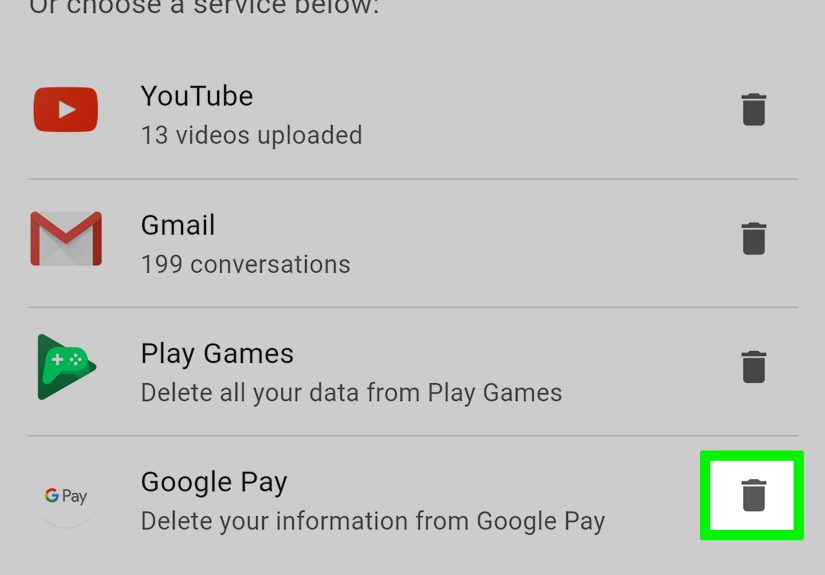
If your goal is privacy, security, or account cleanup, uninstalling the app is only step one. You should also remove cards or bank accounts you no longer want connected to Google.
- Go to your Google payment settings at payments.google.com.
- Sign in with the Google Account connected to Google Pay.
- Select Payment methods.
- Find the card, bank account, or payment option you want to remove.
- Choose Remove.
- Confirm the removal.
If a payment method is tied to an active subscription, Google may ask you to add another payment method first. That is normal. Companies enjoy being paid. Shocking, we know.
How to Remove Google Pay from Google Play
Google Play may use payment methods saved through your Google payments profile. To remove a card from Google Play:
- Open the Google Play Store.
- Tap your profile picture.
- Select Payments & subscriptions.
- Tap Payment methods.
- Choose More payment settings if needed.
- Sign in and remove the payment method you no longer want saved.
This step matters if you use paid apps, in-app purchases, movie rentals, books, games, or subscriptions. Otherwise, you may delete Google Pay and still find your card waiting inside Google Play like a polite houseguest who did not realize the party ended.
How to Close Your Google Payments Profile
Closing your Google payments profile is the most permanent option. Do this only if you are sure you no longer need Google’s payment services connected to that account.
When you close the payments profile, you may lose access to certain payment records, and after a waiting period the profile may not be recoverable. This can affect purchases, subscriptions, refunds, Google Play, YouTube services, and other paid Google products.
When Closing Makes Sense
- You no longer use Google payment services at all.
- You want to remove payment data from a secondary Google Account.
- You are cleaning up an old account you do not plan to use.
- You have downloaded any important receipts or invoices first.
When You Should Not Close It Yet
- You have active Google subscriptions.
- You expect refunds from Google Play or another Google service.
- You use Google Wallet, YouTube Premium, Google One, or paid apps.
- You are not sure which Google Account is connected to your purchases.
For most people, removing unused payment methods is enough. Closing the full payments profile is the digital equivalent of moving out, returning the keys, and telling the landlord to forget your birthday.
Google Pay vs. Google Wallet: Why the Name Confuses Everyone
One reason people still search for how to delete Google Pay or how to uninstall GPay is that Google’s payment branding has changed several times. Android Pay and Google Wallet became Google Pay in 2018. In 2020, Google introduced a redesigned Google Pay app in the U.S. Later, Google Wallet returned as the main place for tap-to-pay cards, passes, IDs, tickets, and digital wallet items in many markets.
In the U.S., the standalone Google Pay app stopped being available for use in 2024, while Google Wallet continued for tap-to-pay and digital wallet features. The payment button on websites and apps may still be called Google Pay, even when the wallet app on your phone is called Google Wallet. Yes, it is a little confusing. No, you did not miss a secret meeting.
If your phone now shows Google Wallet instead of Google Pay, uninstalling the old Google Pay app may not remove your tap-to-pay setup. You may need to manage cards in Google Wallet separately.
Common Problems When Uninstalling Google Pay
The Uninstall Button Is Missing
If the uninstall button is missing, the app may be preinstalled or protected as a system app. Use Disable instead. You can also remove updates to reduce storage use.
The App Comes Back After an Update
Some devices restore preinstalled apps after system updates. If Google Pay or a related app reappears, disable it again and check Play Store auto-update settings.
Cards Still Appear in Chrome or Google Play
This means the payment method is saved to your Google Account, not just the app. Go to your Google payment settings and remove it from there.
Tap-to-Pay Still Works
You may be using Google Wallet, a bank app, Samsung Wallet, or another default payment app. Check your phone’s Default apps or NFC payment settings to choose or remove the active tap-to-pay service.
You Deleted the App but Still See Transactions
Transaction history may remain in your Google Account, bank account, email receipts, or merchant accounts. Removing the app does not erase financial history everywhere.
Privacy Tips After Removing Google Pay
If privacy is your main reason for uninstalling Google Pay, take a few extra steps. Open your Google Account settings and review Payments & subscriptions. Remove cards you do not use. Check Chrome autofill for saved payment methods. Review app permissions on Android, especially for contacts, location, camera, and storage. Turn off permissions that no longer make sense.
You should also check your bank’s app and card controls. Some banks let you see where a card is connected for digital wallets. If you are replacing a phone, selling a device, or giving it to someone else, factory reset the phone only after backing up your data and removing accounts properly.
Should You Uninstall Google Pay?
You should uninstall Google Pay if you no longer use it, prefer another wallet app, want to reduce clutter, or feel uncomfortable keeping extra finance-related apps on your phone. There is no reason to keep an app you do not trust or use. Your phone is not a museum for retired software.
However, if you frequently use tap-to-pay, Google Play purchases, online checkout, transit cards, loyalty cards, or digital passes, make sure you understand which app now handles those features. For many users, Google Wallet has replaced much of what they expected from Google Pay.
The smartest approach is simple: uninstall or disable what you do not need, remove payment methods you do not want saved, and keep the payment tools that actually make your life easier.
Step-by-Step Quick Summary
- Open your phone’s app list and find Google Pay or GPay.
- Try to uninstall it from the Home Screen, Settings, or Google Play Store.
- If uninstall is unavailable, tap Disable.
- Clear app cache and data if you want a cleaner removal.
- Visit your Google payment settings to remove saved cards or bank accounts.
- Check Google Play subscriptions before deleting payment methods.
- Use Google Wallet settings if your cards have moved there.
- Close your Google payments profile only if you are completely finished with Google payment services.
Real-World Experience: What It Feels Like to Uninstall Google Pay
For many people, uninstalling Google Pay is not a dramatic breakup. There is no thunderstorm, no sad violin, no phone whispering, “But we had rewards together.” It is usually a practical decision. Maybe you installed the 2020 version because it looked modern and promised a smarter way to pay friends, track spending, and find offers. Then months passed, and the app became one more icon sitting quietly between your banking app and that meditation app you opened twice.
The first experience most users notice is how quick the uninstall process isunless the app is preinstalled. On a regular downloaded version, the app disappears in seconds. That part feels satisfying, especially if you are cleaning up a cluttered Android phone. It is like clearing junk from a desk drawer and discovering three pens that actually work.
The second experience is mild confusion. After deleting Google Pay, you may still see payment cards in Chrome, Google Play, or Google Wallet. This is the moment when many people realize the app was only one piece of the larger Google payments system. The card did not live only inside Google Pay; it lived in your Google Account. That is why a proper cleanup includes checking payment methods online. Once users remove old cards from the account level, the whole setup feels much cleaner.
The third experience is deciding what replaces it. Some users move to Google Wallet because they still want tap-to-pay. Others prefer Apple Wallet, Samsung Wallet, PayPal, Venmo, Cash App, a bank app, or simply using a physical card. There is no universal “best” answer. The right choice depends on how you pay, where you shop, and how much you trust each platform. A person who uses public transit passes and loyalty cards may love a digital wallet. Someone who only buys groceries and coffee may decide the old plastic card still performs its ancient magic perfectly.
Another common experience is relief. Financial apps can feel personal. They touch your cards, transactions, identity, phone number, and sometimes your contacts. Even if a service is legitimate and secure, you may not want extra payment apps hanging around. Removing Google Pay can make your phone feel simpler and more intentional. It is not about being anti-technology. It is about choosing the tools you actually use.
The final lesson is this: uninstalling an app is easy, but managing your digital money footprint takes a little more attention. Check saved cards, subscriptions, default payment apps, browser autofill, and old accounts. Do that, and uninstalling Google Pay becomes more than app cleanup. It becomes a small privacy tune-up, a storage refresh, and a reminder that your phone should serve younot collect abandoned apps like a tiny glowing attic.
Conclusion
Uninstalling Google Pay is simple when the app was downloaded normally, and still manageable when it is preinstalled. Android users can remove it from the Home Screen, Settings, or Google Play Store. iPhone users can delete it like any other app. If the uninstall option is unavailable, disabling the app is the safest practical alternative.
The most important takeaway is that deleting the app does not automatically remove your saved cards, payment methods, subscriptions, or Google payments profile. For a complete cleanup, review your Google Account, remove payment methods you no longer need, check Google Play subscriptions, and manage Google Wallet separately if your tap-to-pay cards moved there.
Google Pay’s 2020 version came with big ambitions, but not every app earns a permanent spot on your phone. If it no longer helps you pay, save, or manage money, uninstall it confidently. Your app drawer deserves breathing room, and your payment settings deserve a regular checkup.