Table of Contents >> Show >> Hide
- What Is a Tar File?
- Before You Open a Tar File on Android
- Method 1: Open a Tar File with an Android Archive Manager App
- Method 2: Open a Tar File on Android with Termux
- Method 3: Use an Online Archive Extractor
- Which Method Should You Choose?
- Troubleshooting: Why Your Tar File Will Not Open
- Safety Tips for Opening Tar Files on Android
- Practical Examples
- Experience Notes: What Opening Tar Files on Android Is Really Like
- Conclusion
So, you downloaded a file on your Android phone, tapped it with confidence, and Android responded with the digital equivalent of a shrug. The file ends in .tar, .tar.gz, .tgz, .tar.bz2, or maybe something equally mysterious. Congratulations: you have met a tar file, also known as a “tarball.” Despite the name, it is not something your phone picked up from a construction site.
A tar file is an archive format often used on Linux, Unix, servers, developer tools, open-source projects, website backups, app packages, and software downloads. It can hold many files and folders inside one container. A plain .tar file usually bundles files without compression, while formats like .tar.gz or .tgz combine the tar archive with compression to make the file smaller.
The slightly annoying part? Android does not always open tar files natively. Some built-in file apps can unzip standard ZIP files, but TAR support is less consistent. The good news is that you do not need a laptop, a degree in computer science, or a secret handshake from Linux users. You can open a tar file on Android using a file extractor app, a terminal app, or an online archive extractor.
This guide explains 3 easy ways to open a tar file on Android, including beginner-friendly steps, safety tips, troubleshooting advice, and real-world examples for choosing the right method.
What Is a Tar File?
A TAR file is an archive that groups multiple files and folders into one package. The name comes from “tape archive,” because the format was originally designed for storing files on magnetic tape. Thankfully, you do not need a dusty tape drive to use one today.
Tar files are common in technical environments because they preserve folder structure, file names, permissions, and related files neatly. Developers use them to distribute source code. Website owners may use them for backups. Linux users see them constantly. Android users usually meet them by accident, often after downloading something that looked harmless until the phone said, “No app can open this file.”
Common Tar File Extensions
You may see tar files with several different extensions:
- .tar An uncompressed archive.
- .tar.gz A tar archive compressed with Gzip.
- .tgz A shorter version of .tar.gz.
- .tar.bz2 A tar archive compressed with Bzip2.
- .tbz or .tbz2 Shorter versions of .tar.bz2.
- .tar.xz A tar archive compressed with XZ.
In everyday language, people often call all of these “tar files,” even though some are tar archives plus compression. The difference matters because your Android app must support both the archive format and the compression type.
Before You Open a Tar File on Android
Before you start tapping buttons like a contestant on a game show, take a moment to check three things: file source, storage space, and destination folder.
Check Where the File Came From
Only open tar files from sources you trust. Archives can contain scripts, executables, app files, hidden folders, or confusing file names. A tar file itself is not automatically dangerous, but the files inside it can be. If the archive came from a random pop-up, suspicious email, unknown Telegram channel, or a website that looks like it was designed during a thunderstorm, proceed carefully.
Make Sure You Have Enough Storage
A compressed file may look small before extraction but expand into a much larger folder. A 500 MB .tar.gz file might unpack into several gigabytes, depending on what it contains. Before extracting, check your available storage in Android settings or your file manager.
Create a Separate Folder First
Do not extract everything directly into your Downloads folder unless you enjoy digital confetti. Create a folder such as Extracted Tar Files or Project Backup. This keeps the contents organized and makes cleanup much easier if the archive contains dozens or hundreds of files.
Method 1: Open a Tar File with an Android Archive Manager App
The easiest way to open a tar file on Android is to use an archive manager app. This is the best option for most users because it works with taps instead of commands. Popular archive tools for Android can open many compressed formats, including TAR, TAR.GZ, TGZ, ZIP, RAR, 7Z, BZ2, and XZ.
Apps such as RAR, ZArchiver, and B1 Archiver are commonly used for archive management on Android. They can browse folders, preview archive contents, extract selected files, and choose where extracted files should be saved.
How to Open a Tar File Using an Archive App
- Open the Google Play Store on your Android device.
- Search for a trusted archive manager, such as RAR, ZArchiver, or B1 Archiver.
- Install the app and grant file access permissions when prompted.
- Open the archive app.
- Navigate to the folder where your tar file is saved, usually Downloads.
- Tap the .tar, .tar.gz, or .tgz file.
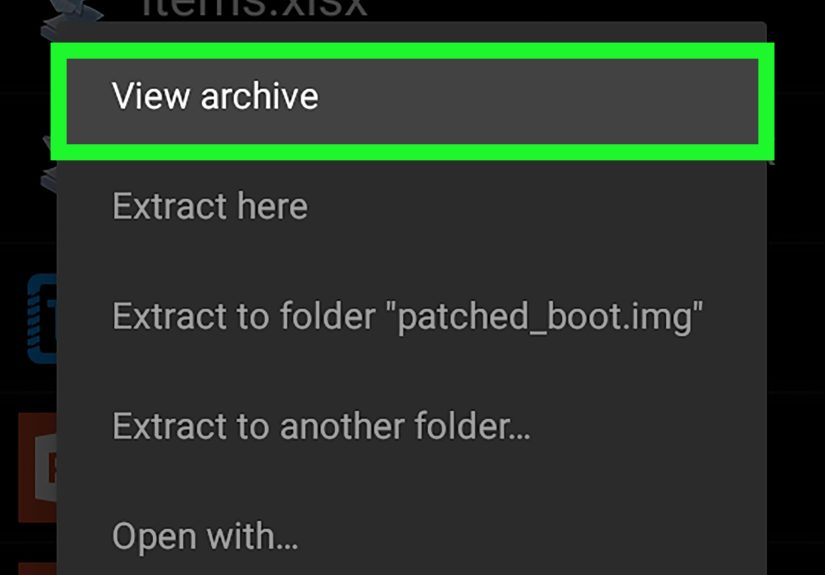
- Choose Extract, Extract here, or Extract to….
- Select a destination folder.
- Wait for the extraction to finish, then open the extracted folder.
For example, if you downloaded website-backup.tar.gz, you could open your archive app, go to Downloads, tap the file, and extract it to a new folder named website-backup. Inside, you might find folders like public_html, images, database, or logs.
Why This Method Works Well
An archive manager is simple, visual, and forgiving. You can usually see what is inside the tar file before extracting everything. That is helpful when you only need one folder or a few files. It also reduces the chance of making a mess in your storage.
This method is especially useful for students, bloggers, website owners, Android power users, and anyone who received a tar file from a developer or hosting provider. It is also great when you want to open a tar file on Android without learning terminal commands.
Best For
- Beginners who want a tap-based solution.
- People opening tar files occasionally.
- Users who want to preview files before extracting.
- Archives stored in Downloads, Google Drive, SD card, or internal storage.
Method 2: Open a Tar File on Android with Termux
If you are comfortable with commands, or you want a more Linux-like experience on Android, Termux is a powerful option. Termux is a terminal emulator and Linux environment for Android. It allows you to run command-line tools directly on your phone, including tools for working with tar files.
This method may sound scary if you have never used a terminal before, but the basic commands are not difficult. Think of it as texting your phone very specific instructions instead of poking around menus.
Basic Termux Setup
After installing Termux from a trusted source, open it and update packages:
Then allow Termux to access shared storage:
Your Android phone may show a permission prompt. Allow access if you want Termux to read files from folders like Downloads.
Extract a .tar File
If your file is named archive.tar and saved in Downloads, you can use:
Here is what the command means:
- tar runs the archive tool.
- -x means extract.
- -v means show progress in the terminal.
- -f tells tar which file to use.
- -C extracted sends the extracted files into the extracted folder.
Extract a .tar.gz or .tgz File
For a compressed tar file, use:
For a .tgz file, the command is similar:
The z option tells tar to handle Gzip compression.
Extract a .tar.bz2 File
For Bzip2-compressed tar files, use:
The j option is used for Bzip2 compression.
Extract a .tar.xz File
For XZ-compressed tar files, use:
The uppercase J option handles XZ compression.
Why Use Termux?
Termux is ideal when you work with developer files, scripts, Linux packages, server backups, or large archives. It is also useful when archive apps fail or when you want more control over the extraction process.
You can list files before extracting:
You can also extract only one folder or file if you know its path inside the archive. That is helpful when the archive is huge and you do not want to unpack everything.
Best For
- Developers and advanced Android users.
- People working with Linux files or server backups.
- Large archives where command-line control helps.
- Users who want to extract tar files without relying on ad-supported apps.
Method 3: Use an Online Archive Extractor
The third easy way to open a tar file on Android is to use an online archive extractor. This works in your browser, so you do not have to install an app. Online tools can often extract TAR, TAR.GZ, TGZ, ZIP, RAR, 7Z, and many other archive formats.
This method is convenient when you only need to open a small, non-sensitive archive quickly. However, it is not the best choice for private documents, business backups, client files, tax records, passwords, personal photos, or anything confidential. Uploading a file to an online service means the file leaves your device, even if the service promises deletion later.
How to Open a Tar File Online on Android
- Open Chrome or another browser on your Android phone.
- Go to a reputable online archive extractor.
- Tap Choose File or Select File.
- Select your tar file from Downloads, Google Drive, or another location.
- Upload the file.
- Wait for the archive to be extracted.
- Download the extracted files individually or as a ZIP file if the tool offers that option.
Some online tools also let you convert a TAR archive into ZIP. That can be useful because Android file apps and many mobile apps handle ZIP files more easily than TAR files.
When Online Extraction Makes Sense
Online extraction is handy when you are using a borrowed phone, do not want to install another app, or only need one file from a small archive. For example, if someone sends you a sample-files.tar archive with a few text documents, an online extractor may be fast enough.
But if the file is large, private, or important, use an offline archive app or Termux instead. Your future self will thank you, probably while drinking coffee and feeling responsible.
Best For
- Small tar files.
- Non-sensitive files.
- Quick one-time extraction.
- Users who do not want to install another Android app.
Which Method Should You Choose?
If you simply want the easiest answer, use an archive manager app. It is the most practical option for most Android users. If you like commands or work with Linux files, use Termux. If you need a quick solution for a small public file, use an online extractor.
| Method | Difficulty | Works Offline? | Best Use |
|---|---|---|---|
| Archive Manager App | Easy | Yes | Everyday tar extraction |
| Termux | Moderate | Yes, after setup | Developer files and large archives |
| Online Extractor | Easy | No | Small, non-private files |
Troubleshooting: Why Your Tar File Will Not Open
Sometimes a tar file refuses to cooperate. Before blaming your phone, your app, or the moon phase, check these common problems.
The File Is Incomplete
If the download was interrupted, the archive may be corrupted. Try downloading the file again, preferably over a stable Wi-Fi connection. A broken tar file may open partially or fail with an error.
The File Extension Is Misleading
Not every file ending in .tar is actually a valid tar archive. Sometimes files are renamed incorrectly. If an app says the format is unsupported, the file may be damaged or mislabeled.
The Archive Is Password-Protected
Some archives require a password. If you do not have the password, the extractor cannot unlock the contents. Avoid tools that claim they can magically recover passwords instantly. That magic usually comes with malware wearing a fake mustache.
You Do Not Have Enough Storage
Large archives need room to extract. If your phone is nearly full, delete unnecessary files, move videos to cloud storage, or extract the archive to an SD card if your device supports one.
Android Permissions Are Blocking Access
Modern Android versions use stricter storage permissions to protect user data. If your archive app cannot see Downloads, SD card folders, or cloud folders, check the app permissions in Android settings. You may need to grant file access or move the tar file into a folder the app can read.
Safety Tips for Opening Tar Files on Android
Tar files are useful, but archives can hide messy surprises. Use these safety habits:
- Download archive apps only from trusted stores or official sources.
- Scan suspicious files with a reputable security app before opening.
- Preview archive contents before extracting everything.
- Do not run scripts or APK files from unknown archives.
- Extract files into a separate folder, not directly into important directories.
- Avoid uploading private archives to online extractors.
- Delete extracted files you do not need after reviewing them.
Practical Examples
Example 1: Opening a Website Backup
Suppose your hosting provider gives you backup.tar.gz. On Android, install an archive manager, open Downloads, tap the file, and extract it to a folder named site-backup. You can then inspect the folders, upload files elsewhere, or send the archive to a developer.
Example 2: Extracting Source Code
If you downloaded an open-source project as project.tar.gz, Termux may be the better choice. You can extract it, inspect the folder structure, and even use command-line tools to edit or move files.
Example 3: Viewing a Small Archive from Email
If a coworker sends a small documents.tar file with non-sensitive sample documents, an online extractor may be quick. Upload the file, download the extracted contents, and save them to your phone.
Experience Notes: What Opening Tar Files on Android Is Really Like
The first time many Android users encounter a tar file, the experience is oddly dramatic. You tap the file expecting it to open like a photo, PDF, or ZIP. Instead, Android stares back like you asked it to assemble furniture without instructions. That is because Android’s built-in file tools are often designed for common consumer formats, while TAR lives in the more technical neighborhood of Linux backups, source code, and server exports.
In real use, the archive app method is usually the smoothest. It feels familiar because you browse folders, tap the archive, and choose an extraction location. The biggest lesson is to avoid extracting directly into Downloads. Tar files often contain nested folders, configuration files, images, scripts, and sometimes hundreds of tiny documents. If you extract everything into a crowded folder, finding the actual file you need can become a tiny scavenger hunt. Creating a clean destination folder first saves time and keeps your phone from looking like a junk drawer with a screen.
Another practical lesson: file size can be sneaky. A compressed .tar.gz file may look harmless at first. Then you extract it and discover it expands like bread dough in a warm kitchen. Before extracting large backups, check your storage. If your phone has only 1 GB free and the archive contains a full website backup, the process may fail halfway through. Worse, you may end up with a half-extracted folder that takes extra cleanup.
Termux feels more intimidating at first, but it becomes surprisingly comfortable once you learn the basic commands. The command tar -xzvf file.tar.gz looks like alphabet soup, but each letter has a job. After you use it a few times, it becomes faster than tapping through several menus. Termux is especially helpful for developers, bloggers managing web backups, and anyone who wants to inspect archive contents before extracting them. Listing files with tar -tvf can prevent unpleasant surprises.
Online extractors are convenient, but they should be treated like airport Wi-Fi: useful, but not the place for your secrets. They are fine for public files, test archives, or small documents that do not contain personal data. For business files, client work, passwords, private photos, or website backups, offline extraction is safer. Uploading sensitive archives just to avoid installing an app is usually not worth the risk.
One more experience-based tip: pay attention to the exact extension. A .tar file, a .tar.gz file, and a .tar.xz file may look similar, but they are handled differently by command-line tools. Archive apps usually detect the format automatically, but terminal commands need the correct option. If one command fails, check the file name carefully before assuming the archive is broken.
Overall, opening tar files on Android is much easier than it first appears. For most people, a trusted archive manager is the best everyday solution. For advanced users, Termux offers power and precision. For quick, non-private files, online tools can help in a pinch. Once you know these three methods, tar files stop looking mysterious and start looking like what they really are: folders wearing a trench coat.
Conclusion
Opening a tar file on Android is not as complicated as it looks. The fastest route for most users is to install a reliable archive manager and extract the file with a few taps. If you prefer command-line control, Termux gives you a flexible Linux-style way to open .tar, .tar.gz, .tgz, .tar.bz2, and .tar.xz files directly on your phone. If you only need to open a small, non-sensitive file, an online archive extractor can also get the job done.
The best method depends on your comfort level, file size, privacy needs, and how often you work with archives. Keep your files organized, extract into a dedicated folder, and avoid opening suspicious downloads. Once you understand the basics, a tar file is no longer a problem. It is just a packed folder waiting politely to be unpacked.
Note: This article is written for general Android users and reflects common, practical ways to open tar files using trusted archive apps, terminal commands, and browser-based extraction tools. Always use caution with unknown archives and private data.