Table of Contents >> Show >> Hide
- First, a quick reality check: backup vs. sync (they’re not twins)
- The built-in safety net you should actually use
- How syncing Google Docs normally works (and when it doesn’t)
- Make Google Docs available offline (sync now, edit later)
- Backup Method #1: Export individual Google Docs (fastest “real copy”)
- Backup Method #2: Use Drive for desktop as a “local safety layer”
- Backup Method #3: Google Takeout (best for “back up my whole Drive”)
- Backup Method #4 (Teams/Business): Vault, retention rules, and Shared Drives
- A simple 3-2-1 backup plan for Google Docs (without losing your weekend)
- Troubleshooting: the top sync/backup headaches (and what to do)
- Conclusion: the easiest way to never lose a Google Doc again
- Real Experiences: What I’ve Learned the Hard Way (So You Don’t Have To)
Google Docs feels like magic: you type, it saves, it syncs, and somehow your work appears on every device you own (including the one you forgot you owned). So why bother with backups?
Because “it’s in the cloud” is not the same as “it’s impossible to lose.” Accounts get locked, files get deleted, permissions get changed, laptops get stolen, and sometimes you accidentally highlight the entire document and press Backspace like you’re trying to speedrun regret. This guide shows you how to back up and sync Google Docs the smart waywithout turning your life into a spreadsheet of paranoia.
First, a quick reality check: backup vs. sync (they’re not twins)
People use “backup” and “sync” like they mean the same thing, but they don’t:
- Sync keeps your files consistent across devices. Edit on your laptop, see it on your phone.
- Backup keeps a recoverable copy if something goes wrongdeleted files, corrupted exports, lost access, or “oops I overwrote it.”
A good system does both: syncing for convenience, backups for insurance. (And yes, insurance is boringuntil it’s suddenly your favorite hobby.)
Why Google Docs is “different” from a normal file
A Google Doc isn’t a traditional file living on your hard drive by default. It’s a cloud-native document stored in Google Drive and edited through Google Docs. That’s great for collaboration and version historybut it also means “copying” it like a Word file requires exporting or using the right tools.
The built-in safety net you should actually use
1) Version history: your built-in time machine
Before you do anything fancy, learn this: Google Docs has Version history. If your document gets mangled (by you, a collaborator, or a rogue cat walking across your keyboard), you can typically open version history, preview past versions, and restore what you need.
Practical tip: if you’re about to make major edits, rename a version first (for example: “Before edits – Feb 2026”). It’s like putting a sticky note on the past so Future You can find it quickly.
2) Trash (and “I didn’t delete it” problems)
If a file is deleted, it often goes to Drive’s Trash first. That’s not a full backup, but it can save you from panic. The gotcha: retention and deletion behavior can vary for work/school accounts, and admins may control how long Trash is kept.
3) Ownership and sharing: the silent backup killer
Many “lost file” stories are really “lost access” stories. If a Doc is owned by someone else (or a departing employee), you might wake up one day with a broken link and a haunted look in your eyes.
- If it’s yours: confirm you’re the owner and the file is in your Drive or Shared Drive.
- If it’s shared with you: consider making a copy for your own records (especially for critical docs).
- If you’re in a Workspace domain: ownership transfers can have restrictions, and Shared Drives are often the cleanest way to keep team files stable.
How syncing Google Docs normally works (and when it doesn’t)
Most of the time, syncing is simple: your Doc lives in Drive, and your devices access it through Google Docs. But if you want stronger “device-level” syncing (like a local copy on your computer), you have a few options.
Option A: Use Google Drive for desktop (best for day-to-day syncing)
Google Drive for desktop lets you access Drive files from your computer in a way that feels like a normal folder/drive. It also supports multiple accounts (useful if you juggle personal + work).
Stream files vs. Mirror files (the choice that secretly matters)
- Stream files: saves space on your computer by keeping most content in the cloud and downloading on demand. Great if you’re low on disk space.
- Mirror files: stores Drive files on your computer too (more offline-friendly, uses more disk space). Great if you travel, work offline, or just enjoy sleeping at night.
If your main goal is sync across devices, either mode can work. If your goal is local backup-like behavior, mirroring is typically the stronger choiceprovided you have storage for it.
Option B: Browser + mobile apps (best for simple syncing)
If you’re comfortable living cloud-first, you can rely on Docs in your browser (or the Docs app on mobile). It’s fast, simple, and usually reliable. The downside: if you lose account access, you lose the “master copy.” That’s where backups come in.
Make Google Docs available offline (sync now, edit later)
Offline access is the bridge between “cloud document” and “I’m on a plane with Wi-Fi that costs $29 and my soul.” The key concept: you prepare offline access before you go offline.
Desktop/laptop offline (Chrome or Edge)
- Use Google Chrome or Microsoft Edge (private/incognito browsing can block offline features).
- Install the “Google Docs Offline” extension.
- In Google Drive settings, turn on offline access (sync Docs/Sheets/Slides for offline editing).
- Open the Docs you’ll need while you’re online so they cache properly.
Once offline, you can open and edit supported files, and changes sync back when you reconnect. (Bonus: it’s extremely satisfying watching everything “catch up” after a long flight.)
Mobile offline (Docs/Drive apps)
On Android and iOS, you can mark specific files as “Available offline.” This is perfect for a short list of must-have docs (it’s not meant to offline-sync your entire digital life).
Avoid sync conflicts (aka “why does my doc look possessed?”)
- Don’t edit the same Doc offline on multiple devices at the same time.
- Reconnect and let one device fully sync before editing heavily on another.
- If something looks wrong, check version history before you panic-text your group chat.
Backup Method #1: Export individual Google Docs (fastest “real copy”)
If you want a backup you can store anywhereexternal drive, another cloud provider, a client’s portal, or a folder labeled “DO NOT DELETE EVER”exporting is king. Google Docs can download to formats like Word (.docx) and PDF.
How to export a Doc like a pro
- Open the Doc.
- Go to File → Download.
- Choose a format (Word for editing elsewhere, PDF for sharing/printing).
- Save it to a dedicated backup location.
When exports shine
- Legal/client deliverables: PDFs are stable and widely accepted.
- Work handoffs: Word files integrate well with Microsoft ecosystems.
- Long-term archiving: a dated PDF export is a “snapshot” you can trust.
Export hygiene (small habits, big payoff)
- Use consistent file naming: ProjectName_DocTitle_2026-02-28.pdf
- Keep exports in a folder structure by client/project.
- For critical docs, export at milestones (draft, review, final).
Backup Method #2: Use Drive for desktop as a “local safety layer”
Drive for desktop can feel like a backup because it keeps data accessible on your machineespecially in Mirror mode. But here’s the nuance: cloud-native Docs aren’t always the same as traditional files.
In plain English: Drive for desktop is excellent for syncing and offline convenience, and it can support local availability, but exports are still your best “true backup” for Docs as standalone files. If you need a copy you can open and edit outside of Google, export to Word or PDF as well.
Recommended approach (best of both worlds)
- Use Drive for desktop (Stream or Mirror) for daily syncing across devices.
- Export key Docs to Word/PDF on a schedule (weekly/monthly or per milestone).
- Store exports on an external drive or a second cloud provider for redundancy.
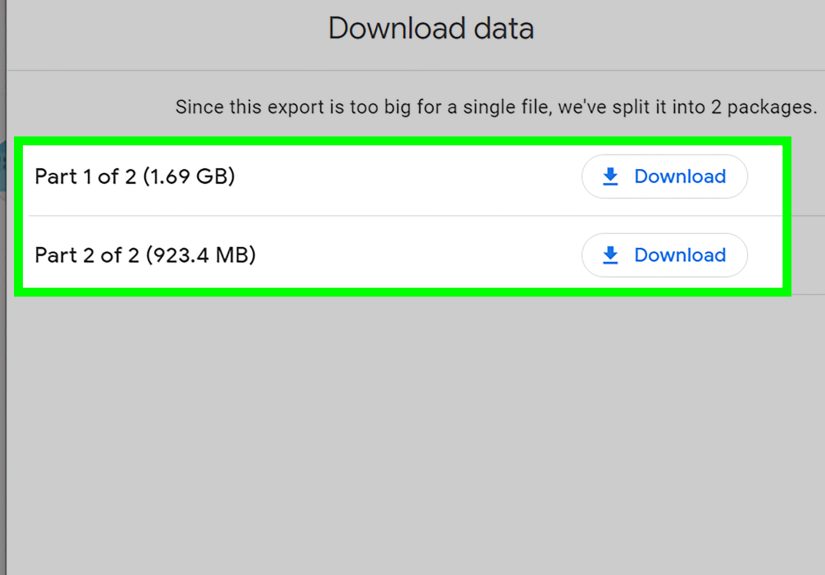
Backup Method #3: Google Takeout (best for “back up my whole Drive”)
Google Takeout lets you export a copy of data from your Google account, including Drive. It’s the closest thing to “give me everything in one shot.”
When Takeout is the right move
- You’re doing a quarterly or annual archive of your Drive.
- You’re switching accounts or leaving a school/job environment.
- You want a big “disaster recovery” snapshot stored somewhere safe.
Takeout tips so it doesn’t become a one-time chaos event
- Start with Drive only: unless you truly want everything (and the emotional journey that comes with it).
- Choose a destination you trust: local download plus a copy to external storage is ideal.
- Expect conversion: Google file formats may export into Microsoft-compatible formats in many cases, but formatting can vary.
- Plan for size: large Drives can create huge archives and take time to generate and download.
Backup Method #4 (Teams/Business): Vault, retention rules, and Shared Drives
If you’re using Google Workspace for business or education, backups and retention are often governed by policynot vibes. This is where tools like Google Vault and retention rules come in.
- Retention rules help organizations keep (or purge) data based on compliance needs.
- Vault search/export supports eDiscovery workflows and exporting data from specific matters.
- Shared Drives reduce “single owner” riskfiles belong to the team, not one person’s account.
Translation: if your docs matter to the business, don’t rely on one employee’s personal My Drive as the “system.” That’s not a systemthat’s a suspense novel.
A simple 3-2-1 backup plan for Google Docs (without losing your weekend)
The classic rule of thumb is 3-2-1: 3 copies of important data, on 2 different types of storage, with 1 copy offsite. Here’s what that can look like for Google Docs:
Example: Freelancer / consultant
- Copy 1: Original Doc in Google Drive (sync across devices).
- Copy 2: Weekly exports (Word/PDF) saved to your computer (Drive for desktop + a local “Exports” folder).
- Copy 3: Monthly archive moved to an external drive (or a second cloud provider).
Example: Student
- Copy 1: Docs in Drive.
- Copy 2: “Final” versions exported as PDFs into a “Semester Archive” folder on your laptop.
- Copy 3: End-of-semester Takeout archive saved to an external drive.
Example: Small team (Workspace)
- Use Shared Drives for team-owned docs.
- Set retention rules where needed (admin-controlled).
- Export key deliverables as PDFs for stable snapshots and client handoffs.
Troubleshooting: the top sync/backup headaches (and what to do)
Problem: “Offline mode won’t work”
- Confirm you’re using Chrome or Edge (not private browsing).
- Make sure the Google Docs Offline extension is installed and enabled.
- Toggle Drive offline settings off/on and give it time to resync.
- Open the specific Docs you need while online to ensure they’re cached.
Problem: “My files aren’t showing up on my computer”
If you’re in Stream mode, you may be seeing placeholders that download only when opened. For offline-heavy work, consider Mirror mode for the folders you truly need available locally.
Problem: “I can’t transfer ownership”
In many work/school setups, ownership transfers are limited to people inside the same organization. If you can’t transfer ownership, the reliable workaround is to make a copy (for individual files) or use a Shared Drive for bulk/team transfers.
Conclusion: the easiest way to never lose a Google Doc again
If you do only three things after reading this:
- Use version history (and name milestone versions).
- Turn on offline access before you need it.
- Export critical Docs to PDF/Word on a schedule (and store them somewhere separate).
That combo gives you syncing convenience and real backup protection. Your future self will thank you probably quietly, while sipping coffee, because the crisis never happened. That’s the point.
Real Experiences: What I’ve Learned the Hard Way (So You Don’t Have To)
Backing up and syncing Google Docs sounds like one of those “responsible adult” tasks you’ll do right after organizing your cables and learning what your router actually does. But the best systems are built from tiny, slightly embarrassing experienceslike the day you realize you’ve been trusting a single login screen with your entire work life.
One of the most common real-world moments that changes people is a permission surprise. You open a Doc link you’ve used for months and suddenly get a polite message that basically says, “No.” The file wasn’t deleted; you just lost accessmaybe the owner changed roles, maybe the account was disabled, maybe the file moved into a locked-down folder. That’s when “Make a copy” becomes less of a menu option and more of a coping mechanism. The lesson: if a Doc is important and you don’t own it, keep an export or a copy in a place you control.
Another classic: the offline fantasy. You assume Google Docs will “just work” without internet because you saw someone type on a beach in an ad once. Then you get on a train, the Wi-Fi winks out, and your document turns into a loading spinner with strong opinions. Offline access works wellif you set it up beforehand. The practical habit that saves the day is simple: before travel, open the docs you’ll need while you’re still online. It’s like packing snacks. You might not need them, but if you do, you’ll feel like a genius.
Sync conflicts are the sneaky villain. You edit the same Doc offline on a laptop and then also on your phone because you’re unstoppable (and because you forgot you were already editing). When everything reconnects, the doc usually sorts itself out, but sometimes you get duplicated chunks, missing paragraphs, or formatting that looks like it survived a tiny tornado. The fix is almost always version historyrolling back, copying the good parts, and moving forward. The prevention is better: pick one device as “the offline editor” until it syncs completely.
Exports are also underrated in real life because they’re boringuntil they’re not. I’ve seen teams lose hours recreating a “final” document because someone made last-minute edits and then couldn’t remember what changed. A simple PDF export labeled “FINAL_final_for_real_2026-02-28.pdf” may look silly, but it’s a reliable snapshot. And when you need to prove what was delivered, when, that PDF is your calm, unblinking witness.
Lastly, the “account event” is the one nobody plans for: a hacked password, a locked account, a company offboarding, or a school account that expires. In those moments, syncing stops helping, because the problem isn’t your laptopit’s access to the cloud source. That’s why the best backup strategy includes something outside Google entirely: exports on an external drive, a separate cloud provider, or a periodic Takeout archive. You don’t need to do it daily. You just need to do it consistently enough that you’re never more than one bad day away from your work.
The big takeaway from all of this is comforting: you don’t need a perfect system. You need a repeatable one. Turn on offline access, use Drive for desktop for smooth syncing, export key docs at milestones, and do a bigger archive occasionally. If that sounds manageable, goodbecause the best backup plan is the one you’ll actually do when you’re busy, tired, and one click away from disaster.