Table of Contents >> Show >> Hide
- Why Screenshot Alerts Matter on Snapchat
- 1. Check for the Screenshot Icon on the Chat Screen
- 2. Open the Conversation and Look for an In-Chat Screenshot Notice
- 3. Swipe Up on Your Story to See Screenshot Activity
- 4. Understand the Limits of Snapchat Alerts
- What Screenshot Symbols on Snapchat Usually Mean
- What to Do if Someone Screenshotted Your Snapchat
- How to Reduce the Chances of Getting Screenshotted
- Common Myths About Snapchat Screenshots
- Final Thoughts
- Experiences People Commonly Have With Snapchat Screenshots
- SEO Tags
Snapchat has always sold a very particular fantasy: send something silly, spicy, weird, adorable, or deeply unflattering, and poof, it disappears like your motivation on a Monday morning. But here’s the catch: disappearing does not mean uncapturable. People can screenshot, save, copy, or use another device to preserve what they see. That is why knowing how to tell if your Snapchat was screenshotted matters.
The good news is that Snapchat does give you clues. In several parts of the app, it shows icons or alerts when someone takes a screenshot of your Snap, Chat, or Story. The less-good news? Those clues are helpful, not magical. If somebody gets creative, there are still ways content can be captured without giving you a neat little digital confession.
In this guide, we’ll walk through four easy ways to check whether your Snapchat was screenshotted, explain what the screenshot symbols mean, and share a few smart privacy habits so you can snap with a little less panic and a lot more common sense.
Why Screenshot Alerts Matter on Snapchat
Snapchat is built around temporary content. Many one-on-one Snaps disappear after they are viewed, and Stories expire after 24 hours. That setup makes screenshot alerts especially important. Once a Snap is gone, your best clue that someone saved it may be the screenshot notice you saw before it vanished.
Think of the alert as Snapchat’s version of a smoke detector. It does not stop the fire, but it does tell you something happened. If a friend screenshots a silly selfie, that might be harmless. If someone screenshots a private message, sensitive photo, or a Story you meant for a limited audience, that is worth paying attention to.
So let’s get to the part you actually came for: how to tell if your Snapchat was screenshotted without turning into a full-time digital detective.
1. Check for the Screenshot Icon on the Chat Screen
The easiest way to tell if your Snapchat was screenshotted is to look at the icons on the Chat screen. Snapchat uses specific symbols to show whether a Snap was sent, delivered, opened, replayed, or screenshotted.
What to look for
If a Snap or Chat has been screenshotted, you will usually see a screenshot indicator next to that conversation. It appears differently from the standard sent or opened icons, so if you use Snapchat regularly, it tends to stand out pretty quickly.
In plain English: if you open your Chat list and something looks a little more “uh-oh” than usual, tap into it. Snapchat often gives you the answer right there in the icon history.
Where this works best
- One-on-one Snaps
- Chat messages
- Some recent interactions where status indicators are still visible
This method is fast because you do not have to dig through settings or menus. You just go to the Chat screen and check the visual status next to the conversation. If you are wondering how to know if someone screenshotted your Snapchat, this is usually your first stop.
Example
Let’s say you sent your friend a photo Snap of your new haircut. Later, you open the Chat screen and notice the normal viewed status has changed to a screenshot-style indicator. Congratulations. Your haircut is now a permanent resident in someone else’s camera roll.
2. Open the Conversation and Look for an In-Chat Screenshot Notice
The second easy way is even more direct: open the conversation itself. Snapchat often adds a visible system message inside the chat thread when someone screenshots part of the conversation.
What the alert can look like
In many cases, Snapchat places a notice in the chat along the lines of a screenshot message. It is basically the app saying, “Just so you know, somebody hit the save button the old-fashioned way.” If the conversation is still available, this alert can be one of the clearest signs that a screenshot happened.
This is especially useful if you missed the icon on the Chat screen or if you are checking after a burst of messages pushed the conversation lower in your inbox.
Why this method helps
Sometimes a status icon is easy to overlook. Chat notices are harder to miss because they appear right in the thread. They also give context. Instead of simply knowing that something was screenshotted, you can often tell it happened within that specific exchange.
Example
Imagine you and a friend are trading outfit opinions before a date. You send three photos and a few messages. Later, you open the chat and see a screenshot notice in the thread. That is your clue that one of those moments got promoted from “temporary snap” to “archived evidence.”
If you are trying to figure out how to tell if someone screenshotted your Snapchat chat, this is one of the most reliable methods inside the app.
3. Swipe Up on Your Story to See Screenshot Activity
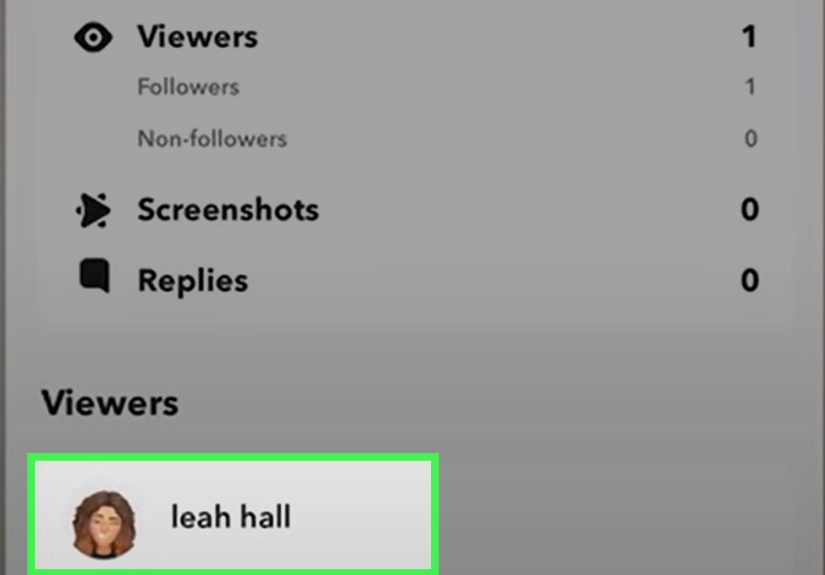
Stories are a little different from private Snaps and Chats, but Snapchat still gives you a way to check screenshot activity. If you posted something to My Story, open it and swipe up to view the analytics for that Story.
What you can see
When you swipe up on your Story, Snapchat shows who viewed it. It can also show whether a screenshot was taken. That makes Stories one of the easiest places to confirm screenshot activity without guessing.
This is especially helpful because Stories are more public than direct Snaps. Even if your audience is limited to friends, a Story usually reaches more people than a one-on-one message, so screenshot risk goes up fast.
A small but important limit
If your Story gets a lot of views, Snapchat does not keep showing every single viewer name forever. After a certain point, you may see totals instead of a long complete list of names. So if a Story matters to you, check sooner rather than later.
Example
Maybe you posted a Story from a concert, your dog doing something chaotic, or a screenshot of your “totally calm” group chat that was absolutely not calm at all. If you suspect someone saved it, open the Story, swipe up, and check. That is the quickest way to know if your Snapchat Story was screenshotted.
4. Understand the Limits of Snapchat Alerts
This fourth “way” is less about spotting a symbol and more about avoiding a false sense of security. If you do not see a screenshot icon, that does not always mean nobody saved your content.
What Snapchat can detect well
- Many in-app screenshots of Snaps
- Screenshots of chat messages
- Story screenshot activity visible through Story insights
What Snapchat cannot fully control
- Someone using another phone to photograph the screen
- Some screen recording or capture workarounds
- Off-device copying or saving methods outside the normal app flow
This matters because many people treat Snapchat alerts like a lock on the door, when they are really more like a motion sensor in the hallway. Useful? Absolutely. Perfect? Not even a little.
So if you are asking, “How can I tell if my Snapchat was screenshotted?” the honest answer is this: you can often tell inside the app, but you cannot assume the app catches every possible method of capture. That is why your best privacy habit is still simple: never send anything you would be devastated to see saved, shared, or reposted.
What Screenshot Symbols on Snapchat Usually Mean
Snapchat uses visual shorthand, and sometimes it feels like you need a tiny hieroglyphics professor living in your phone to decode it all. Here is the simple version.
Common screenshot-related meanings
- Snap screenshotted: Someone captured a photo or video Snap you sent.
- Chat screenshotted: Someone captured a chat message in the conversation.
- Story screenshot activity: A viewer took a screenshot of your Story, which you can check by opening the Story and swiping up.
The exact look of the symbol can vary slightly depending on platform, app version, and whether the content was a Snap with or without audio, but the overall meaning stays the same: somebody tried to make the temporary thing less temporary.
What to Do if Someone Screenshotted Your Snapchat
Finding out someone screenshotted your Snapchat is not always a five-alarm emergency. Sometimes your friend just wanted to save a funny face you made while trying a new filter. Sometimes they saved directions, a recipe, or a party invite. And sometimes, yes, it feels weird and invasive.
Here are a few smart next steps:
Ask directly
If it is someone you know well, the fastest solution is often the least dramatic one. A simple “Hey, did you screenshot that?” clears up a lot. No need to storm into the chat like a detective in a crime show.
Adjust your privacy settings
Limit who can contact you, who can view your Story, and who can find you easily. The smaller and more trusted your audience, the lower the screenshot stress.
Use My Eyes Only for sensitive saved content
If you save private Snaps in Memories, move highly personal content into more protected areas instead of leaving everything easy to browse.
Remove or block repeat offenders
If someone repeatedly saves or screenshots things you do not want saved, you do not owe them unlimited access to your content.
How to Reduce the Chances of Getting Screenshotted
You cannot control every screenshot, but you can absolutely reduce your odds of getting one at the worst possible moment.
- Share less sensitive content: Funny dog videos are generally safer than deeply personal confessions.
- Use custom Story audiences: Not every moment needs the whole friend list.
- Think before sending: If it would ruin your week to see it saved, do not send it casually.
- Avoid posting when emotional: Late-night oversharing has a strong track record of becoming next-day regret.
- Check viewer lists quickly: If you care about Story screenshot activity, review it before time passes and details get harder to track.
Common Myths About Snapchat Screenshots
“If Snapchat doesn’t alert me, nobody saved it.”
Not necessarily. Alerts are useful, but they are not foolproof.
“Only Stories get screenshotted.”
Nope. Chats, direct Snaps, and Stories can all be captured in different ways.
“Screenshot icons always look exactly the same.”
Not always. Visual details can shift by app version or device, which is why it helps to focus on the meaning rather than obsessing over a single symbol shape.
“Snapchat equals privacy.”
Snapchat offers privacy features. It does not offer a privacy force field. Big difference.
Final Thoughts
If you want the short answer, here it is: the best ways to tell if your Snapchat was screenshotted are to check the screenshot icon on the Chat screen, open the conversation for an in-thread screenshot notice, swipe up on your Story to view screenshot activity, and remember that no alert system catches absolutely everything.
That might not be the fairy-tale answer your disappearing messages were hoping for, but it is the real one. Snapchat can warn you in many cases, and that is genuinely useful. Still, the smartest approach is to treat every Snap like it could be saved. Send accordingly.
In other words: trust the alerts, appreciate the symbols, but never hand your entire dignity to an app icon.
Experiences People Commonly Have With Snapchat Screenshots
One reason this topic keeps coming up is that screenshot situations on Snapchat are weirdly personal. The app sits in that space between casual messaging and intimate sharing, so when someone screenshots something, the reaction depends entirely on context.
For some people, it is funny. They send a ridiculous selfie with a bug-eyed filter, their friend screenshots it, and now that image lives forever in the group chat as a reaction meme. Annoying? Maybe. End of the world? Not exactly.
For others, the experience feels much bigger. Maybe they sent a vulnerable message during a rough day. Maybe they shared a private photo with someone they trusted. Maybe they posted a Story thinking only a few close friends would care, and then they notice screenshot activity and suddenly start wondering who saved what, why they saved it, and whether it is about to become tomorrow’s gossip.
A very common experience is confusion. People often notice an icon changed in chat but are not sure what it means. They remember sending a Snap, see a different symbol later, and think, “Wait, did they open it, replay it, or screenshot it?” That confusion is normal because Snapchat moves fast and uses symbols instead of plain language for many status updates.
Another common experience is delayed discovery. Someone posts a Story, gets busy, and checks it hours later. By then, they are trying to reconstruct what happened from viewer counts, screenshot clues, and vague memory. That is why checking sooner is helpful if a Story is important to you.
Some users also go through the classic emotional roller coaster: suspicion, mild panic, investigation, and then relief when they realize the screenshot was totally harmless. Maybe a friend saved a recipe, concert date, address, or photo they genuinely liked. The screenshot was not “evidence” of betrayal. It was just convenience wearing a dramatic costume.
And yes, there are also people who learn the hard way that screenshot alerts are not the whole story. They do not see any indicator, assume the content disappeared safely, and later realize someone used another device or some off-app method to save it. That experience is frustrating, but it is also the clearest reminder that digital privacy always has limits.
Probably the most useful real-world takeaway is this: your reaction should match the situation. A screenshot of a party invite is not the same as a screenshot of a private photo. A trusted best friend saving a joke is not the same as someone preserving something you expected to stay temporary. Context matters. Intent matters. Your comfort level matters.
So if you have ever stared at Snapchat like it personally betrayed you, welcome to the club. Most regular users have been there. The best response is not paranoia. It is awareness. Learn the signs, use the app settings wisely, and share with the assumption that anything meaningful could outlive the timer.