Table of Contents >> Show >> Hide
- Can You Really Set a GIF as a Wallpaper?
- Best GIF Wallpaper File Types to Use
- How to Make a GIF Your Wallpaper on iPhone
- How to Make a GIF Your Wallpaper on Android
- How to Make a GIF Your Wallpaper on Windows
- How to Make a GIF Your Wallpaper on Mac
- GIF Wallpaper Troubleshooting
- Best Ideas for GIF Wallpapers
- Privacy and Copyright Tips Before Using GIF Wallpapers
- Real-World Experience: What It Is Actually Like to Use a GIF as Wallpaper
- Conclusion
Setting a GIF as your wallpaper sounds like it should be as easy as tapping “Use as wallpaper” and immediately feeling like a tech wizard. Unfortunately, phones and computers enjoy making simple dreams walk through a small maze first. The good news? You can absolutely make a GIF your wallpaper on mobile and computeryou just need the right method for your device.
This guide explains how to use a GIF as a wallpaper on iPhone, Android, Windows, and Mac. We will cover what works natively, where you need a conversion tool, which file formats behave better than others, and how to avoid turning your battery into a tiny space heater. Whether you want a cozy looping fireplace, a pixel-art city, a dancing cat, or a subtle animated background that says “I have taste and maybe too many tabs open,” you are in the right place.
Can You Really Set a GIF as a Wallpaper?
Yes, but with one important catch: most operating systems do not treat GIF files as normal wallpaper files. A GIF is an animated image format, while many wallpaper systems are designed for still images like JPG or PNG. That means your device may show only the first frame of the GIF unless you convert it or use a live wallpaper app.
In practice, “make a GIF your wallpaper” usually means one of three things:
- Convert the GIF into a Live Photo for iPhone.
- Use a live wallpaper app on Android.
- Use animated wallpaper software on Windows or Mac.
The best option depends on your device, your patience level, and whether your chosen GIF is a gentle loop or a flashing visual tornado. For wallpaper, subtle is usually better. Your home screen is not a nightclub, even if your app icons are dressed like they are waiting outside one.
Best GIF Wallpaper File Types to Use
Before you start, choose the right GIF. A wallpaper GIF should be clean, loop smoothly, and have enough empty space so app icons remain readable. Busy animations look exciting for about twelve seconds, then become digital soup.
Recommended GIF Wallpaper Specs
- Vertical phones: Use a 9:16 ratio, such as 1080 x 1920 pixels.
- Desktop monitors: Use 16:9, such as 1920 x 1080 pixels, or match your screen resolution.
- Length: Keep it short, usually 3 to 10 seconds.
- Motion: Choose smooth, low-contrast movement for comfort.
- File size: Smaller files are easier on storage, memory, and battery.
If your GIF looks blurry, crop it before converting. If it looks too chaotic, choose another one. Wallpaper is background decoration, not a full-time attention thief wearing glitter boots.
How to Make a GIF Your Wallpaper on iPhone
iPhones do not directly support GIF files as animated wallpapers. If you save a GIF to Photos and try to set it as wallpaper, iOS may treat it as a still image. The usual workaround is to convert the GIF into a Live Photo, then set that Live Photo as your Lock Screen wallpaper.
Step 1: Convert the GIF to a Live Photo
Use a trusted GIF-to-Live-Photo app from the App Store. Apps such as intoLive and similar live wallpaper makers can convert GIFs, short videos, or clips into Live Photos. After importing the GIF, crop it to fit your screen, adjust the loop if needed, and export it as a Live Photo.
Step 2: Set the Live Photo as Your Lock Screen
- Open the Photos app.
- Select the Live Photo you created.
- Tap the share button.
- Choose Use as Wallpaper, or go to your Lock Screen customization screen and select the Live Photo.
- Make sure motion is enabled if the option appears.
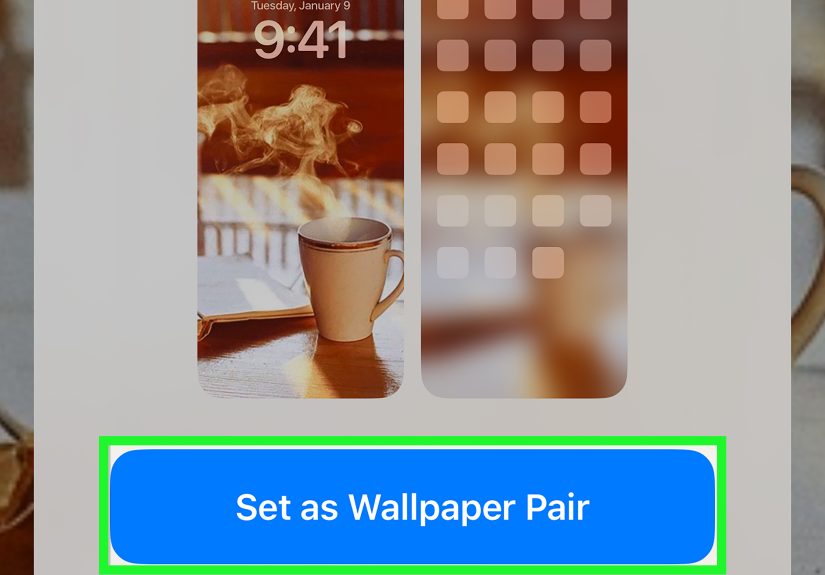
- Tap Add or Set as Wallpaper Pair.
On iOS 17 or later, Live Photos can animate on the Lock Screen when the device wakes. However, the animation behavior may vary depending on the photo, iOS version, device model, and how the Live Photo was created.
Important iPhone Limitations
There are a few reality checks. First, animated GIF wallpaper on iPhone is mainly a Lock Screen experience, not a fully animated Home Screen background. Second, some converted GIFs may not animate perfectly. Third, iOS updates can change how live wallpapers behave. If your GIF refuses to move, do not take it personally. It is not judging you; it is probably just a format issue.
How to Make a GIF Your Wallpaper on Android
Android gives you more flexibility than iPhone, but the exact steps depend on your phone brand. Google Pixel, Samsung Galaxy, Motorola, OnePlus, and other Android phones may place wallpaper controls in slightly different menus. Still, the basic idea is the same: use a live wallpaper option or install a GIF wallpaper app.
Option 1: Use a GIF Live Wallpaper App
The easiest method is to install a reputable live wallpaper app that supports GIF files. After opening the app, choose your GIF, preview the animation, crop or scale it, and apply it to your Home Screen, Lock Screen, or both if your phone allows it.
- Download a trusted GIF live wallpaper app from Google Play.
- Open the app and grant only the permissions it reasonably needs.
- Select your GIF from your gallery or file manager.
- Adjust the size, position, speed, or background color.
- Tap Set Wallpaper.
- Choose Home Screen, Lock Screen, or both, depending on your device.
Some apps also let you use MP4 videos, which often look smoother and use compression more efficiently than GIF files. If your GIF is large or laggy, converting it to a short video can improve performance.
Option 2: Use Built-In Live Wallpapers
Some Android phones include built-in live wallpapers. These are usually optimized better than random GIF files and may use less battery. To find them, long-press on the Home Screen, tap Wallpaper & style or Wallpapers, then look for a live wallpaper category.
This method may not let you use your own GIF, but it is the smoothest option when you simply want movement without extra setup.
Samsung Galaxy Tip
Many Samsung Galaxy phones allow video wallpapers for the Lock Screen through the Gallery app. If your GIF does not work directly, convert it to a short MP4 video, open it in Gallery, tap the menu, and look for a wallpaper option. Samsung features vary by model and software version, so the exact wording may differ.
How to Make a GIF Your Wallpaper on Windows
Windows does not normally let you set a GIF as an animated desktop wallpaper through the standard Personalization settings. If you choose a GIF as a desktop background, it will usually appear as a still image. To make it move, you need animated wallpaper software.
Method 1: Use Lively Wallpaper
Lively Wallpaper is a popular free and open-source animated wallpaper app for Windows. It supports animated wallpapers such as GIFs, videos, webpages, and interactive backgrounds.
- Install Lively Wallpaper from the Microsoft Store or its official site.
- Open Lively Wallpaper.
- Click the option to add a new wallpaper.
- Select your GIF file, video file, or webpage source.
- Preview it and apply it to your desktop.
- Adjust performance settings if your computer slows down.
Lively Wallpaper is a great choice if you want a free way to make a GIF your wallpaper on Windows 10 or Windows 11. It also includes useful performance controls, such as pausing animation when full-screen apps or games are running.
Method 2: Use Wallpaper Engine
Wallpaper Engine is another well-known animated wallpaper app available through Steam. It supports many wallpaper types, including videos, animated scenes, webpages, and user-created designs from the Steam Workshop.
The main advantage of Wallpaper Engine is its huge wallpaper library. The main disadvantage is that you may lose twenty minutes browsing neon rain, cyberpunk alleys, anime skies, floating planets, and a suspicious number of animated cats. This is not a technical flaw. This is the wallpaper rabbit hole doing its job.
Windows Performance Tips
- Use short loops instead of long, high-resolution animations.
- Pause animated wallpaper while gaming or screen recording.
- Avoid 4K animation on older laptops.
- Use MP4 instead of GIF when possible for smoother playback.
- Keep your wallpaper folder organized so you do not accidentally apply “final_final_REAL_final.gif.”
How to Make a GIF Your Wallpaper on Mac
macOS does not provide a simple built-in button for setting a GIF as an animated desktop wallpaper. The official wallpaper settings focus on Apple-provided wallpapers, colors, photo albums, and still images. If you want a moving GIF-style background, you will usually need a third-party app or a video-based workaround.
Option 1: Use a Third-Party Animated Wallpaper App
Search the Mac App Store or trusted developer sites for animated wallpaper apps that support GIF or video backgrounds. Once installed, you can usually import your GIF, choose display settings, and run the app in the background.
Be selective. A wallpaper app runs constantly, so choose software with good reviews, clear permissions, and reasonable battery behavior. A beautiful desktop is nice; a mysterious app eating your MacBook battery like popcorn is less charming.
Option 2: Convert the GIF to Video
If an app supports video wallpaper better than GIF wallpaper, convert the GIF to MP4. MP4 files are often smaller and smoother, especially for longer animations. Many online and desktop tools can convert GIF to MP4, but avoid uploading private or personal files to random websites.
GIF Wallpaper Troubleshooting
The GIF Shows as a Still Image
This usually means your device does not support animated GIF wallpaper natively. Convert the GIF to a Live Photo on iPhone, use a live wallpaper app on Android, or install animated wallpaper software on Windows or Mac.
The Wallpaper Looks Blurry
Your GIF may be too small for the screen. Choose a higher-resolution file or crop it to match your device ratio. Stretching a tiny GIF across a modern display is like printing a postage stamp on a bedsheet. The result will not be elegant.
The Animation Drains Battery
Animated wallpapers use more resources than still images. To reduce battery drain, choose slower motion, lower resolution, shorter loops, or set the animation only on the Lock Screen. On laptops, use software settings that pause animation when another app is full screen.
The GIF Is Distracting
Pick a calmer animation. Good wallpaper should make your device feel personal without challenging your eyeballs to a duel. Soft rain, slow clouds, subtle gradients, pixel art, and gentle abstract loops work better than rapid flashing effects.
Best Ideas for GIF Wallpapers
Need inspiration? Try these GIF wallpaper ideas:
- Minimal motion: A slow gradient, soft waves, or gentle light leaks.
- Nature loops: Rain on a window, ocean water, clouds, forest leaves, or a fireplace.
- Pixel art: Cozy rooms, retro city streets, tiny cafés, or animated landscapes.
- Space themes: Rotating planets, stars, nebula clouds, or orbiting satellites.
- Productivity vibe: Calm clocks, study-room scenes, or subtle desk setups.
- Funny loops: A tasteful reaction GIF, if you can still read your app names afterward.
The best GIF wallpaper is one you can live with all day. If it makes you smile without making your phone look like it swallowed a carnival, you have found the sweet spot.
Privacy and Copyright Tips Before Using GIF Wallpapers
Before using any GIF as wallpaper, make sure you have the right to use it, especially if you plan to publish screenshots, record your desktop, or use the setup in online content. Personal use on your own device is usually low-risk, but reposting someone else’s art or animation without permission is a different story.
Also, avoid using private videos, personal photos, school information, passwords, or sensitive screenshots as animated wallpaper. Your wallpaper appears when you unlock your phone, share your screen, join video calls, or accidentally show your desktop while looking for that one file you definitely saved somewhere. Keep it fun, but keep it safe.
Real-World Experience: What It Is Actually Like to Use a GIF as Wallpaper
The first time you make a GIF your wallpaper, it feels oddly powerful. Your phone or computer suddenly has personality. A still image says, “Here is my background.” A GIF wallpaper says, “My background has entered the room and brought snacks.” That little bit of motion can make a device feel fresh again, especially if you have been staring at the same default wallpaper since the day you unboxed it.
In real use, though, the best animated wallpaper is rarely the loudest one. Many people start with something dramatic: lightning storms, glowing dragons, fast-moving anime scenes, spinning galaxies, or a GIF that looks like it was designed by a laser pointer with caffeine. It seems amazing for five minutes. Then you try to read app names, find your calendar, or focus on homework, and suddenly your wallpaper is less “cool aesthetic” and more “visual obstacle course.”
Subtle GIF wallpapers age better. A slow rain loop on a lock screen feels relaxing. A pixel-art city with blinking windows gives your phone a cozy mood without yelling for attention. A soft animated gradient can make a desktop look modern while still letting icons remain visible. This matters because wallpaper is not something you look at once. It is something you see dozens of times a day, often while you are trying to do something else.
Battery life is another lesson people learn quickly. On a powerful desktop PC, animated wallpaper usually feels harmless, especially when performance settings pause it during games or full-screen apps. On a laptop, however, a heavy animated background can slowly nibble at battery life. On phones, using animation only on the Lock Screen is often a smarter choice than keeping constant motion behind every app icon. It gives you the fun moment when you wake the screen without making the device work harder all day.
File format also matters more than most beginners expect. GIFs are famous and convenient, but they are not always efficient. A short MP4 video can look smoother, take up less space, and behave better in wallpaper apps. That is why many people convert a GIF to video for Android, Windows, or Mac, while iPhone users often convert a GIF into a Live Photo. The phrase “GIF wallpaper” is popular, but the best technical result often comes from using a GIF as the starting point rather than the final format.
Another practical tip: make separate wallpapers for different screens. A phone Lock Screen can handle more visual drama because it has fewer icons. A Home Screen needs calmer motion and darker or lighter areas where icons remain readable. A desktop wallpaper should leave space around the edges and corners, where shortcuts, widgets, docks, and taskbars usually sit. If the animation hides everything you need, it is not wallpaper anymoreit is a tiny movie blocking your productivity.
After testing different styles, many users settle into a simple formula: short loop, smooth movement, matching screen ratio, moderate brightness, and no flashing. That combination looks polished and stays comfortable. The goal is not to impress your device for two minutes. The goal is to create a background that still feels good next week, after the novelty has calmed down and your app icons have stopped begging for visibility.
Conclusion
Learning how to make a GIF your wallpaper is mostly about understanding what your device actually supports. iPhone users usually need to convert GIFs into Live Photos. Android users can rely on live wallpaper apps or built-in live wallpaper features. Windows users get the best results with animated wallpaper tools like Lively Wallpaper or Wallpaper Engine. Mac users typically need a third-party app or a video-based workaround.
The golden rule is simple: choose a GIF that looks good, loops smoothly, and does not make your device struggle. Keep it subtle, respect battery life, use the right format, and avoid wallpapers that make your icons disappear into animated chaos. Done right, a GIF wallpaper can make your phone or computer feel personal, stylish, and just a little more alivewithout turning your screen into a full-time circus act.
Note: Device features and menu names may change after software updates. Always use trusted apps, avoid sharing private files with unknown converters, and choose animated wallpapers that are comfortable to view for long periods.