Table of Contents >> Show >> Hide
- What Is a Password Protected PDF?
- Can Gmail Open Password Protected PDFs?
- How to See a Password Protected PDF Using Gmail: 4 Steps
- Why Gmail May Not Preview a Password Protected PDF
- Safety Tips Before Opening Password Protected PDF Attachments
- What to Do If You Forgot the PDF Password
- Common Problems and Quick Fixes
- Best Practices for Sending Password Protected PDFs Through Gmail
- Experience Notes: What It Is Really Like to Open Password Protected PDFs in Gmail
- Conclusion
Opening a password protected PDF in Gmail sounds like it should be simple: click, type password, read the file, feel productive. In real life, Gmail sometimes behaves like a cautious librarian wearing a security badge. It may preview the PDF, ask for a password, save it to Google Drive, or display the famous little mood-killer: “Couldn’t preview file.”
The good news? You can usually view a password protected PDF from Gmail in just a few steps, as long as you have the correct password and permission to open the document. The important phrase here is “correct password.” Gmail is not a magic key, a PDF lockpick, or a tiny hacker in a red envelope. It can help you access the file, but it cannot legally or ethically bypass encryption.
This guide explains how to see a password protected PDF using Gmail in four practical steps. You will also learn why Gmail preview sometimes fails, when to use Google Drive, when to download the file, and how to avoid suspicious attachments pretending to be invoices, contracts, or “urgent documents” from someone who definitely does not know your middle name.
What Is a Password Protected PDF?
A password protected PDF is a PDF file secured with encryption or permissions. Some PDFs require a password before anyone can open them. Others can be opened but restrict printing, copying, editing, or extracting pages. In everyday language, people usually call both types “locked PDFs,” but there is a difference.
Open Password vs. Permission Password
An open password prevents the PDF from being viewed until the correct password is entered. This is common for bank statements, medical records, tax documents, legal forms, school records, payroll files, and private business documents.
A permission password, sometimes called an owner password, may allow you to view the file but restrict what you can do with it. For example, the PDF may block editing, copying, or printing. If you are only trying to read the document in Gmail, the open password matters most.
Before you begin, make sure you received the PDF from a trusted sender and that you are authorized to view it. Password protection exists for a reason: privacy. Gmail can help you open the door, but you still need the key.
Can Gmail Open Password Protected PDFs?
Yes, Gmail may allow you to preview or open a password protected PDF attachment, but the experience is not always consistent. Depending on the file, browser, device, Google account settings, and security scanning behavior, Gmail may show the PDF preview window, route the file through Google Drive preview, or require you to download the PDF and open it in a dedicated viewer such as Adobe Acrobat Reader, Chrome, Edge, or another trusted PDF app.
In simple terms, Gmail can help you access the attachment, but it does not remove the password. If the PDF is encrypted, you must enter the correct password when prompted. If Gmail cannot preview the document, that does not always mean the file is broken. It may simply mean the online preview tool cannot render that encrypted PDF.
How to See a Password Protected PDF Using Gmail: 4 Steps
Follow these four steps to view a password protected PDF safely and efficiently.
Step 1: Open the Email and Confirm the Sender
Log in to Gmail and open the message that contains the PDF attachment. Before clicking anything, take ten seconds to inspect the email. Look at the sender’s address, the subject line, the message content, and the context. Were you expecting this file? Does the sender normally communicate with you? Is the email full of strange grammar, pressure tactics, or suspicious instructions like “open immediately or your account disappears forever”? If so, pause.
Password protected PDFs are often used for legitimate privacy reasons, but they can also appear in phishing attempts. A scammer may send a locked file to avoid automatic scanning or to make the message look official. If the document claims to be from your bank, employer, school, insurance provider, or a government agency, verify the sender through another trusted channel before opening it.
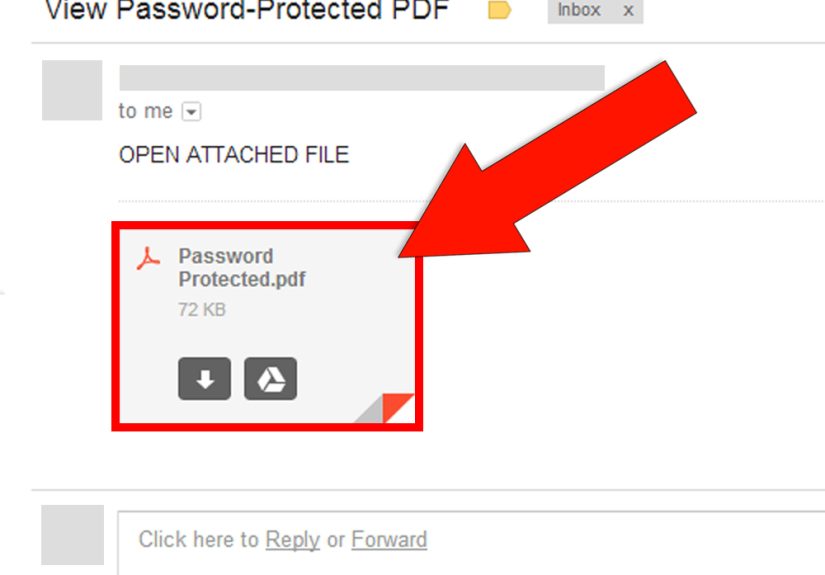
If the email looks legitimate, locate the PDF attachment at the bottom of the message. Gmail usually displays attachment cards with the file name and icons for preview, download, or saving to Google Drive.
Step 2: Click the PDF Preview or Open It in a New Window
Hover over the PDF attachment and click the preview icon or the attachment thumbnail. Gmail may open the file in its built-in preview screen. If the PDF is password protected and the preview tool supports it, you should see a password prompt. Enter the password exactly as provided by the sender.
Passwords are case-sensitive. That means “Report2026” and “report2026” are not twins; they are distant cousins who refuse to speak. Watch for uppercase letters, lowercase letters, numbers, symbols, spaces, and similar-looking characters such as zero and the letter O.
If the preview does not load, look for an option such as “Open in new window.” Sometimes opening the attachment in a separate browser tab gives the PDF viewer more room to work. This is especially helpful for larger files or PDFs with forms, scanned images, digital signatures, or unusual encryption settings.
Step 3: Enter the Correct Password
When Gmail, Google Drive preview, or your browser PDF viewer asks for the password, type or paste it carefully. If you received the password in a separate email or message, copy it directly to avoid typing mistakes. If the password came in the same email as the PDF, consider whether that is appropriate for the sensitivity of the document. For highly confidential files, best practice is to share the password through a separate channel.
After entering the password, the PDF should open if the viewer supports that type of protection. You can then read the file inside Gmail or the browser preview window. Depending on the file’s security settings, you may or may not be able to print, download, copy text, or search within the document.
If the password fails, do not keep guessing endlessly. Ask the sender to resend the password, confirm whether there are spaces, or provide a fresh copy of the PDF. Many “wrong password” problems come from tiny formatting issues, not dramatic cybersecurity mysteries.
Step 4: If Gmail Preview Fails, Save to Drive or Download the PDF
If Gmail shows “Couldn’t preview file” or simply refuses to cooperate, use one of two safe alternatives: save the attachment to Google Drive or download it to your device.
To save it to Drive, hover over the attachment and click the Google Drive icon. Then open Google Drive, find the file, and try the preview there. Google Drive’s preview tool may handle some files differently than Gmail’s attachment preview. If Drive asks for a password, enter the correct password and view the document.
If Drive preview still does not work, download the PDF. In Gmail, hover over the attachment and click the download icon. Once downloaded, open the file using a trusted PDF reader such as Adobe Acrobat Reader, Microsoft Edge, Google Chrome, Preview on Mac, or another reputable PDF application. Enter the password when prompted.
This download method is often the most reliable option for bank statements, tax files, signed contracts, scanned documents, or PDFs with advanced security settings. Gmail is excellent for email. A dedicated PDF reader is usually better at being a PDF reader. Shocking, but true.
Why Gmail May Not Preview a Password Protected PDF
Gmail preview can fail for several reasons. The PDF may use encryption that the online viewer cannot display. The file may be too large, damaged, scanned in an unusual way, or created by software that uses strict security settings. Browser extensions, outdated browsers, slow internet, or temporary Google service issues can also interfere.
Another important issue is malware scanning. Email providers try to scan attachments for harmful content, but encrypted files are harder to inspect because their contents are locked. This does not mean every encrypted PDF is dangerous. It simply means you should be more careful before opening one, especially if you were not expecting it.
If Gmail cannot preview the file, do not panic. Downloading the file and opening it in a trusted PDF reader is a normal workaround. Just make sure the sender is legitimate and your device security software is up to date.
Safety Tips Before Opening Password Protected PDF Attachments
Password protected PDFs are useful, but they deserve a little respect. Treat them like sealed envelopes: helpful when expected, suspicious when handed to you by a stranger in a trench coat.
Verify the Sender
Check the email address carefully. Scammers often use lookalike domains, extra letters, or display names that imitate real companies. For example, a message that appears to come from “Payroll Department” may actually be sent from a random address unrelated to your employer.
Confirm the File Context
If the email says “attached invoice,” ask yourself whether you actually bought something. If the document claims to be a legal notice, verify through the official website or phone number, not through links in the suspicious email.
Use Trusted PDF Readers
Adobe Acrobat Reader, Microsoft Edge, Google Chrome, and built-in operating system PDF tools are generally safer choices than unknown third-party apps. Avoid uploading sensitive PDFs to random “unlock PDF” websites, especially if the file contains financial, medical, legal, or personal information.
Never Try to Bypass a Password
If you do not know the password, ask the sender or document owner. Do not use Gmail, Drive, browser tricks, or online tools to bypass access controls on documents you are not authorized to view. Aside from being unethical, it may violate privacy rules, workplace policies, or the law.
What to Do If You Forgot the PDF Password
If the PDF belongs to you and you forgot the password, your options depend on the type of password. If it is an open password, you usually need the original password or an unprotected copy from the source. If it is a permissions password and you are the document owner, professional PDF software may allow you to remove restrictions after proper authentication.
For documents sent by banks, schools, employers, hospitals, or government offices, contact the sender and request help. Many organizations use predictable password formats, such as part of your date of birth, ZIP code, employee ID, customer number, or the last digits of an account number. However, do not guess blindly. Ask the sender for the official password format.
Common Problems and Quick Fixes
Problem: Gmail Says “Couldn’t Preview File”
Try opening the attachment in a new window. If that fails, save it to Google Drive or download it and open it with a trusted PDF reader.
Problem: The Password Does Not Work
Check capitalization, spaces, punctuation, and copied characters. Ask the sender to confirm the password format. If you copied the password from an email, make sure you did not include an extra space at the beginning or end.
Problem: The PDF Opens but You Cannot Print or Copy
The file may have permission restrictions. If you need printing or editing rights, ask the document owner for an updated copy or the proper permissions.
Problem: The Attachment Looks Suspicious
Do not open it. Contact the sender through a trusted method. If it claims to be from a company, visit the company’s official website directly instead of clicking links in the email.
Best Practices for Sending Password Protected PDFs Through Gmail
If you are the person sending a password protected PDF, make life easier for the recipient. Use a clear file name, explain what the document is, and provide the password through a separate channel when the content is sensitive. For example, you might send the PDF by Gmail and share the password by phone, text, or a secure messaging app.
Also, avoid vague messages like “See attached.” That phrase has the emotional warmth of a printer error. Instead, write a short note such as: “Hi Maria, attached is the signed lease agreement. The password is the code we discussed by phone.” This helps the recipient trust the file and understand why it is protected.
If the file is large, Gmail may use Google Drive rather than attaching it directly. That is normal. Just make sure the recipient has permission to access the Drive file and knows the password if the PDF itself is encrypted.
Experience Notes: What It Is Really Like to Open Password Protected PDFs in Gmail
In everyday work, password protected PDFs usually show up at the busiest possible moment. You are trying to check a statement, upload a document, review a contract, or send a form before a deadline. Then Gmail politely says, “Couldn’t preview file,” as if your schedule has nothing better to do.
The most useful habit is to treat Gmail preview as the first attempt, not the only attempt. When the preview works, wonderful. Click the file, enter the password, read the document, and move on with your life. When it does not work, the fastest next step is usually to download the PDF and open it in a dedicated reader. This saves time because you stop arguing with the browser and let PDF software handle the job it was built for.
Another lesson from real-world use is that password problems are often human problems, not technology problems. A sender may write the password as “your birthdate,” but forget to say whether the format is MMDDYYYY, DDMMYYYY, or YYYYMMDD. Someone may include a dash, space, or uppercase letter without mentioning it. The file may use the last four digits of a phone number, but the recipient has changed numbers three times since the document was created. In short, the PDF is locked, but the instructions are also locked inside someone’s memory.
A practical solution is to ask for the password format instead of asking only for the password. For example: “Should I enter my date of birth as MMDDYYYY?” or “Is the password the last four digits of my account number?” This kind of specific question gets faster answers and avoids five rounds of digital door-rattling.
Security awareness also improves with experience. A password protected PDF from your accountant during tax season makes sense. A password protected PDF from a stranger claiming you won a prize, owe a fine, or need to “verify payment immediately” deserves suspicion. Locked files can feel official, but scammers know that too. The password can create a false sense of safety, as if danger would never bother wearing a seatbelt. Sadly, danger is quite organized these days.
For businesses, the best workflow is simple: use password protected PDFs only when needed, label them clearly, share passwords separately, and tell recipients what to expect. For individuals, the best workflow is just as simple: verify the sender, try Gmail preview, use Drive or download if preview fails, and never upload private files to unknown websites promising instant unlocking.
Once you understand those habits, opening a password protected PDF in Gmail becomes less mysterious. It is not a secret hack. It is a normal document access process with a few security checkpoints along the way. And honestly, a few checkpoints are not a bad thing when the file might contain tax numbers, bank details, medical information, or business contracts. The goal is not just to open the PDF quickly. The goal is to open the right PDF, from the right sender, with the right password, in the safest way possible.
Conclusion
Seeing a password protected PDF using Gmail is usually straightforward when you have the correct password and permission to access the file. Open the email, verify the sender, click the PDF preview, enter the password, and use Google Drive or a trusted PDF reader if Gmail cannot preview it.
The key takeaway is simple: Gmail can help you view the attachment, but it cannot and should not bypass PDF security. If the preview fails, download the file safely. If the password fails, contact the sender. If the email looks suspicious, do not open the attachment. A secure PDF should protect your information, not turn your inbox into a mystery escape room.