Table of Contents >> Show >> Hide
- What You Need Before You Print
- Method 1: Print from iPhone to HP Printer Using AirPrint
- Method 2: Print from iPhone to HP Printer with the HP App (and Wi-Fi Direct)
- AirPrint vs HP App: Which One Should You Use?
- Common Problems and Fast Fixes
- Practical Examples
- Research Basis (No Links Included)
- Conclusion
- Extended Experience Section (500+ Words): What Real iPhone-to-HP Printing Feels Like
Printing from an iPhone to an HP printer sounds like something that should take five taps and a victory dance.
In real life? It’s often five taps, one confused stare at “No AirPrint Printers Found,” and then a quick search
for answers. Good news: this guide gives you two reliable methods that actually work in day-to-day life.
We’ll cover:
- Method 1: AirPrint (fastest and easiest)
- Method 2: HP app + Wi-Fi Direct (great fallback when AirPrint gets moody)
You’ll also get troubleshooting tips, practical examples, and a real-world experience section at the end so you can
avoid the usual “Why is my printer pretending I don’t exist?” moment.
What You Need Before You Print
- An iPhone with current iOS updates installed
- An HP printer powered on and loaded with paper
- Wi-Fi connection (for AirPrint), or printer Wi-Fi Direct enabled (for Method 2)
- The file/photo/email/webpage you want to print
Pro tip: Most failed print attempts happen because the iPhone and printer are not on the same network.
If your iPhone is on Guest Wi-Fi and your printer is on the main Wi-Fi, they probably won’t see each other.
Method 1: Print from iPhone to HP Printer Using AirPrint
If your HP printer supports AirPrint, this is the best method. No separate printer driver, no cable circus, no app gymnastics.
Think of it as the “native Apple way.”
Step 1: Confirm AirPrint Compatibility
Most modern HP printers support AirPrint, but confirm your model first in HP documentation or printer settings.
If AirPrint is available, you’re in the express lane.

Step 2: Connect iPhone and HP Printer to the Same Wi-Fi
This step matters more than all motivational quotes combined. AirPrint discovery usually requires both devices on the same local network.
If your router has separate 2.4GHz and 5GHz SSIDs, keep both devices on the same one whenever possible.

Step 3: Open the Content and Tap Share
Open a photo, PDF, email, note, or webpage. Tap the Share icon (square with an upward arrow),
then choose Print. In some apps, Print may hide under a menu icon.

Step 4: Select Printer and Set Print Options
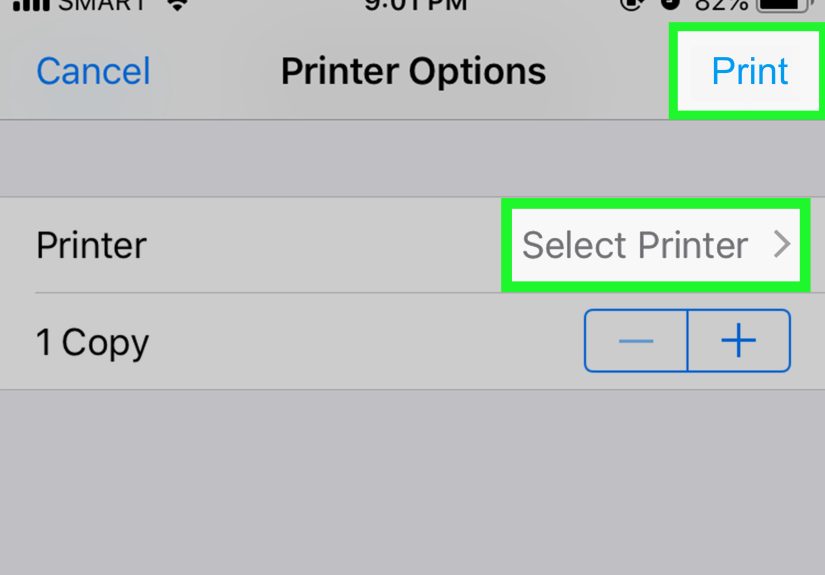
Tap Select Printer, choose your HP printer, then set copies, page range, paper size, and duplex (if supported).
For school forms, contracts, and tickets, double-check page range so you don’t print 73 pages of things you didn’t mean to print.

Step 5: Tap Print
Tap Print in the top-right corner. Your print job will queue and your HP printer should begin.
If it pauses, check paper, ink/toner, and network status in the HP printer panel or HP app.

AirPrint Troubleshooting (When Life Happens)
- “No AirPrint Printers Found”: Ensure both devices are on the same network and AirPrint is enabled.
- Printer appears then disappears: Restart iPhone, printer, and router in that order.
- Print option missing in app: Not all apps support printing. Try Files, Mail, Photos, or Safari.
- Wrong page format: Re-check paper size and orientation before printing.
If AirPrint works once and then fails later, it’s usually network state drift (guest network, VPN, roaming between mesh nodes, or a sleepy printer).
A quick reconnect solves a lot.
Method 2: Print from iPhone to HP Printer with the HP App (and Wi-Fi Direct)
Method 2 is your backup hero when AirPrint can’t find the printer or when you need more control.
HP’s iOS app (formerly HP Smart in many regions) can help with setup, printer management, and printing documents/photos.
Step 1: Install the HP App on iPhone
Download the official HP app from the App Store. Open it and follow guided setup to add your printer.

Step 2: Add Your HP Printer in the App
Make sure the printer is powered on. In the app, tap to add a device and follow instructions.
The app can usually detect printers on the same network and complete setup quickly.

Step 3: Print a File or Photo
In the HP app, choose Print Documents or Print Photos, pick your file from Files/iCloud/Photos,
customize settings, and print.
This method is especially useful when you want app-level status, supplies info, or a cleaner setup workflow than jumping app-to-app.
Step 4: Use Wi-Fi Direct If You Don’t Have Home Wi-Fi
Many HP models support Wi-Fi Direct. This creates a direct connection between your iPhone and printerno router required.
- Enable Wi-Fi Direct on the HP printer and note its network name/password.
- On iPhone, go to Settings > Wi-Fi and connect to the printer’s Wi-Fi Direct network.
- Print via AirPrint-compatible apps or the HP app depending on model behavior.

Important Note About Older HP Mobile Features
If you see old online advice about legacy remote-print services in HP mobile workflows, treat it carefully.
Some older remote printing options were discontinued years ago, so current setup should focus on local network AirPrint,
HP app printing, and Wi-Fi Direct where supported.
AirPrint vs HP App: Which One Should You Use?
Choose AirPrint if you want:
- The fastest path from app to paper
- Minimal setup and no extra drivers
- A simple workflow for everyday photos, emails, and PDFs
Choose HP App if you want:
- Guided setup and device management
- Better visibility into printer status
- A fallback path when AirPrint detection is unstable
Honestly, most iPhone users should keep both options ready: AirPrint for speed, HP app for control and recovery.
Common Problems and Fast Fixes
Problem: iPhone can’t find HP printer
- Confirm both are on the same Wi-Fi network
- Turn Wi-Fi off/on on iPhone
- Restart printer and router
- Update printer firmware from HP tools
Problem: Printer appears offline
- Check printer display for network disconnects
- Rejoin network in printer settings
- Avoid guest networks that block device discovery
Problem: Output is blank or weirdly cropped
- Verify paper size and orientation
- Try printing the same file from another app
- Export to PDF first, then print the PDF
Problem: It worked yesterday, not today
- Network changes, mesh roaming, or router reboot likely altered local discovery
- Reconnect both devices to the same SSID and try again
Practical Examples
Example 1: Printing a school permission slip from email
Open Mail > open PDF attachment > Share > Print > Select HP printer > 1 copy > Print.
Total time: about 20–40 seconds when AirPrint sees the printer immediately.
Example 2: Printing a boarding pass at a hotel
If hotel Wi-Fi isolation blocks discovery, use HP Wi-Fi Direct (if available), connect directly from iPhone,
then print from Safari or Files. This bypasses many public-network restrictions.
Example 3: Printing photos for a family album
Open Photos > Share > Print for quick output, or use HP app if you want additional control and easier printer status checks.
Research Basis (No Links Included)
This article is based on real guidance synthesized from current product support and U.S.-focused technology publications, including:
- Apple Support and iPhone User Guide
- HP Support documentation (AirPrint, Wi-Fi Direct, HP app workflows)
- How-To Geek
- Lifewire
- Tom’s Guide
- Digital Trends
- The Verge
- Business Insider
- Epson America support pages
- Canon USA support pages
- Brother USA support pages
- Consumer Reports coverage related to printer app ecosystems
The steps here prioritize current and practical methods over legacy workflows.
Conclusion
If you want the shortest path from iPhone to paper, use AirPrint. It’s built-in, fast, and surprisingly reliable
when network conditions are clean. If AirPrint can’t find your HP printer or you want more setup control, use the HP app
and keep Wi-Fi Direct in your back pocket for no-router situations.
In other words: two methods, one missionget your document printed before your coffee gets cold.
Save this guide, and next time your iPhone and HP printer “forget” each other, you’ll fix it in minutes, not hours.
Extended Experience Section (500+ Words): What Real iPhone-to-HP Printing Feels Like
Let’s talk about the part most tutorials skip: the human experience of printing from an iPhone to an HP printer in the real world.
On paper (pun intended), mobile printing is simple. In real homes, it happens while kids are asking for snacks, your Wi-Fi is busy
streaming three shows, and you only realize you need to print something exactly nine minutes before leaving the house.
The first lesson many users learn is that AirPrint feels magical when the network is stable. You tap Share,
tap Print, choose the HP printer, and it just works. This creates a kind of healthy overconfidence: “I am a productivity wizard.”
Then, one day, your printer vanishes from the list and your confidence vanishes with it. Usually, the fix is not complicated:
iPhone and printer drifted onto different networks, or the printer quietly disconnected after a router restart.
The second lesson is that having two methods is better than having one perfect method. People who only rely on AirPrint
tend to panic when discovery fails. People who also installed the HP app usually recover faster because the app can help with setup flow,
status checks, and reconnecting. It’s less about choosing a winner and more about creating a backup plan that takes 30 seconds to switch to.
A common scenario: someone tries to print a travel document from Safari. AirPrint works, but page formatting looks odd and the content spills.
In practice, the reliable move is to save the page as a PDF, open it in Files, and print the PDF. Why? PDFs freeze layout better than live webpages.
This one habit alone prevents a lot of “why is my QR code cut in half?” moments.
Photo printing tells a similar story. For quick snapshots, AirPrint from Photos is fast and good enough. But when users care about alignment,
paper type, or repeat jobs, they often prefer using the HP app workflow. The app-centered process feels a little slower at first, but it’s
easier to verify you’re printing exactly what you intended. Think “fewer surprise margins, fewer mystery crops.”
Then there’s the famous emergency use case: printing in places with weird network environments. Hotels, schools, and shared offices often use
segmented Wi-Fi that blocks local device discovery. This is where Wi-Fi Direct can feel like a superhero entrance. You connect the iPhone
directly to the printer’s network, skip router limitations, and print what you need. It’s not always glamorous, but it’s effective.
Another experience users report: once they clean up their setup, printing becomes boringin the best way. “Boring” means predictable.
Predictable means you no longer troubleshoot every week. The routine usually looks like this: keep printer firmware updated, keep both devices
on the same Wi-Fi name, avoid guest SSIDs for printer workflows, and restart the printer occasionally if jobs queue oddly.
Families and small teams also discover an underrated trick: create a tiny “print checklist” note on iPhone.
Something simple like:
- Are iPhone and printer on same Wi-Fi?
- Is paper loaded and tray selected correctly?
- Do I need a PDF instead of webpage print?
- If AirPrint fails, switch to HP app or Wi-Fi Direct.
This checklist sounds basic, but it prevents most failures and saves time when stress is high.
The biggest takeaway from real users is this: mobile printing success is less about secret technical hacks and more about
consistent setup habits. Once those habits are in place, printing from iPhone to HP printer becomes as normal as sending a text.
You stop treating printing as a mysterious ritual and start treating it like a utilityquick, repeatable, and dependable.
And yes, after a few successful runs, you’ll probably print something unnecessary just because you can.
That’s okay. We all deserve small victories.