Table of Contents >> Show >> Hide
- First, Know the Rules: Discord’s Upload Limits (and Why Your Clip Fails)
- The Three Best Ways to Share Short Videos on Discord Without Nitro
- How to Make a Video Fit Under Discord’s Limit (Without Making It Unwatchable)
- Discord Mobile Trick: Enable Data Saver for Video Uploads
- Troubleshooting: Why Discord Still Won’t Take Your Video
- Practical Examples: What to Do in Common Discord Situations
- Extra: Real-World Experiences and “Stuff You Only Learn After Failing Once”
- Conclusion
Discord is a fantastic place to share momentsgame clips, quick how-to recordings, “look what my cat just did” evidence
but it can also be a deeply humbling place to learn what “10MB” actually feels like. (Spoiler: it feels like two seconds of modern phone video.)
The good news: you don’t need Nitro to share short videos effectively. You just need the right strategysometimes that’s
compressing smartly, sometimes it’s trimming ruthlessly, and sometimes it’s uploading the video somewhere else and dropping a link like a civilized internet person.
First, Know the Rules: Discord’s Upload Limits (and Why Your Clip Fails)
Discord’s free upload limit is small enough that your phone’s “default” video settings can overshoot it without trying.
If your file is bigger than the limit, Discord won’t magically shrink it for you on desktopyou’ll need to make it smaller first.
On mobile, Discord does offer upload-quality controls that can help, but they’re not a cure-all for giant clips.
What counts toward the limit?
- The final file size of what you’re attaching (not the length of the video).
- Resolution, bitrate, frame rate, and audio quality all affect size.
- Codec choice matters: some codecs squeeze better than others.
Most compatible formats for Discord
For the smoothest “click and play” experience, aim for MP4 with H.264 video and AAC audio.
It’s the internet’s comfort food: not fancy, but it works almost everywhere.
The Three Best Ways to Share Short Videos on Discord Without Nitro
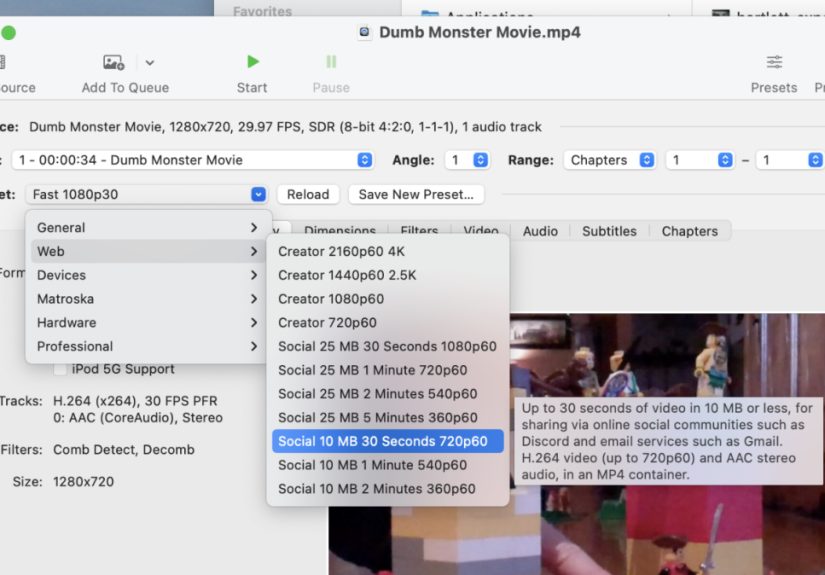
Method 1: Use HandBrake’s Discord-friendly “Social 10MB” presets
If you want the closest thing to a “make it work” button, HandBrake is the move. Recent versions include presets designed for strict upload limitsperfect for Discord.
The idea is simple: you pick a preset that targets a small size, and HandBrake does the compression math for you.
How to do it (fast and painless):
- Install HandBrake (free) on Windows or Mac.
- Open your video file in HandBrake.
- In Presets, choose a “Social 10MB” option that matches your clip length.
- Export as MP4 (keep it simple).
- Check the output file size, then upload that file to Discord.
Why this works: these presets are tuned to stay under tight file-size limits by controlling resolution and bitrate so you’re not guessing.
This is especially helpful when you’re trying to share quick clips like: a 30-second highlight, a short meme edit, or a fast “here’s the bug” screen recording.
Pro tip: If your clip is longer than the preset’s intended length, don’t force it. Either trim the clip or switch to a link-sharing method below.
Compressing a 2-minute action clip into a tiny file can turn it into a blurry flipbookgreat for nostalgia, less great for clarity.
Method 2: Trim first, then compress (the “don’t waste bits” approach)
Video size is basically “how much data per second” multiplied by “how many seconds.” So the easiest win is: make it shorter.
Trim out loading screens, dead air, and the part where you say, “Waitcan you see this?” for the third time.
Easy trimming options
- On iPhone: Open the video in Photos → Edit → drag the ends of the timeline → Save as New Clip.
- On Windows: Clipchamp can trim clips quickly and export a smaller, cleaner version.
- On Mac: QuickTime can trim, then you can compress further if needed.
After trimming, compress using either HandBrake or any editor that lets you export at a lower resolution/bitrate.
A 45-second clip that used to be “too big” often becomes “totally fine” after you cut out 20 seconds of nothing.
Method 3: Don’t upload the fileupload a link (cloud storage or video hosting)
When a clip refuses to shrink without turning into a pixelated prophecy, the smartest move is to host it elsewhere and share the link in Discord.
Discord will often generate a nice preview for popular services, and your friends can watch in higher quality without downloading a tiny, over-compressed file.
Best “link instead” options
- Google Drive: Upload → Share → set access to “anyone with the link” (viewer) → copy link.
- Dropbox: Upload → create a share link → choose view-only if needed → paste link in Discord.
- OneDrive: Upload → Share → copy link → adjust permissions if you want view-only.
- YouTube (Unlisted): Upload as unlisted → share the link in Discord (good for longer clips).
When to choose link-sharing: tutorials, longer gameplay, project walkthroughs, or anything where readability matters more than squeezing under a tiny cap.
It’s also a lifesaver when you need to share multiple clips without playing “compression roulette” each time.
How to Make a Video Fit Under Discord’s Limit (Without Making It Unwatchable)
Step 1: Start with the right export target
If you’re aiming for a strict maximum file size, you need a target bitrate. Here’s the simple logic:
File size ≈ bitrate × duration.
Example: You want a 30-second clip to fit under 10MB.
That’s 10MB divided across 30 seconds. After you reserve a little bitrate for audio (say 96–128 kbps),
the remaining bitrate goes to video.
In real life: pick a small resolution first (like 720p or 540p), then adjust bitrate until the file size is safely under the limit.
If the clip is mostly static (like a menu tutorial), it compresses well. If it’s chaotic (like an explosion montage), it needs more bitrate.
Step 2: Use these “Discord-friendly” settings as a baseline
- Container: MP4
- Video codec: H.264 (x264)
- Resolution: 720p for short clips; 540p or 480p if you’re struggling
- Frame rate: 30 fps (60 fps doubles the pain for short-file targets)
- Audio: AAC, stereo, 96–128 kbps
If you’re compressing a screen recording, you can often drop resolution more aggressively and still keep it readable.
If you’re compressing fast gameplay, try to keep resolution decent and reduce frame rate to 30 fps first before you nuke everything else.
Step 3: Use FFmpeg when you want precision (and you don’t fear the terminal)
FFmpeg is the “Swiss Army chainsaw” of video tools. If you want a predictable file size, a two-pass encode is your friend.
Here’s a practical pattern you can adapt:
Adjust -b:v (video bitrate) and -b:a (audio bitrate) based on your duration and target size.
If your output is still too big, reduce bitrate or resolution. If it looks awful, increase bitrate or shorten the clip.
This is a negotiation, not a miracle.
Discord Mobile Trick: Enable Data Saver for Video Uploads
If you’re uploading from your phone, Discord offers settings that can reduce upload quality to save dataoften making videos smaller.
This can be helpful when you just want to drop a quick clip into chat without doing a full compression workflow on a computer.
How it helps
- Reduces upload quality so the file is smaller.
- Can upload faster on slower connections.
- Works best for “casual” clips where perfect quality isn’t required.
If your video is far above the limit, this won’t always save you. But if you’re close, it can be the difference between “uploaded” and “nope.”
Troubleshooting: Why Discord Still Won’t Take Your Video
Problem: “It’s short but still too big.”
Your phone may be recording at high resolution, high frame rate, and high bitrateespecially if it’s using HDR or “high efficiency” settings.
Trim first, then export at 30 fps and a smaller resolution (720p or lower).
Problem: “The video uploads but won’t play inline.”
Inline playback depends on encoding and how Discord handles previews. Stick to MP4 + H.264 for the most reliable results.
If you used an unusual codec, Discord may require download instead of preview.
Problem: “It looks crunchy and awful.”
That’s usually bitrate starvation. Increase bitrate, shorten the clip, or drop frame rate instead of dropping resolution into the basement.
(Your viewers will forgive 30 fps. They will not forgive a video that looks like it was carved into a potato.)
Problem: “I have multiple clips.”
Consider stitching them into one short highlight, or host them in Drive/Dropbox and share a folder link.
It’s easier than compressing six files like you’re speedrunning a video editor.
Practical Examples: What to Do in Common Discord Situations
Example 1: Sharing a 20-second gameplay highlight
- Try HandBrake “Social 10MB” for ~30 seconds.
- Export MP4 (H.264), 720p, 30 fps.
- Upload to Discord.
Example 2: Sharing a 90-second tutorial clip
- Trim dead space and pauses.
- If it still won’t fit, upload to YouTube as unlisted or Google Drive.
- Share the link in Discord with a short description (“Watch from 0:42this is the bug”).
Example 3: Sharing a screen recording with tiny text
- Keep 720p (or at least 540p) so text stays readable.
- Reduce frame rate to 30 fps and audio bitrate to 96 kbps.
- If text still blurs, link-share instead of forcing extreme compression.
Extra: Real-World Experiences and “Stuff You Only Learn After Failing Once”
People don’t usually discover Discord’s upload limits in a calm, academic setting. It’s almost always during a moment of urgency:
you’ve got a hilarious clip, your friends are online right now, and you can practically hear the laugh track warming up in the background.
Then Discord hits you with the digital equivalent of a bouncer tapping the “10MB” sign and shaking their head.
One common experience: thinking “I’ll just record it again but shorter,” only to discover your phone saved the new file even larger.
That’s because modern cameras don’t only change lengththey change quality, too. If your second attempt is recorded in 4K or 60 fps,
the file can balloon even if it’s only a few seconds. The practical lesson is: check your camera settings before you re-record.
If you want Discord-friendly clips, 1080p/30 fps is a kinder default than 4K/60 fps.
Another “been there” moment is the silent bloat of screen recordings. Screen recordings can be deceptively huge because they capture constant motion:
cursor movement, scrolling, UI animations, and little shifts you don’t even notice. The result is that a 25-second screen recording can be larger than a 25-second
camera clip. If you’ve ever tried to upload a quick “look at this setting” video and Discord refused, you’re not imagining things.
The workaround is usually simple: trim the beginning and end (where you fumble around) and compress at 30 fps.
If the text is too small after compression, that’s your sign to link-share instead of fighting physics.
People also learn (sometimes painfully) that not all compression is created equal. Many online “Discord compressors” can shrink a file,
but they may do it by smashing the bitrate so hard that fast scenes turn into a smear. That’s why tools like HandBrake feel so satisfying:
they provide repeatable presets and predictable outputs. The first time you use a “Social 10MB” preset and the clip just… works…
it feels like you found a secret passage in a building you’ve been trapped in for years.
A very practical habit that experienced Discord users develop is writing a one-line caption that replaces the missing quality.
If a clip is a little compressed, context matters more. Instead of dumping a video with no explanation, they’ll write:
“Watch the top-left cornermy health bar bugged out,” or “The timing at 0:12 is the point.” That tiny note saves everyone time and makes the clip more useful,
even if you had to compress it a bit harder than you wanted.
Finally, there’s the social reality: sometimes the best “no Nitro” solution is not compression at allit’s sharing a link.
People often resist link-sharing because it feels like “extra steps,” but once you’ve used Google Drive, Dropbox, OneDrive, or an unlisted YouTube upload a few times,
you realize it’s actually cleaner for longer clips. Your friends can watch at better quality, you don’t have to play bitrate roulette,
and you can reuse the same link later without re-uploading. In practice, many communities end up with an informal rule:
short meme clips get compressed and uploaded; anything instructional, important, or longer gets link-shared.
It’s not a downgradeit’s just using the right tool for the job.
Conclusion
Uploading short videos to Discord without Nitro is absolutely doableyou just need to pick the right approach for the clip.
If it’s truly short, HandBrake’s Discord-friendly presets can get you under the limit quickly. If it’s close, trimming and a sensible export
(MP4, H.264, 30 fps) often solves it. And if the clip is longer or quality matters, link-sharing is the cleanest, least stressful option.
The best part: once you’ve done this a few times, it becomes a quick routinelike zipping a file before emailing it.
Except funnier, because Discord is where dignity goes to get turned into a reaction emoji.