Table of Contents >> Show >> Hide
- Quick Answer: The Best Way to Use Multiple Photos as Mac Wallpaper
- Before You Start: Organize Your Wallpaper Photos
- Method 1: Set a Folder of Pictures to Rotate as Your Mac Wallpaper
- Method 2: Use a Photos Album as a Rotating Mac Desktop Background
- Method 3: Put Several Pictures on the Screen at Once with a Collage Wallpaper
- How to Set Your Finished Collage as Your Mac Wallpaper
- How to Use Different Pictures on Multiple Mac Desktops or Spaces
- How to Use Different Wallpapers on Multiple Monitors
- Troubleshooting: Why Multiple Pictures Are Not Working as Expected
- Best Practices for a Beautiful Multi-Photo Mac Desktop
- Personal Experience: What Works Best When Using Multiple Pictures as Mac Wallpaper
- Conclusion
Want your Mac desktop to show more than one favorite photo? Maybe you have a vacation folder full of beach shots, a pet album that deserves its own fan club, or a collection of family pictures that should not be buried three thousand scrolls deep in Photos. Good news: macOS gives you several easy ways to put multiple pictures on your desktop background on Mac. The only small catch is that “multiple pictures” can mean two different things.
First, you may want your Mac wallpaper to change automatically through many images, like a desktop slideshow. That is built into macOS and works with a Finder folder or a Photos album. Second, you may want several pictures visible at the same time on one desktop background, like a collage. macOS does not create a multi-photo collage wallpaper automatically in Wallpaper settings, but you can make one quickly using tools such as Keynote, Preview, Photos, or an online design tool, then set that finished image as your wallpaper.
This guide covers both methods in plain English. No mysterious terminal commands. No “download this suspicious wallpaper wizard from a website that looks like it time-traveled from 2009.” Just practical steps that work for MacBook Air, MacBook Pro, iMac, Mac mini, and most modern macOS versions.
Quick Answer: The Best Way to Use Multiple Photos as Mac Wallpaper
The fastest built-in method is to place all the images you want into one folder, then add that folder in System Settings > Wallpaper. From there, you can choose the folder and turn on automatic rotation, shuffle, or a change interval. This creates a rotating desktop background on Mac, where your wallpaper changes from one photo to another.
If you want several photos displayed at once, create a collage image first. For example, make a 16:9 layout in Keynote or Canva, place your pictures in a grid, export it as a PNG or JPEG, and set that exported image as your desktop background. Think of it this way: macOS can shuffle a stack of photos, but if you want a scrapbook page, you need to build the scrapbook page first.
Before You Start: Organize Your Wallpaper Photos
Before clicking around in settings, spend two minutes organizing your images. This small step prevents your desktop from becoming a surprise slideshow of blurry receipts, accidental screenshots, and that one photo of your lunch from 2018.
Create a Dedicated Wallpaper Folder
Open Finder and create a new folder somewhere easy to find, such as Pictures > Mac Wallpapers. Copy your chosen photos into that folder. Use images with good resolution, especially if you have a Retina display. Landscape-oriented photos usually work better than vertical photos because your desktop is wider than it is tall.
For a cleaner result, rename files in a logical way, such as family-01.jpg, travel-02.jpg, or nature-03.jpg. This is not required, but it makes the folder easier to manage later. If your photos are scattered between Downloads, Desktop, Messages, and Photos, bring them together first. Your future self will quietly applaud.
Choose the Right Image Size
Wallpaper looks best when the image is at least as large as your screen resolution. If the photo is too small, macOS may stretch it, and stretched images can look soft or pixelated. If you are using a MacBook, iMac, or external monitor, you can check your display resolution in System Settings > Displays.
You do not need to obsess over exact pixels, but larger images usually look better. A 3000-pixel-wide landscape photo is generally safer than a tiny image downloaded from a message thread. For collage wallpapers, start with a wide canvas such as 1920 × 1080, 2560 × 1440, or a size that matches your display.
Method 1: Set a Folder of Pictures to Rotate as Your Mac Wallpaper
This is the easiest way to put multiple pictures on your desktop background on Mac. Instead of choosing one wallpaper, you choose a folder full of wallpapers and let macOS rotate through them automatically.
Step 1: Put Your Photos in One Finder Folder
Open Finder, go to your Pictures folder, and create a new folder called something simple, such as Wallpaper Rotation. Drag your selected images into that folder. You can use JPEG, PNG, HEIC, and other common image formats supported by macOS.
Step 2: Open Wallpaper Settings
Click the Apple menu in the top-left corner of your screen and choose System Settings. In the sidebar, select Wallpaper. If you do not see it immediately, scroll down the sidebar. macOS loves hiding useful things just low enough to make you question your eyesight.
Step 3: Add Your Folder
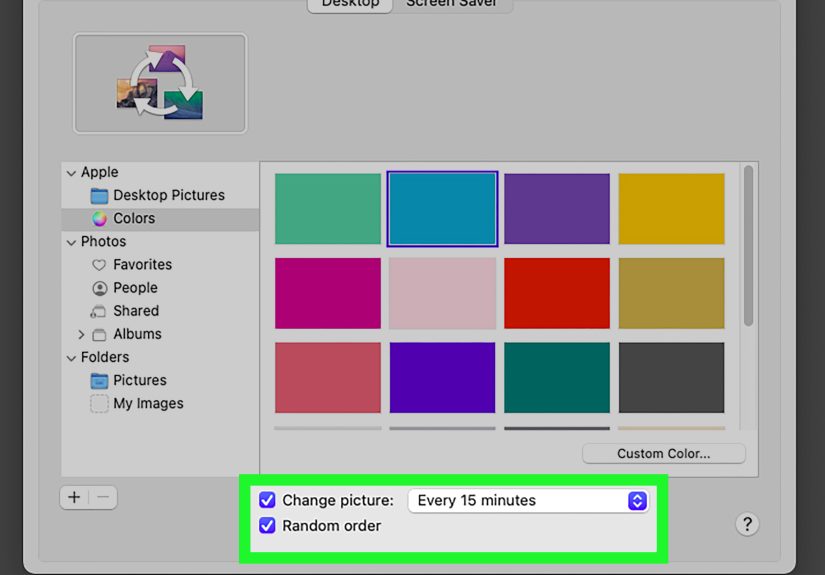
In Wallpaper settings, look for the section for your own photos. Choose the option to add a folder, then select the folder you created. Once added, the folder should appear as a wallpaper source. Open it or select its auto-rotate option, depending on your macOS version.
Step 4: Choose Rotation and Shuffle Options
After selecting the folder, choose how often your Mac should change the wallpaper. Common options include changing the picture every few minutes, every hour, every day, or when waking from sleep. If you want variety, enable the random or shuffle option. That way, your Mac does not always show your photos in the same predictable order, like a very polite but boring slideshow host.
Step 5: Adjust the Wallpaper Fit
Choose how the image appears on your desktop. Options may include filling the screen, fitting to screen, stretching, centering, or tiling. Fill Screen usually looks best for modern desktop backgrounds, but it may crop the edges. Fit to Screen keeps the whole image visible but may add empty space around it. If a photo cuts off someone’s head, switch the fit option before blaming your Mac for having artistic opinions.
Method 2: Use a Photos Album as a Rotating Mac Desktop Background
If your images already live in the Photos app, you do not have to export everything manually. You can create a Photos album and use that album as a wallpaper source. This is perfect for family photos, travel albums, pet pictures, seasonal photos, or a “motivation board” that gently reminds you of your goals every time you close Safari.
Step 1: Create an Album in Photos
Open the Photos app on your Mac. Select the pictures you want to use, then create a new album from that selection. Give it a clear name, such as Desktop Wallpaper, Family Wallpaper, or Travel Backgrounds.
Step 2: Add or Remove Photos Anytime
The beauty of using a Photos album is flexibility. When you add new images to the album, they can become part of your wallpaper rotation. When you remove images from the album, they stop appearing. This keeps your Mac desktop background fresh without rebuilding folders all the time.
Step 3: Select the Album in Wallpaper Settings
Go to System Settings > Wallpaper, then choose the option to add or select photos from your Photos library. Pick your album and choose the rotation settings. Depending on your version of macOS, you may see album options under your photo sets or custom photos area.
Method 3: Put Several Pictures on the Screen at Once with a Collage Wallpaper
Now let’s talk about the version many people actually mean when they ask how to put multiple pictures on a Mac desktop background: showing several images at the same time. For that, you need to create one single image that contains multiple pictures. Once created, macOS treats the collage as one wallpaper.
Option A: Make a Collage Wallpaper in Keynote
Keynote is surprisingly useful for creating a custom desktop wallpaper. Open Keynote and create a blank wide presentation. Set the slide size to match your screen ratio, usually 16:9. Drag your photos onto the slide, arrange them in a grid, add spacing, borders, shadows, or text if you like, then export the slide as an image.
After exporting, go to Finder, Control-click the image, and choose Set Desktop Picture. You can also open System Settings > Wallpaper and choose the exported image from there. This method is great because Keynote makes it easy to align pictures neatly. It also gives you room to create desktop organizer zones, such as “Work,” “Personal,” “Screenshots,” and “Do Not Put Everything Here Again.”
Option B: Make a Wallpaper Collage in Canva
Canva is another simple option, especially if you want templates. Choose a desktop wallpaper template, upload your photos, arrange them in a collage, and download the finished design as a PNG or JPEG. Then set it as your Mac wallpaper. Canva works well for aesthetic MacBook wallpapers, mood boards, vision boards, pet collages, and family photo layouts.
Option C: Use Preview for Simple Resizing and Cropping
Preview is not a full collage maker, but it is helpful for preparing images. You can crop, rotate, and resize photos before placing them into Keynote, Canva, Pages, or another design tool. If one photo is huge and another is tiny, resizing them first can make the final collage easier to manage.
How to Set Your Finished Collage as Your Mac Wallpaper
Once your collage image is saved on your Mac, setting it as the desktop background is simple. Open Finder, locate the image, Control-click it, and choose Set Desktop Picture. Alternatively, open System Settings > Wallpaper, add the image file, and select it as your wallpaper.
If the collage looks zoomed in, cropped, or oddly stretched, return to Wallpaper settings and change the fit option. For collage wallpapers, Fit to Screen or Fill Screen usually works best. If your collage includes text near the edges, leave enough margin around the design so macOS does not crop important details.
How to Use Different Pictures on Multiple Mac Desktops or Spaces
Mac users who rely on Mission Control can create multiple desktops, also called Spaces. Each Space can feel like a separate workspace. For example, you might use one desktop for writing, another for design work, and another for personal browsing. You can make those Spaces easier to recognize by assigning different wallpaper images.
Open Mission Control, switch to the desktop Space you want to customize, then change the wallpaper while you are in that Space. Repeat the process for other Spaces. If your Mac applies the same wallpaper everywhere, check whether a setting such as showing the wallpaper on all Spaces is enabled. Turning that off, when available, lets each Space keep its own background.
How to Use Different Wallpapers on Multiple Monitors
If your Mac is connected to an external display, you may want one wallpaper on the built-in screen and another on the monitor. Open System Settings > Wallpaper while both displays are connected. macOS usually lets you select the display you want to customize, then choose a wallpaper for that specific screen.
For best results, use images sized for each display. A MacBook screen and a large external monitor may have different resolutions and aspect ratios, so one picture may look perfect on one display and awkward on the other. If you use a collage wallpaper, create separate versions for each display instead of forcing one design to fit everything.
Troubleshooting: Why Multiple Pictures Are Not Working as Expected
The Wallpaper Folder Does Not Appear
Make sure the folder contains actual image files and that the files are stored locally on your Mac. If the folder is inside a cloud location, wait for the images to fully download. Then remove and re-add the folder in Wallpaper settings.
The Wallpaper Does Not Change Automatically
Check your change interval and shuffle settings. If the interval is set to daily, it will not change every few minutes just because you keep staring at it dramatically. Try choosing a shorter interval to test the rotation.
Some Photos Look Cropped
This usually happens when the wallpaper fit is set to fill the screen. Fill mode makes the image cover the whole desktop, which can crop the sides or top and bottom. Use fit mode if you want to see the entire image.
The Collage Looks Blurry
Your collage may be too small for your display. Create a larger version of the image and export it at high quality. Avoid taking a screenshot of the collage unless the screenshot matches your display resolution well.
Best Practices for a Beautiful Multi-Photo Mac Desktop
Use photos with similar colors if you want a calm desktop. If every picture has a different color temperature, your wallpaper may look chaotic. A little chaos is fine for a vacation album; it is less fine when you are trying to find a tiny folder icon on a neon background.
Leave empty space in the center or along one side if your desktop has many files. Busy wallpapers can make icons difficult to read. If you love collage wallpapers, consider adding soft backgrounds, simple borders, or muted overlays behind the photos. Your eyes will thank you during long work sessions.
Refresh your wallpaper folder every few months. Remove photos you are tired of and add new ones. A rotating wallpaper should feel fun, not like a museum exhibit you accidentally locked yourself inside.
Personal Experience: What Works Best When Using Multiple Pictures as Mac Wallpaper
In real-world use, the best method depends on your personality and how you use your Mac. If you like a clean desktop, the rotating folder method is usually the winner. It gives you variety without clutter. You can enjoy dozens of photos over time while keeping the desktop visually simple. I have found this especially useful for travel photos because each wallpaper feels like a small surprise. You open your Mac expecting spreadsheets, and suddenly there is a mountain view. It is still work, but now work has better scenery.
For family pictures or pet photos, a Photos album works beautifully. The Photos app makes it easy to collect favorites, remove duplicates, and keep everything organized. A dedicated album also reduces the risk of showing random images you did not mean to include. Nobody wants their desktop wallpaper rotation to suddenly feature a blurry screenshot of a grocery list. With an album, you control the collection more carefully.
Collage wallpapers are better when you want emotion, personality, or motivation in one glance. A collage can show your family, favorite places, quotes, goals, and memories all at once. This works well for students, creatives, small business owners, and anyone who likes a visual dashboard. The downside is that collages can become visually noisy. If you place twenty pictures on one background, your desktop icons may start playing hide-and-seek. A good collage usually has fewer images, consistent spacing, and a quiet background color.
One practical tip is to design around your desktop habits. If you keep icons on the right side of the desktop, leave that area simple. If your Dock is at the bottom, avoid placing important faces or text near the bottom edge. If you use Stage Manager or many floating windows, choose a softer wallpaper that does not compete with app windows.
Another useful habit is to create seasonal wallpaper folders. Make one folder for spring, one for summer, one for holidays, and one for work inspiration. Switching between them takes only a moment, but it makes your Mac feel fresh. It is the digital version of rearranging your desk, except you do not have to find a new place for twelve pens that may or may not work.
For productivity, I recommend using a calm rotating folder during work hours and a collage wallpaper for personal time. A rotating folder keeps the desktop clean, while a collage gives you a more expressive, personal look. If your Mac is both your office and your entertainment hub, this balance works surprisingly well.
Finally, test your wallpaper before committing. Apply it, open a few apps, close them, check your icons, and see how it feels after a few minutes. A wallpaper can look amazing in a design tool and still feel distracting on a real desktop. The perfect Mac wallpaper is not just pretty. It should also make your screen easier, happier, or more inspiring to use.
Conclusion
Learning how to put multiple pictures on your desktop background on Mac is simple once you choose the right approach. Use a folder or Photos album if you want your wallpaper to rotate through many images. Create a collage if you want several photos visible at the same time. For multiple monitors or Spaces, customize each screen or desktop separately for a more organized setup.
The best Mac desktop background is the one that fits your workflow and your personality. Maybe that means a peaceful slideshow of landscapes. Maybe it means a collage of family memories. Maybe it means twelve pictures of your dog because your dog is clearly the creative director of your life. Whatever style you choose, macOS gives you enough flexibility to make your desktop feel personal, useful, and far less boring than the default wallpaper you forgot to change three years ago.