Table of Contents >> Show >> Hide
- Start Here: Figure Out What Kind of Windows 10 Account You Have
- Method 1: Reset a Microsoft Account Password from the Sign-In Screen
- Method 2: Reset a Local Account Password with Security Questions
- Method 3: Use a Password Reset Disk for a Local Account
- Method 4: Use Another Administrator Account on the Same Computer
- Method 5: Use Windows Recovery Environment and Reset This PC
- What Usually Does Not Work
- How to Avoid Getting Locked Out Again
- Final Thoughts
- Experience-Based Lessons from Real Windows 10 Lockouts
- SEO Tags
Note: This guide is for recovering access to a Windows 10 PC you own or are authorized to manage. It focuses on official or widely accepted recovery options, not shady “bypass” tricks that make your computer feel like it needs a shower afterward.
Getting locked out of your own computer is one of life’s more annoying plot twists. One minute you are opening a spreadsheet, checking email, or pretending you will finally organize your desktop. The next minute, Windows 10 is staring at you like a nightclub bouncer who has suddenly decided your face looks suspicious.
The good news is that resetting a Windows 10 password without logging in is absolutely possible in many situations. The less-fun news is that the right method depends on the type of account you use. A Microsoft account plays by different rules than a local account, and a password reset disk only helps if Past You was unusually responsible. Still, there are several realistic ways to get back in without turning your laptop into an expensive paperweight.
In this guide, you will learn the safest and most practical methods to reset a Windows 10 password from the sign-in screen or recovery tools, what to try first, what to avoid, and how to keep this problem from happening again.
Start Here: Figure Out What Kind of Windows 10 Account You Have
Before you do anything dramatic, figure out whether your PC uses a Microsoft account or a local account. This matters because the reset process is different for each one.
Microsoft account
If you sign in with an email address such as Outlook, Hotmail, Live, or another Microsoft-linked email, you are probably using a Microsoft account. In this case, your Windows 10 password is tied to your Microsoft identity, so you can usually reset it online or from the sign-in screen.
Local account
If your username is just a name and not an email address, you may be using a local account. Local accounts often rely on security questions, a password reset disk, or another administrator account on the same PC.
If this is a work or school computer, stop right here and contact your IT administrator. Corporate devices often use domain, Azure AD, or organization-managed policies, and trying random fixes on those systems is a fantastic way to ruin everyone’s afternoon.
Method 1: Reset a Microsoft Account Password from the Sign-In Screen
This is usually the easiest option if your Windows 10 device uses a Microsoft account. It is also the least messy, which is always nice.
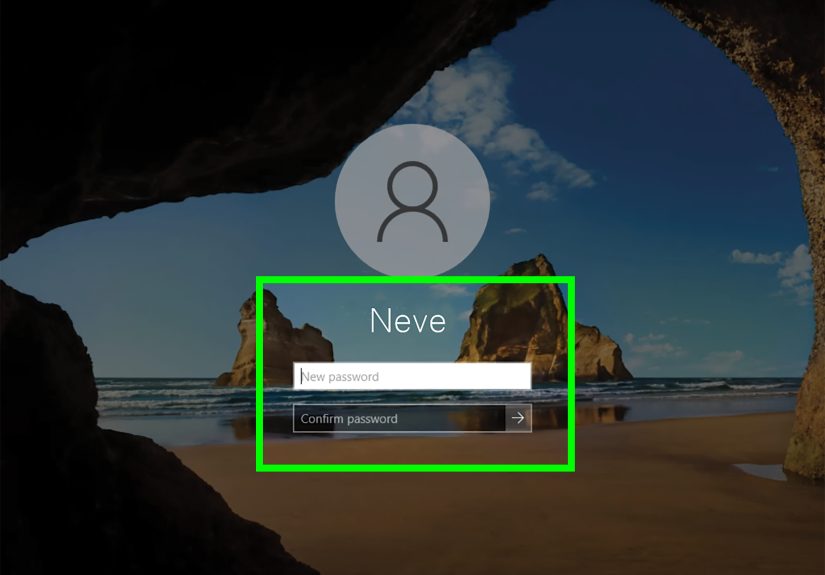
- On the Windows 10 sign-in screen, select I forgot my password.
- If you do not see that option right away, choose Sign-in options and switch back to the password field.
- Follow the prompts to verify your identity using your email, phone, or another recovery method.
- Enter the security code Microsoft sends you.
- Create a new password.
- Sign in with the new password on the locked PC.
If your computer is online, the new password usually works quickly. If it does not, give Windows a moment to sync, connect the PC to the internet, and try again. Many people think the reset failed when the real problem is that the device is offline or the keyboard layout changed.
Use another device if needed
If the sign-in screen is being stubborn, you can reset your Microsoft password from another phone, tablet, or computer through Microsoft’s account recovery process. Once the password is changed, return to your Windows 10 machine and sign in with the new one.
Pro tip: A PIN is not the same as your Microsoft account password. If you usually sign in with a PIN, but now Windows is asking for your password, do not panic. It is annoying, yes, but it is normal.
Method 2: Reset a Local Account Password with Security Questions
If you use a local account and set up security questions when the account was created, Windows 10 may let you reset the password right from the sign-in screen. This is one of those rare tech moments when planning ahead actually pays off.
- At the sign-in screen, enter the wrong password once.
- Look for the Reset password option.
- Select it and answer your security questions.
- Create a new password.
- Sign in using the new password.
This method is simple, built into Windows 10, and requires no extra software. The catch is obvious: it only works if the security questions were set up before you forgot the password. If you never added them, Windows cannot magically read your mind, no matter how dramatically you squint at the screen.
When this method fails
If your answers are not accepted, double-check spelling, capitalization, and old habits. Plenty of people type “St. Louis” one year and “Saint Louis” the next, then spend ten minutes accusing Windows of betrayal. Usually, the problem is human memory doing human memory things.
Method 3: Use a Password Reset Disk for a Local Account
A password reset disk is a classic Windows safety net for local accounts. It works only if you created it before getting locked out. In other words, it is like an umbrella: wonderfully useful, but only if you remembered to bring it before the rain started.
- Insert the USB flash drive that contains your password reset disk.
- At the sign-in screen, click Reset password.
- The Forgotten Password Wizard should appear.
- Select the USB drive.
- Create a new password and password hint.
- Finish the wizard and sign in.
This method is reliable, but it is strictly a before-the-emergency solution. You cannot create a password reset disk after you are already locked out. That is the technological equivalent of buying a spare tire after the flat happens.
Best use case
Password reset disks make the most sense for home users who prefer local accounts and want an offline recovery option. They are especially handy for older family PCs, shared household computers, and anyone who does not want their sign-in tied to a cloud account.
Method 4: Use Another Administrator Account on the Same Computer
If there is another administrator account on the PC, that account may be able to reset the password for the locked local account. This is often the forgotten solution sitting quietly in the corner while everyone is busy panicking.
- Log in with another administrator account on the same Windows 10 computer.
- Open Control Panel.
- Go to User Accounts.
- Select Manage another account.
- Choose the locked account.
- Set a new password.
This option is most common on family PCs where one parent or another household member has admin rights. It can also help on older systems where a second admin account was created during setup and then mostly forgotten about.
A small warning
If the locked account uses certain stored credentials, certificates, or encrypted files, changing the password from another account can sometimes affect access to those items. That does not always happen, but it is worth knowing before you click through like a caffeinated raccoon.
Method 5: Use Windows Recovery Environment and Reset This PC
If none of the account-based recovery methods work, Reset this PC is the last major built-in option. This is not really a password reset in the friendly sense. It is more like telling Windows, “Fine, we are starting over, and we are all going to pretend this never happened.”
You can often access recovery from the sign-in screen without logging in.
- On the sign-in screen, click the Power icon.
- Hold Shift and select Restart.
- When Windows enters the recovery menu, choose Troubleshoot.
- Select Reset this PC.
- Choose either Keep my files or Remove everything.
- Follow the on-screen prompts.
If your PC does not reach that menu, Windows 10 can sometimes enter recovery automatically after repeated interrupted startups. This is the point where the computer looks like it is having a dramatic existential crisis, but it is actually trying to help.
Keep my files vs. remove everything
Keep my files removes apps and settings but tries to preserve personal files. Remove everything is a true scorched-earth option and is better if you want a clean start or plan to hand the PC to someone else.
Be careful: resetting the PC is a major action. If your device uses BitLocker, organization policies, or unusual storage settings, recovery may get more complicated. When in doubt, back up what you can and proceed carefully.
What Usually Does Not Work
When people search for how to reset a Windows 10 password without logging in, the internet cheerfully throws half the planet’s bad ideas at them. Here is what to be cautious about.
Random third-party “unlock” tools
Some claim they can remove or crack a Windows password instantly. Some are outdated. Some are junk. Some are security risks wearing a necktie. Unless you are using a legitimate enterprise recovery process under proper authorization, avoid tools that promise magic. Your problem is forgetting a password, not collecting malware.
Confusing a PIN with a password
Windows Hello PIN, Microsoft account password, local account password, and picture password are different sign-in methods. If one fails, do not assume the others use the same credential.
Ignoring basic sign-in problems
Before declaring war on your operating system, check for these surprisingly common issues:
- Caps Lock is on.
- The keyboard layout changed.
- You are entering an old Microsoft password after recently changing it.
- The device is offline and has not synced your new Microsoft account password yet.
- You are selecting the wrong account on the sign-in screen.
How to Avoid Getting Locked Out Again
Once you are back in, take ten minutes to future-proof your life.
Use a Microsoft account if convenience matters
For many home users, Microsoft account recovery is easier than dealing with a pure local account. It gives you online recovery options and tends to be less painful during lockouts.
Update local account security questions
If you prefer a local account, make sure your security questions are accurate, memorable, and not based on trivia from a previous version of your personality.
Create a password reset disk
If you use a local account, create one and store it somewhere safe. It is a tiny bit of effort that can save a huge amount of stress later.
Set up a password manager
Not a sticky note. Not a mysterious text file named “stuff.” A real password manager.
Keep a second admin account only if you can secure it
A backup administrator account can be helpful, but only if it has a strong password and is protected properly. Otherwise, you are creating a convenience feature for future-you and a security hole for everyone else.
Final Thoughts
If you forgot your Windows 10 password and cannot log in, the best recovery path depends on your account type. Microsoft accounts are usually the easiest to recover because you can reset them online or from the sign-in screen. Local accounts can often be reset with security questions or a password reset disk, and another administrator account may help in some household setups. When nothing else works, Windows Recovery Environment and Reset this PC can get you moving again, although it is the nuclear option and should be treated with appropriate respect.
The smartest move is not memorizing every recovery method. It is setting up at least one backup option before you need it. Because when your computer decides it suddenly does not know you, preparation is the closest thing to revenge.
Experience-Based Lessons from Real Windows 10 Lockouts
In real life, people rarely get locked out of Windows 10 because they completely forgot everything. More often, the problem starts with a small mismatch between what they think the system is asking for and what Windows actually wants. One of the most common scenarios is someone who normally signs in with a PIN and almost never types the full account password. Months go by. Life happens. Then Windows asks for the password after an update, a restart, a security change, or a recovery prompt. Suddenly, the user is staring at a blank field with the digital confidence of a goldfish.
Another common experience is the “I definitely know this password” moment. In many cases, the user is technically right. They do know the password, just not the current one. Microsoft account users often reset a password on the web, then immediately try the old one on the PC out of habit. Others changed the password weeks ago on another device and forgot that Windows 10 now expects the new version. Add a spotty internet connection, and it feels like the computer is gaslighting everyone in the room.
Local account lockouts have their own special flavor of chaos. A lot of people create security questions quickly during setup and answer them casually, thinking they will never need them. Years later, “What is your favorite food?” becomes an accidental psychology exam. Was it tacos? Sushi? Pizza? The healthy lie you told yourself in 2019? This is why practical, boring answers stored in a secure password manager are often smarter than poetic ones you assume you will “obviously remember.”
Family computers create another classic situation. One person uses the machine every day, but another household member originally set it up and still has the administrator account. Nobody thinks about that until the main account gets locked. Then the room turns into a detective show. Who created the PC? Which email was used? Did anyone ever write that password down? Is there another admin profile on the sign-in screen? Surprisingly often, the answer is yes, and that forgotten admin account saves the day.
There is also a lesson in how people react under pressure. Once locked out, many users jump straight to the most extreme fix they can find. They search for “bypass Windows 10 password,” click into questionable forums, and flirt with tools or tricks that are outdated, unsafe, or wildly unnecessary. In hindsight, the successful recoveries usually come from slower, calmer steps: identify the account type, try official reset options first, verify internet access, check the keyboard layout, and only then move to recovery tools or a PC reset.
The biggest takeaway from real lockout experiences is simple: the best time to prepare for a password problem is when you do not have one. Set recovery methods while you are still signed in. Update your Microsoft account recovery info. Review your local account security questions. Create a password reset disk if you rely on a local account. And maybe, just maybe, stop trusting your future self to remember the password you created in a burst of confidence at 11:47 p.m. That person means well, but they are not nearly as reliable as they think.