Table of Contents >> Show >> Hide
- iCloud Is Great, but It Should Not Be Your Only Plan
- 1. A Computer Backup Gives You a True Backup Backup
- 2. Encrypted Local Backups Can Store More of the Important Stuff
- 3. Local Backups Can Be Better for Privacy and Control
- 4. You Are Less Vulnerable to iCloud Storage Drama
- 5. Restoring from a Computer Can Be More Practical
- 6. Computer Backups Are Handy Before Big Changes
- 7. Local Backups Fit Better Into a Real Backup Strategy
- What iCloud and Computer Backups Actually Cover
- How to Back Up Your iPhone to a Computer
- Common Mistakes to Avoid
- The Bottom Line: Use Both and Sleep Better
- Real-World Experiences That Show Why This Matters
Your iPhone is basically a pocket-sized vault. It holds your photos, messages, notes, saved passwords, app data, settings, and probably at least one screenshot you meant to delete six months ago. Most people turn on iCloud Backup and call it a day, which is understandable. iCloud is convenient, automatic, and very Apple-like in the sense that it tries to make you forget there is any machinery behind the curtain.
But convenience is not the same thing as a full backup strategy. If you really care about protecting your data, you should back up your iPhone to your computer too. Not instead of iCloud. In addition to it. Think of it as wearing both a belt and suspenders, except less embarrassing and more useful when your phone decides to have a dramatic episode.
A computer backup gives you another copy of your data, another recovery path, and more control over what happens when your iPhone is lost, damaged, corrupted, or simply acting like it needs a timeout. In many cases, a local encrypted backup is the smartest safety net an iPhone owner can have. Here is why this extra step matters more than most people realize.
iCloud Is Great, but It Should Not Be Your Only Plan
Let’s be fair to iCloud. It does a lot right. It can back up your iPhone automatically when the device is locked, charging, and connected to Wi-Fi. That is a beautiful system because it helps people back up without having to remember anything. And since remembering things is apparently a premium feature in human adulthood, automatic backup is a huge win.
Still, cloud-only backup has limits. It depends on available iCloud storage, a healthy Apple account, reliable internet access, and a restoration process that may require you to download a lot of data again. It is extremely useful, but it is not invincible. A computer backup gives you a second route when the cloud is slow, full, unavailable, or simply not the option you want in the moment.
Apple itself treats iCloud and computer backups as complementary methods. That is the real takeaway. The safest setup is not choosing one side like you are picking teams in gym class. The safest setup is using both.
1. A Computer Backup Gives You a True Backup Backup
The first reason is simple: redundancy. A backup is supposed to protect you when something goes wrong. But what protects you if your only backup method has a problem? That is where the computer copy becomes valuable.
Maybe your iCloud storage is full. Maybe the last automatic cloud backup failed quietly while you were busy living your life. Maybe you forgot your Apple account details during a stressful phone replacement. Maybe your internet connection is too slow to restore a large backup without turning the afternoon into a hostage situation. A computer backup gives you another recovery option sitting outside that chain of problems.
This matters even more when your iPhone is damaged, stolen, or wiped unexpectedly. If your cloud backup is current, wonderful. If it is not, a recent backup on your Mac or PC can save you from losing weeks or months of data. That is not paranoia. That is just good planning.
2. Encrypted Local Backups Can Store More of the Important Stuff
This is one of the biggest reasons to back up your iPhone to your computer: an encrypted local backup can include certain data that an unencrypted local backup does not. That list includes saved passwords, Wi-Fi settings, website history, Health data, and call history.
In other words, if you want the most complete local backup possible, encryption is not optional. It is the feature that turns a decent backup into a serious one. And no, this is not the scary movie version of encryption. You simply set a password for the backup, and your data is protected when stored on your computer.
That password matters a lot, though. Lose it, and you may not be able to use the encrypted backup later. So choose a strong password and store it somewhere safe, such as a reputable password manager. “iphonebackup123” is not a bold creative statement. It is an invitation to regret.
3. Local Backups Can Be Better for Privacy and Control
Many iPhone users are perfectly comfortable with cloud services, and that is fine. But some people simply prefer keeping a copy of their data on hardware they control. A computer backup supports that mindset.
When your backup lives on your Mac or PC, you decide where it is stored, whether it is copied to an external drive, and how it fits into your broader backup routine. You are not relying solely on cloud storage space, cloud access, or cloud policies. You are adding a local layer you can physically manage.
That does not mean the cloud is insecure by default. Apple has strengthened cloud protections substantially, especially for users who enable Advanced Data Protection. But local backups still appeal to people who want a more hands-on approach to digital safety. There is comfort in knowing your backup is right there, not floating somewhere in the general concept of “online.”
4. You Are Less Vulnerable to iCloud Storage Drama
Apple gives users a limited amount of free iCloud storage, and that space has to cover more than just device backups. It can also be used for photos, files, messages, and other synced content. That means many people hit the storage ceiling faster than they expect.
Once that happens, backups can fail or stop completing properly unless you clean up space or pay for more storage. There is nothing wrong with paying for iCloud+, but relying only on a paid cloud tier for your only backup is not ideal. A local backup to your computer helps reduce that dependency.
It also gives you breathing room before a major iOS update, a phone trade-in, or a device reset. You do not want to discover your cloud storage problem five minutes before you need a working backup. That is the digital equivalent of finding out your umbrella has no fabric.
5. Restoring from a Computer Can Be More Practical
There are moments when a local backup simply feels more sensible. Maybe you are setting up a new iPhone in a place with weak Wi-Fi. Maybe you are traveling. Maybe your internet provider is having one of those “scheduled maintenance” days that somehow surprise everyone involved. Maybe you just do not want to wait while your entire life trickles back down from the cloud.
A backup stored on your computer gives you a direct restoration route. In many real-world situations, that can make setup easier and less stressful. Even when cloud restore works fine, it is reassuring to have another option ready to go.
And if you ever experiment with iOS betas, troubleshoot software bugs, or perform a factory reset, having a recent computer backup is just smart. It creates a cleaner emergency exit.
6. Computer Backups Are Handy Before Big Changes
Whenever you do something significant with your iPhone, make a fresh computer backup first. This includes installing a major iOS update, joining a beta program, replacing the device, sending it in for repair, or wiping it to fix a persistent software issue.
Why? Because big changes create risk. Most updates go smoothly, but “most” is not the same as “all.” If something glitches during the update or your phone starts acting haunted afterward, a recent local backup gives you a fallback that feels a lot more solid than hope.
This is especially useful for people who like to tinker. If you are the kind of user who says, “I’ll just try this setting and see what happens,” you are exactly the kind of user who should keep a computer backup nearby.
7. Local Backups Fit Better Into a Real Backup Strategy
Good backup habits are rarely about one magical tool. They are about layers. Your iPhone data is valuable, so it makes sense to have more than one copy in more than one place. Cloud plus computer is a practical, everyday version of that idea.
You do not need to turn your house into a data center. You just need a simple routine. Keep iCloud Backup on for automatic daily protection. Then create encrypted backups on your computer on a regular basis, especially before major changes. If you want to be even safer, make sure your computer itself is backed up as well, preferably to an external drive or another trusted destination.
That way, you are not betting everything on a single system. You are building resilience. Fancy word, simple goal: keep your stuff.
What iCloud and Computer Backups Actually Cover
One thing that confuses many users is that iCloud backup and computer backup are not identical twins. They overlap a lot, but they are not exactly the same.
What iCloud is good at
iCloud is excellent for automation and convenience. It handles routine protection in the background and works well for people who want a mostly hands-off system. It is also tightly integrated into setting up a replacement iPhone.
What computer backups are good at
A backup to your computer includes almost all of your device’s data and settings, and when encrypted, it can preserve additional sensitive information such as saved passwords and Health data. It also gives you a local copy you can manage directly.
What neither method means
Backup is not the same thing as sync. If certain data is already syncing through iCloud, that data may not be duplicated inside a backup the way many users assume. Likewise, content you can redownload from Apple services may not behave the same way as unique personal data like messages, app settings, or photos. The key idea is this: backup protects recovery, while sync focuses on keeping information current across devices.
How to Back Up Your iPhone to a Computer
The process is straightforward, and Apple has made it easier than many people think.
On a Mac
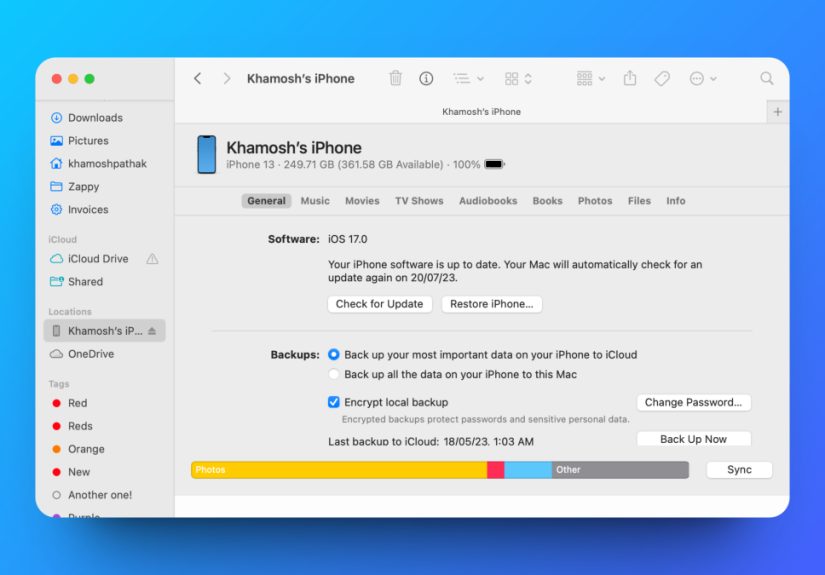
Connect your iPhone to your Mac, open Finder, select your iPhone in the sidebar, and choose the option to back up all of the data on your iPhone to that Mac. Check the box to encrypt the local backup if you want the most complete and secure version. Then click Back Up Now.
On a Windows PC
On newer Windows setups, Apple points users to the Apple Devices app. On older systems, iTunes may still be used. Connect your iPhone, open the app, select the device, choose the computer backup option, enable encryption if desired, and start the backup.
How often should you do it?
A good rule is to create a local encrypted backup before any major iPhone update, before switching to a new device, before sending your phone for repair, and anytime you have added important data you really do not want to lose. For many users, once or twice a month is a solid rhythm. For heavy users, weekly is even better.
Common Mistakes to Avoid
- Relying on only one backup method: iCloud-only is convenient, but dual backups are safer.
- Skipping encryption: an unencrypted local backup leaves out some of the most valuable data.
- Forgetting the backup password: this is a self-inflicted plot twist you do not need.
- Assuming backup and sync are identical: they are related, not interchangeable.
- Never checking the backup date: an old backup is better than none, but a fresh backup is far better.
The Bottom Line: Use Both and Sleep Better
If your iPhone only exists in one place, your risk is too high. If it exists in two places, especially one in the cloud and one on a computer, your odds improve dramatically. That is the entire argument in one sentence.
iCloud Backup is excellent for automation. A computer backup is excellent for control, redundancy, and more complete encrypted protection. Together, they create a much stronger safety net than either method alone. You do not have to be a tech expert, a security obsessive, or the family member everyone calls when the Wi-Fi breaks. You just have to spend a few minutes setting up a backup routine that does not depend on a single point of failure.
Your future self will not throw you a parade for this. But when your screen shatters, your update fails, your storage fills up, or your new iPhone needs restoring in a hurry, your future self will be very, very grateful.
Real-World Experiences That Show Why This Matters
One of the most common experiences iPhone users have is the “I thought it was backing up” moment. Everything feels fine until it is time to restore a device, move to a new phone, or recover from damage. Then the ugly surprise arrives: the last usable backup is old, incomplete, or missing entirely. This is exactly why having a computer backup in addition to iCloud matters. It gives you a second checkpoint in your digital life.
Take the classic cracked-phone disaster. Someone drops an iPhone on concrete, the screen goes dark, and panic enters the room like it pays rent. If iCloud has a recent backup, great. But if the phone had not completed a cloud backup recently because of storage limits, bad Wi-Fi, or a setting that got turned off, a computer backup created a few days earlier can save years of photos, text threads, app settings, and login data. That is not dramatic storytelling. That is a very ordinary bad Tuesday.
Another familiar experience happens during phone upgrades. Many people buy a new iPhone expecting the transfer process to be instant and magical. Sometimes it is. Sometimes it is not. A cloud restore may move slowly, especially if there is a lot of data to pull down again. A local encrypted backup can make the transition feel much more controlled. Instead of hoping the cloud behaves, you already have a full copy ready on your Mac or PC.
Then there is the software-troubleshooting crowd. Maybe an iOS update goes sideways. Maybe a beta seemed fun until the battery started draining like a bathtub with no plug. Maybe a weird bug refuses to leave. In those moments, experienced users often want a clean reset and a reliable restore point. A current local backup is like having a well-packed emergency bag by the door. You hope you do not need it, but you are awfully glad it exists when things get weird.
Privacy-minded users have their own reasons. Some people are simply more comfortable keeping an additional backup under their own control, especially when that backup is encrypted and stored on a computer they manage. They are not necessarily anti-cloud. They just prefer not to trust any single service with the only copy that matters. That is a reasonable attitude, not a tinfoil-hat hobby.
There are also plenty of users who run into the slow creep of iCloud storage pressure. Photos grow. Videos multiply. Messages pile up. Device backups get bigger. Suddenly the free storage is gone, and the backup routine that once felt automatic starts failing in the background. A computer backup helps relieve that pressure. It gives users another dependable option without forcing a last-minute cleanup spree right before an important restore.
The lesson across all these experiences is the same. Backing up your iPhone to your computer is not old-school, unnecessary, or just for tech nerds with too many cables. It is practical. It is fast insurance. And it fills the exact gaps people only notice after something has already gone wrong. That is why the smartest iPhone backup strategy is not cloud versus computer. It is cloud and computer.
Note: This article is formatted as an HTML body only, uses standard American English, and is ready for web publishing after styling adjustments if needed.