Table of Contents >> Show >> Hide
- DOCX vs. DOC: What Is the Difference?
- Why Convert DOCX to DOC?
- Before You Convert: Know the Risks
- How to Convert DOCX to DOC on Windows
- How to Convert DOCX to DOC on Mac
- Can You Convert DOCX to DOC with Google Docs?
- Can Word for the Web Convert DOCX to DOC?
- Best Practices for a Clean Conversion
- Troubleshooting Common DOCX to DOC Conversion Problems
- Should You Still Use DOC in 2026?
- Final Thoughts
- Experience Notes: Real-World Lessons from Converting DOCX to DOC
If you have ever sent a polished .docx file to someone and gotten a reply like, “Uh, my computer says no,” welcome to the glamorous world of file compatibility. It is not flashy. It is not exciting. It is, however, wildly useful. Even in 2026, plenty of schools, offices, government systems, and old-but-still-breathing computers prefer the classic .doc format.
So yes, converting DOCX to DOC still matters. The good news is that the process is easy on both Windows and Mac. The less-good news is that older file formats can behave like a time traveler from 2003: charming in theory, slightly dramatic in practice. Some modern formatting may not survive the trip perfectly.
In this guide, you will learn exactly how to convert DOCX to DOC on Windows and Mac, when you should do it, what can go wrong, and how to avoid turning your beautifully formatted document into a sad pile of shifted text boxes and mysterious spacing.
DOCX vs. DOC: What Is the Difference?
Before you convert anything, it helps to know what you are actually changing.
DOCX is the modern Microsoft Word format. It became the default file type in Word years ago and is built for newer Word features, smaller file sizes, and better handling of modern formatting. In plain English, DOCX is the version that likes cloud storage, collaboration, and not causing random headaches.
DOC is the older Word format used mainly by Word 97 through Word 2003. It still opens in modern Word, but it does not support everything newer versions can do. That means a DOC file is mostly about legacy compatibility, not modern convenience.
Think of it this way: DOCX is the current smartphone, DOC is the flip phone that still works and refuses to retire. Respect where respect is due.
Why Convert DOCX to DOC?
You probably do not need DOC for everyday work. Most people should stick with DOCX. But there are still solid reasons to convert:
- You need to share with someone using an older version of Microsoft Word.
- A company, school, or government portal asks specifically for a .doc file.
- You are opening files in older word processors that struggle with DOCX.
- You want to preserve compatibility with a legacy workflow or archived system.
In other words, converting DOCX to DOC is usually less about preference and more about making sure another person or system can actually open the file without calling you in a panic.
Before You Convert: Know the Risks
This is the part people skip and regret later.
When you save a modern Word document as an older .doc file, Word may enter Compatibility Mode. That is basically Word’s way of saying, “I can do this, but we may need to leave a few fancy features at the door.”
Here are some things that may change when you convert a DOCX file to DOC:
- SmartArt may become static images.
- Equations may convert into images instead of editable equations.
- Content controls can turn into plain text.
- Tracked moves may become simpler insertions and deletions.
- Some text effects, shapes, and advanced layout elements may change.
- Complex formatting may shift, especially if the document uses newer features.
That does not mean conversion is dangerous. It means you should always save a copy instead of overwriting your original DOCX file. Keep the DOCX as the master version, and treat the DOC as the compatibility copy.
How to Convert DOCX to DOC on Windows
Method 1: Use Microsoft Word
This is the easiest and most reliable method if you have Word installed.
- Open your .docx file in Microsoft Word.
- Click File.
- Select Save As or Save a Copy.
- Choose the folder where you want to save the file.
- In the Save as type dropdown menu, choose Word 97-2003 Document (*.doc).
- Rename the file if needed.
- Click Save.
If Word shows a compatibility warning, read it instead of clicking past it like it is a cookie banner. The message is telling you that some formatting or features may not survive the downgrade.
Method 2: Use LibreOffice
If you do not have Microsoft Word, LibreOffice Writer is a solid free option.
- Open the DOCX file in LibreOffice Writer.
- Click File.
- Select Save As.
- Choose Word 97-2003 (.doc) as the output format.
- Save the file.
This works well for simple documents like letters, reports, or resumes. For documents packed with tables, custom fonts, SmartArt, or unusual layout tricks, inspect the final DOC carefully. Free tools are helpful, but they are not magicians.
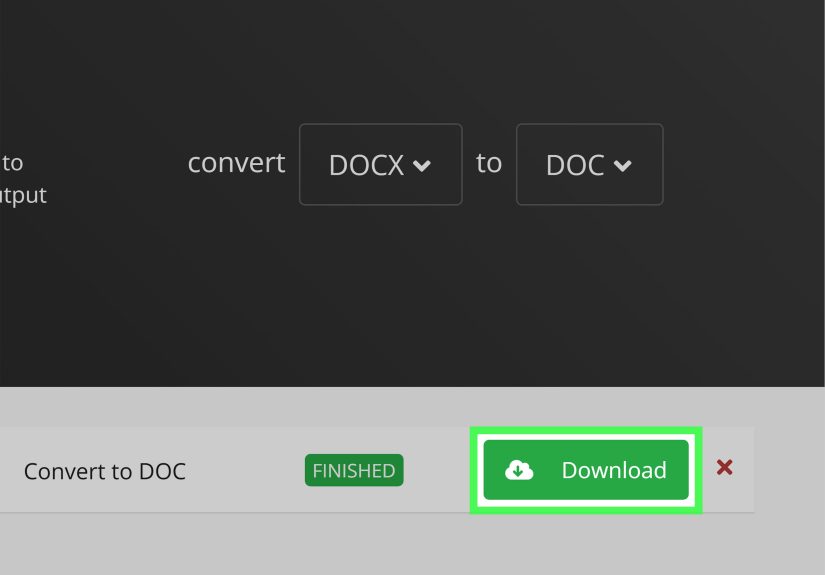
Method 3: Use an Online Converter
Online converters can work when you are in a rush, but they are best for non-sensitive files. If your document contains contracts, personal information, business data, or anything you would not want floating around the internet, skip this option.
When using an online tool, check three things first:
- Whether the site deletes uploaded files after conversion.
- Whether formatting is preserved well.
- Whether the final file is truly .doc and not just renamed.
For privacy and accuracy, the desktop app route is usually better.
How to Convert DOCX to DOC on Mac
Method 1: Use Microsoft Word for Mac
If you have Word on your Mac, use it. This is the cleanest method.
- Open the .docx file in Word.
- Click File in the top menu bar.
- Choose Save As.
- In the format menu, select Word 97-2004 Document (.doc).
- Choose where to save the file.
- Click Save.
Once saved, Word may label the file as being in Compatibility Mode. That is normal for DOC files. It simply means Word is adjusting to the limits of the older format.
Method 2: Use LibreOffice on Mac
No Word? No problem. LibreOffice also runs on macOS.
- Open your DOCX file in LibreOffice Writer.
- Click File, then Save As.
- Select the .doc format.
- Save the converted file.
Again, this is fine for basic documents. For design-heavy files, always reopen the DOC afterward and inspect the result line by line if the document is important.
What About Pages?
Apple Pages can open Word files and export to Word formats, which makes it useful when you are working inside the Apple ecosystem. But if your goal is a true DOC file specifically, Microsoft Word or LibreOffice is usually the safer bet. Pages is best treated as a helper, not the gold-standard route for legacy Word compatibility.
Can You Convert DOCX to DOC with Google Docs?
Google Docs is excellent for opening and editing Microsoft Office files, especially if you are working across devices. But there is one important catch: Google Docs is much more comfortable with DOCX than with old-school DOC workflows.
If you upload a Word file to Google Drive, Google can often edit it in its original Office format. But if you are trying to specifically produce a .doc file, Google Docs is not the most direct or dependable path. It is better for working with DOCX and Google Docs files than for creating clean, legacy DOC versions for picky systems.
Translation: great for collaboration, not always ideal for old-format wrangling.
Can Word for the Web Convert DOCX to DOC?
Not really in the way most people want.
Word for the web can view older DOC files, but when you try to edit them in the browser, it typically makes a DOCX copy. So if your mission is to create or maintain a true DOC file, the desktop version of Word is the smarter choice.
Best Practices for a Clean Conversion
If you want fewer surprises, follow these practical rules:
1. Keep the original DOCX file
Always save the DOC version as a separate copy. Your DOCX is the master file. Protect it like it pays rent.
2. Simplify formatting before converting
If possible, remove overly fancy design elements before saving as DOC. The simpler the file, the better the old format will behave.
3. Reopen the DOC file and inspect it
Do not assume the conversion is perfect. Open the DOC file after saving and check headings, images, page breaks, tables, footnotes, and spacing.
4. Watch out for fonts
If the recipient does not have the same fonts installed, the document may reflow. Safe, common fonts usually travel better.
5. Use PDF if editing is not required
If someone only needs to read the document and not edit it, PDF is often a better choice than DOC. It preserves layout more reliably and avoids a lot of compatibility drama.
Troubleshooting Common DOCX to DOC Conversion Problems
The formatting changed after conversion
This is the most common issue. Try simplifying the original document, especially SmartArt, text effects, equations, and advanced layouts. Then convert again.
The recipient still cannot open the file
Double-check that you saved the file as .doc, not .docx. Also make sure the file extension is visible and correct. A renamed DOCX is still a DOCX, no matter how convincingly it cosplays.
Images or charts look strange
Older formats can flatten or alter advanced embedded elements. Consider replacing them with simpler images or exporting a PDF version for reference.
The file opens in read-only mode online
If you are using Word for the web, that is expected behavior with certain legacy files. Open the document in desktop Word instead.
Should You Still Use DOC in 2026?
Most of the time, no.
DOCX is usually the better format because it is more modern, more efficient, and better suited for current Word features, cloud storage, and collaboration. But DOC still matters when compatibility matters. If the receiving system demands it, use DOC. If it does not, stay with DOCX.
The smart strategy is simple:
- Create and edit in DOCX.
- Convert to DOC only when needed.
- Check the converted file before sending it.
That way you get the best of both worlds: modern editing for yourself, legacy compatibility for everyone else.
Final Thoughts
Learning how to convert DOCX to DOC on Windows and Mac is one of those tiny tech skills that saves an outsized amount of frustration. The steps are simple, but the real trick is understanding what conversion does to your formatting and why older file types behave differently.
If you have Microsoft Word, the process is quick on both operating systems. If you do not, LibreOffice is the best free backup plan. Just remember that DOC is an older format with limitations, so always keep your original DOCX file and review the converted copy before you send it out into the world.
Because nothing says “professional” quite like not emailing someone a broken document five minutes before a deadline.
Experience Notes: Real-World Lessons from Converting DOCX to DOC
One of the most common real-world experiences with DOCX-to-DOC conversion happens in places that still use aging systems. A student finishes an assignment in the latest version of Word, saves it as DOCX, uploads it to a school portal, and gets an error because the platform only accepts DOC. A job applicant carefully formats a résumé in DOCX, only to find that an older office computer opens it badly or not at all. A small business owner sends a contract to a client whose company still runs a legacy document workflow and suddenly needs a format from the George W. Bush era. None of this is glamorous, but it is extremely normal.
In practice, the best experience usually comes from treating DOC as a delivery format rather than a working format. People who edit in DOC from the beginning often run into more limitations and more formatting annoyances. People who create the document in DOCX first and then export a copy to DOC usually have a much smoother time. That one habit alone prevents a surprising number of problems.
Another common lesson is that simple documents convert beautifully, while fancy ones can get moody. A plain report with headings, bullets, and a table will often survive with no drama at all. But a file with SmartArt, layered images, custom fonts, tracked changes, text effects, or advanced equations can emerge from conversion looking like it had a long night. This is why experienced users always reopen the DOC file after saving it. They do not assume. They verify.
Mac users often have a slightly different experience than Windows users. On Windows, the Save As flow feels very direct, and many users have done it before. On Mac, some people first try Pages, cloud apps, or browser tools before realizing Word for Mac can handle the job cleanly. Once they find the correct format menu, the process becomes easy. The tricky part is not the conversion itself; it is knowing which app is actually the right one for a true DOC file.
There is also a practical emotional lesson here: file formats can make smart people feel irrationally annoyed. You do everything right, the writing is done, the deadline is close, and suddenly the issue is not your content but the tiny letters after the file name. That is why experienced users build a little safety routine: keep the DOCX original, make a DOC copy, open the copy, scan the layout, then send it. It takes maybe two extra minutes and can save an hour of embarrassment, troubleshooting, and email back-and-forth that begins with “For some reason, your file looks weird on my computer.”