Table of Contents >> Show >> Hide
- What Does “Keyboard Layout” Mean on iPhone?
- How to Change the Keyboard Layout in iOS
- How to Add a New Keyboard Language on iPhone
- How to Switch Between Keyboards While Typing
- How to Reorder iPhone Keyboards
- How to Remove a Keyboard You Do Not Use
- How to Use the One-Handed Keyboard Layout
- How to Change the Hardware Keyboard Layout on iPhone
- How to Install a Third-Party Keyboard in iOS
- How to Make a Third-Party Keyboard Feel Like the Default
- Useful Keyboard Settings to Check After Changing Layouts
- Why Your iPhone Keyboard Layout May Not Change
- Best Keyboard Layout for Different Users
- Practical Examples
- Extra Experience-Based Tips for Changing Keyboard Layouts in iOS
- Conclusion
Note: This guide is written for recent iOS versions and focuses on iPhone keyboard layout settings, including built-in Apple keyboards, third-party keyboards, one-handed typing, language layouts, and external hardware keyboards.
Changing the keyboard layout in iOS sounds like one of those tiny settings you only think about after typing “ducking” for the 900th time. But the keyboard is where most iPhone life happens: messages, emails, search, notes, passwords, shopping lists, school assignments, and the occasional dramatic “K” text that definitely means more than one letter.
The good news is that iOS gives you several ways to customize your keyboard experience. You can switch from QWERTY to another layout such as AZERTY, QWERTZ, or Dvorak when supported by your selected language. You can add more language keyboards, reorder them, remove keyboards you never use, install third-party keyboards like Gboard or SwiftKey, and even adjust the layout for a connected Magic Keyboard or Bluetooth keyboard.
This step-by-step guide explains how to change the keyboard layout in iOS without wandering through Settings like you are exploring a digital corn maze. We will cover the basic path, layout choices, multilingual typing, third-party keyboard setup, troubleshooting, and real-world tips that make iPhone typing faster, cleaner, and less likely to produce accidental poetry.
What Does “Keyboard Layout” Mean on iPhone?
A keyboard layout controls how letters, symbols, and input options appear or behave when you type. On iPhone, that can mean several different things. It may refer to the letter arrangement, such as QWERTY, AZERTY, QWERTZ, or Dvorak. It may also refer to the language keyboard you are using, such as English, Spanish, French, Vietnamese, Japanese, or Arabic. In some cases, it can mean the one-handed keyboard position, the order of your keyboards, or the layout used by an external hardware keyboard.
Because iOS handles keyboards by language, the layout options you see depend on the keyboard you added. For example, English may show layouts like QWERTY and Dvorak, while French may offer layouts such as AZERTY or QWERTY depending on the region and iOS version. So if you do not see the layout you expected, your first move is not panic. Your first move is checking whether the correct language keyboard is installed.
How to Change the Keyboard Layout in iOS
Here is the main method most iPhone users need. This changes the layout for an existing language keyboard.
Step 1: Open the Settings App
Start on your iPhone Home Screen and tap Settings. Yes, the gray gear icon. The one that somehow contains every important setting and still manages to hide the exact thing you need until you search for it.
Step 2: Go to General
Scroll down and tap General. This section includes major system settings, including language, keyboard, software updates, AirDrop, iPhone storage, and reset options.
Step 3: Tap Keyboard
Inside General, tap Keyboard. This opens the main iOS keyboard settings page. Here you can manage Auto-Correction, Predictive Text, Check Spelling, Smart Punctuation, Dictation, Text Replacement, and the list of installed keyboards.
Step 4: Tap Keyboards
At the top of the Keyboard page, tap Keyboards. This shows every keyboard currently installed on your iPhone. You may see English, Emoji, another language, or third-party keyboards if you have installed them from the App Store.
Step 5: Select the Language Keyboard
Tap the language keyboard you want to change. For example, tap English (US) if you want to change the English keyboard layout. If layout options are available, iOS will show choices such as QWERTY, AZERTY, QWERTZ, or Dvorak.
Step 6: Choose Your Preferred Layout
Select the keyboard layout you want. Once you tap it, iOS applies the change automatically. You do not need to save anything, restart your iPhone, chant over the Lightning cable, or perform a secret Apple ritual.
How to Add a New Keyboard Language on iPhone
If the layout you want does not appear, add the correct language keyboard first. This is especially helpful if you write in multiple languages or need a region-specific layout.
- Open Settings.
- Tap General.
- Tap Keyboard.
- Tap Keyboards.
- Tap Add New Keyboard.
- Choose the language you want from the list.
- If iOS offers layout choices, select the layout that fits your typing style.
Once added, the new keyboard becomes available anywhere you type. This is useful for bilingual users, language learners, travelers, students, and anyone who has ever tried to type an accented character by holding down letters and hoping for the best.
How to Switch Between Keyboards While Typing
After adding multiple keyboards, you can switch between them directly from the keyboard. Open any app where you can type, such as Messages, Notes, Safari, Mail, or WhatsApp. Then look for the globe icon or emoji icon near the lower-left corner of the keyboard.
Tap the globe icon to cycle through keyboards. You can also touch and hold the globe icon to open a list of available keyboards, then choose the one you want. This is the fastest way to jump between English, Emoji, Vietnamese, Spanish, French, Japanese, or a third-party keyboard without leaving your conversation.
If you do not see the globe icon, you probably have only one keyboard enabled. Add another language keyboard or the Emoji keyboard, and the globe icon should appear.
How to Reorder iPhone Keyboards
The order of your keyboards matters because it controls how iOS cycles through them when you tap the globe icon. If your favorite keyboard is buried behind five others, typing can feel like spinning a tiny digital roulette wheel.
- Go to Settings.
- Tap General.
- Tap Keyboard.
- Tap Keyboards.
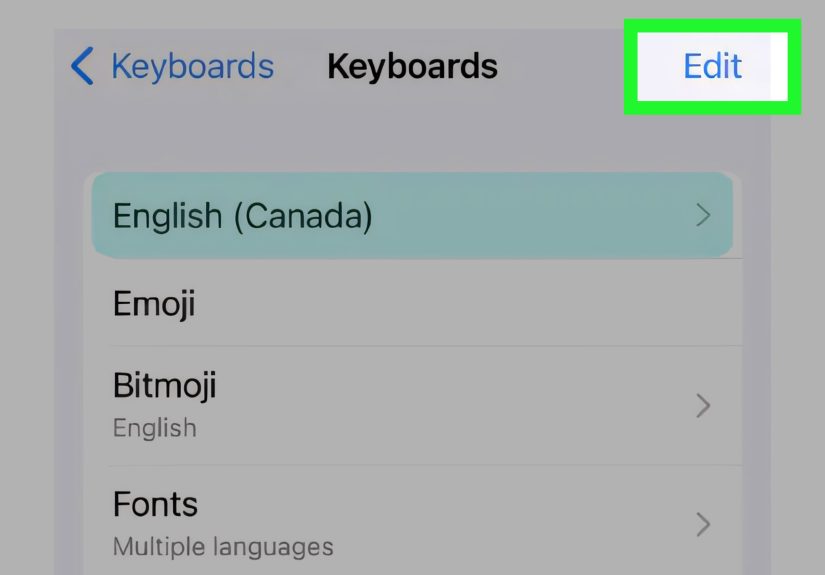
- Tap Edit.
- Drag keyboards into your preferred order using the handle beside each one.
- Tap Done.
Place your most-used keyboard at the top. If you mainly type in English but occasionally use French, put English first and French second. If you live in emoji mode, well, the Emoji keyboard is ready for its close-up.
How to Remove a Keyboard You Do Not Use
Too many keyboards can make switching slower and more annoying. Removing unused keyboards keeps the globe menu clean and reduces accidental layout changes.
- Open Settings.
- Tap General.
- Tap Keyboard.
- Tap Keyboards.
- Tap Edit.
- Tap the red minus button next to the keyboard you want to remove.
- Tap Delete.
- Tap Done.
Removing a keyboard does not delete the entire language from your iPhone. It simply removes that keyboard from the typing menu. You can add it again later if you need it.
How to Use the One-Handed Keyboard Layout
If you use a large iPhone, one-handed typing can feel like thumb gymnastics. iOS includes a one-handed keyboard mode that moves the keys closer to your left or right thumb.
- Open any app where the keyboard appears.
- Touch and hold the globe or emoji icon.
- At the bottom of the menu, choose the left-handed or right-handed keyboard layout.
- To return to the normal centered keyboard, tap the arrow on the side of the keyboard.
This does not change QWERTY into Dvorak or AZERTY. Instead, it changes the keyboard position on the screen. It is perfect for walking, carrying coffee, holding a bag, or pretending you can multitask better than physics allows.
How to Change the Hardware Keyboard Layout on iPhone
If you use a Magic Keyboard or Bluetooth keyboard with your iPhone, iOS lets you assign a different layout for the physical keyboard. This is separate from the onscreen keyboard layout.
- Connect your external keyboard to your iPhone.
- Open Settings.
- Tap General.
- Tap Keyboard.
- Tap Hardware Keyboard.
- Choose the language at the top of the screen.
- Select the layout you want.
This is especially useful if your physical keyboard has a different printed layout than your iPhone’s default language setting. For example, if you have a European keyboard but your iPhone assumes a U.S. layout, symbols may appear in unexpected places. Changing the hardware keyboard layout helps the physical keys match what appears on screen.
How to Install a Third-Party Keyboard in iOS
Apple’s built-in keyboard is reliable, but some users prefer third-party keyboards for swipe typing, stronger predictions, grammar suggestions, themes, GIF search, translation features, or multilingual typing. Popular choices include Gboard, Microsoft SwiftKey, and Grammarly.
- Open the App Store.
- Search for the keyboard app you want.
- Download and install it.
- Open Settings.
- Go to General > Keyboard > Keyboards.
- Tap Add New Keyboard.
- Scroll to the third-party keyboard section.
- Tap the keyboard you installed.
After that, open any typing app and use the globe icon to switch to your new keyboard. Some third-party keyboards also ask you to open their companion app to finish setup, choose themes, add languages, or enable extra features.
A Quick Privacy Note About Full Access
Some third-party keyboards may request Allow Full Access. This permission can enable features that need internet access, such as cloud predictions, GIF search, translation, or account-based personalization. However, you should only grant full access to keyboard apps you trust. A keyboard sees what you type in many text fields, so privacy matters. If a keyboard works without full access and you do not need the extra features, leaving it off is a reasonable choice.
How to Make a Third-Party Keyboard Feel Like the Default
iOS does not always behave like Android when it comes to default keyboards. You can reorder keyboards and remove unused Apple language keyboards, but the built-in Apple keyboard may still appear in certain secure situations, such as password fields. This is normal. It is designed to protect sensitive information and keep typing available if a third-party keyboard fails to load.
To make a third-party keyboard easier to access, put it first in your keyboard list:
- Go to Settings > General > Keyboard > Keyboards.
- Tap Edit.
- Drag the third-party keyboard to the top.
- Remove keyboards you rarely use.
- Tap Done.
This does not guarantee the third-party keyboard will appear in every field, but it makes switching smoother in everyday typing.
Useful Keyboard Settings to Check After Changing Layouts
Changing the layout is only part of improving the iPhone typing experience. While you are in Settings > General > Keyboard, review these options too.
Auto-Correction
Auto-Correction automatically fixes words as you type. It can be helpful, hilarious, or deeply suspicious depending on the day. Keep it on if you like fast correction. Turn it off if your iPhone keeps “fixing” names, slang, technical terms, or words from another language.
Predictive Text
Predictive Text shows word and phrase suggestions above the keyboard. It can speed up typing, especially for common phrases. In newer iOS versions, predictive features may include inline suggestions, depending on your language and settings.
Check Spelling
Check Spelling underlines possible mistakes without automatically changing them. This is a good middle ground if you want help but do not want your phone making executive decisions like a tiny grammar manager.
Text Replacement
Text Replacement lets you create shortcuts that expand into longer phrases. For example, you can set “omw” to become “On my way!” or “addr” to become your address. It is also useful for names, email addresses, brand terms, and phrases you type often.
Keyboard Feedback
Keyboard Feedback controls sound and haptic feedback while typing. If you like a subtle tap feeling, turn on haptics. If keyboard clicks make everyone nearby glare at you in public, consider turning off sound.
Why Your iPhone Keyboard Layout May Not Change
If you followed the steps but the keyboard still looks wrong, do not throw your phone into the nearest decorative fountain. Try these fixes first.
The Layout Is Not Available for That Language
Not every language keyboard offers the same layout options. Try adding another regional version of the language. For example, English keyboards may vary by region, and some layout choices appear only under specific language settings.
You Are Using a Third-Party Keyboard
Third-party keyboards often manage layout settings inside their own app. If Gboard, SwiftKey, or Grammarly is active, open that keyboard’s app and check its language and layout options there.
You Are Typing in a Password Field
iOS may switch to the built-in Apple keyboard in secure fields, including passwords. This is expected behavior and does not mean your third-party keyboard is broken.
The App Has Its Own Keyboard Rules
Some apps restrict third-party keyboards or handle input differently. Try testing your layout in Notes or Messages. If it works there but not in another app, the app may be limiting keyboard behavior.
Your Keyboard List Is Too Crowded
If you have many keyboards installed, you may simply be switching to the wrong one. Remove unused keyboards and reorder the ones you actually use.
Restart Your iPhone
Sometimes iOS needs a quick restart after installing or changing keyboards. Restarting can fix a stuck keyboard, missing globe icon, or layout that refuses to appear.
Best Keyboard Layout for Different Users
The best iPhone keyboard layout depends on how you type, what language you use, and whether you prefer speed, familiarity, or comfort.
QWERTY
QWERTY is the standard layout for most English-speaking users in the United States. It is familiar, widely supported, and easiest for most people because it matches common computer keyboards.
AZERTY
AZERTY is common for French typing. If you write in French often, AZERTY may feel more natural because it supports common French typing patterns.
QWERTZ
QWERTZ is used in several Central European language contexts. It can be helpful if your typing habits or physical keyboard come from that layout.
Dvorak
Dvorak is an alternative layout designed for typing efficiency. It has a learning curve, but some users prefer it for comfort and speed once they adjust. On iPhone, it is most useful if you already use Dvorak on your computer or want consistency across devices.
Third-Party Keyboards
Third-party keyboards are best for users who want features Apple’s default keyboard may not emphasize, such as deeper customization, multilingual prediction, grammar suggestions, swipe typing styles, or integrated search tools.
Practical Examples
Example 1: You Type in English and French
Add both English and French keyboards. Set English to QWERTY and French to AZERTY if that matches your typing preference. Use the globe icon to switch when changing languages. This helps autocorrect and predictions behave better because iOS knows which language you are using.
Example 2: You Use an External Keyboard
If your Bluetooth keyboard types the wrong symbols, go to Settings > General > Keyboard > Hardware Keyboard and choose the correct layout. This can fix mismatched punctuation, accents, and special characters.
Example 3: You Want Faster One-Handed Typing
Open the keyboard, hold the globe or emoji icon, and choose the left or right one-handed layout. This makes the keyboard smaller and moves it closer to your thumb. It is simple, but it can make a large iPhone much easier to use.
Example 4: You Want Better Grammar Suggestions
Install a keyboard like Grammarly, add it under iOS keyboard settings, and switch to it when writing emails, documents, or posts. Just remember to review privacy permissions before enabling full access.
Extra Experience-Based Tips for Changing Keyboard Layouts in iOS
After testing keyboard layouts on iPhone, the biggest lesson is that comfort beats novelty. A new layout may look exciting for about six minutes, especially if someone online says it will transform your typing speed and make you feel like a productivity wizard. But if your thumbs have spent years learning QWERTY, switching to Dvorak or another layout can feel like your keyboard got rearranged by a raccoon with a design degree.
The smartest approach is to change one thing at a time. If you add three language keyboards, install two third-party keyboards, turn off Auto-Correction, enable Predictive Text, and switch to Dvorak all in one afternoon, you will not know which change helped and which one made you type “meeting” as “meat tornado.” Start with the layout. Use it for a day. Then adjust prediction, autocorrect, or third-party keyboard settings later.
Another practical tip: test your new keyboard layout in the Notes app before relying on it in Messages, Mail, or work apps. Notes is simple and usually behaves predictably. Type a few sentences, add punctuation, try numbers, enter an email address, and test special characters. If you use multiple languages, type a sentence in each language. This gives you a quick feel for whether the layout actually improves your typing or simply makes your phone feel like it is speaking in riddles.
For multilingual users, separate keyboards are usually better than forcing one keyboard to handle everything. When you use the correct language keyboard, autocorrect and predictive text are more likely to understand what you are trying to say. This matters a lot if you switch between English and a language with accents, tone marks, or different punctuation habits. The globe icon becomes your friend here. Not your best friend, maybe, but definitely the useful friend who shows up with snacks.
Third-party keyboards can be great, but they are not magic. Gboard may feel better for glide typing. SwiftKey may appeal to people who want strong predictions. Grammarly can be helpful for polished writing. Still, iOS may switch back to the Apple keyboard in password fields or secure areas. That is normal. Do not assume the app is broken every time Apple’s keyboard appears. Security fields often have stricter rules.
If your typing suddenly feels worse after changing layouts, check your keyboard order. Many people think the layout failed when they are actually using a different keyboard than expected. Go back to Settings > General > Keyboard > Keyboards, remove the keyboards you do not use, and drag your favorite one to the top. A clean keyboard list is like a clean desk: it will not solve every problem, but at least you can find the stapler.
For external keyboards, always check Hardware Keyboard settings. This is one of the most overlooked iPhone keyboard features. If the physical keys do not match what appears on screen, the problem is often a layout mismatch, not a broken keyboard. Choosing the correct language and layout can instantly fix weird symbol placement.
Finally, give yourself a short adjustment period. A layout change can feel awkward at first because typing is muscle memory. If you are switching for a real reason, such as matching a physical keyboard, writing in another language, or reducing thumb strain, the adjustment may be worth it. If you are switching only because you are bored, maybe just change your wallpaper instead. Your thumbs have been through enough.
Conclusion
Changing the keyboard layout in iOS is simple once you know where Apple keeps the controls. Go to Settings > General > Keyboard > Keyboards, select your language keyboard, and choose the layout you prefer. From there, you can add more language keyboards, reorder your keyboard list, remove unused options, install third-party keyboards, use one-handed mode, or adjust a connected hardware keyboard.
The best setup is the one that matches how you actually type. If you write in one language, keep things simple. If you switch between languages, add the right keyboards and use the globe icon. If you use an external keyboard, match the hardware layout. If you want extra features, try a trusted third-party keyboard while paying attention to privacy settings.
Your iPhone keyboard may be small, but it shapes a huge part of your daily digital life. Set it up well, and typing becomes faster, cleaner, and less likely to turn “See you soon” into “See your spoon.” That alone is worth a trip into Settings.