Table of Contents >> Show >> Hide
- Quick Answer: How to Activate Hulu on Your Device
- Before You Start: What You Need to Activate Hulu
- How to Activate Your Device on Hulu.com Step by Step
- How to Activate Hulu on Popular Devices
- Why Your Hulu Activation Code Is Not Working
- Fixes for Hulu Activation Problems
- Fixing Hulu Login and MyDisney Account Issues
- Activating Hulu After Signing Up for a Disney Bundle
- How to Manage or Remove Activated Hulu Devices
- Special Tips for Hulu + Live TV Activation
- Security Warning: Avoid Fake Hulu Activation Help
- Common Hulu Activation Questions
- Experience-Based Tips: What Hulu Activation Is Like in Real Life
- Conclusion
Note: This guide is written for U.S. Hulu users and reflects current Hulu activation, MyDisney login, supported-device, bundle, and troubleshooting guidance as of 2026. Always use the official Hulu activation page and never pay a third-party “activation service.”
There are few modern household moments more dramatic than gathering everyone for movie night, opening Hulu on the big TV, and being greeted by a mysterious activation code instead of the show you promised. Suddenly, you are no longer a viewer. You are the family IT department. The good news? Activating Hulu is usually simple once you know where to go, what code to enter, and what to do when the app decides to act like it has never met the internet before.
This easy guide explains how to activate your device on Hulu.com, how to use the Hulu activation code, how to sign in with your MyDisney login, and how to fix the most common Hulu activation problems on Roku, Fire TV, Apple TV, smart TVs, game consoles, phones, tablets, and web browsers. Whether your code is not working, your Hulu app will not load, or your bundle account is playing hide-and-seek, this guide walks you through it in plain English.
Quick Answer: How to Activate Hulu on Your Device
To activate Hulu on a TV-connected device, open the Hulu app, select Log In, choose the option to activate on a computer or web browser, and write down the activation code shown on your TV screen. Then go to hulu.com/activate on your phone, tablet, or computer, sign in with your Hulu or MyDisney account, enter the code exactly as shown, and wait for the TV screen to refresh.
In many cases, Hulu signs you in automatically within a few seconds. If it does not, do not panic. The activation code may have expired, the app may need an update, your device may need a restart, or your Hulu account may need to be fully activated first, especially if you signed up through a Disney bundle.
Before You Start: What You Need to Activate Hulu
1. A Hulu Account or Eligible Bundle
You need an active Hulu subscription, Hulu + Live TV plan, or an eligible Disney bundle that includes Hulu. If you signed up through a bundle, make sure you have completed Hulu account activation from the signup flow or activation email. Bundle subscribers generally use the same email address and password associated with their MyDisney login.
2. A Supported Device
Hulu supports many devices, including smart TVs, streaming sticks, web browsers, mobile devices, tablets, set-top boxes, and game consoles. Common Hulu activation devices include Roku, Amazon Fire TV, Apple TV, Android TV, Samsung TVs, LG TVs, VIZIO TVs, Xbox, PlayStation, iPhone, iPad, Android phones, and computers.
3. A Stable Internet Connection
Your device must be connected to the internet. If your TV says it is connected but Hulu refuses to cooperate, test another app such as YouTube or a browser page. If nothing loads, the problem is probably your Wi-Fi, modem, router, or device network settingsnot Hulu activation itself.
4. The Official Hulu Activation Page
Use the official Hulu activation page only: hulu.com/activate. Avoid random search results, fake support pages, or websites asking for payment to activate Hulu. Hulu activation should not require a stranger on the internet to “remote into” your computer. That is not customer support; that is a red flag wearing a tiny headset.
How to Activate Your Device on Hulu.com Step by Step
Step 1: Install or Open the Hulu App
On your TV, streaming stick, console, or set-top box, open the Hulu app. If Hulu is not installed, download it from your device’s official app store. For example, Roku users can add Hulu from the Roku Channel Store, Fire TV users can download it from the Amazon Appstore, and smart TV users can usually find Hulu in the TV’s app hub.
Step 2: Select Log In
When the Hulu welcome screen appears, choose Log In. Depending on your device, you may see two sign-in options: logging in directly on the device with your email and password, or activating on a computer. If typing a long password with a TV remote sounds like an emotional endurance sport, choose activation on a computer.
Step 3: Get the Hulu Activation Code
After choosing the activation option, Hulu will show a unique activation code on your TV screen. The code may include letters, numbers, or both. Keep the screen open while you complete the next step. Do not close the app, press back repeatedly, or let the device go to sleep.
Step 4: Visit Hulu.com/Activate
On your phone, tablet, laptop, or desktop computer, open a browser and go to hulu.com/activate. Sign in using your Hulu account credentials or MyDisney login. If you recently updated your Disney, ESPN, or Hulu login, use the newest password.
Step 5: Enter the Code Exactly
Type the activation code exactly as it appears on your TV. Watch out for easy mistakes such as confusing the letter O with the number 0, or the letter I with the number 1. If your code has expired or fails, return to the Hulu app and generate a new one.
Step 6: Start Streaming
Once Hulu accepts the code, your TV or device should refresh automatically. Select your profile, choose a show or movie, and enjoy. If the screen does not update after a minute, close and reopen the Hulu app.
How to Activate Hulu on Popular Devices
How to Activate Hulu on Roku
Open Hulu on your Roku device, select Log In, choose activation on a computer, then enter the displayed code at hulu.com/activate. If Hulu does not load on Roku, check for system updates, remove and reinstall the Hulu channel, restart your Roku, and try again. If your Hulu account is billed through Roku, make sure your billing and subscription status are active.
How to Activate Hulu on Amazon Fire TV or Fire Stick
Open the Hulu app on Fire TV, choose Log In, and use the activation code option if available. Visit hulu.com/activate from another device and enter the code. If the app freezes, clear the Hulu app cache, restart the Fire TV device, update Fire OS, and make sure the Hulu app is current.
How to Activate Hulu on Apple TV
On Apple TV, open Hulu and choose Log In. You can enter your email and password directly or use the activation code method when shown. If Hulu will not open or sign in, update tvOS, force close the Hulu app, restart Apple TV, delete and reinstall Hulu, then retry activation.
How to Activate Hulu on Smart TVs
Most supported smart TVs follow the same process: open Hulu, select Log In, choose activation on a computer, and enter the code at hulu.com/activate. If you do not see Hulu in your TV’s app store, your model may be unsupported or may need a firmware update.
How to Activate Hulu on Game Consoles
On Xbox or PlayStation, install Hulu from the console’s app store, open the app, select Log In, and follow the activation code instructions. If Hulu keeps returning to the login screen, restart the console, check for system updates, and reinstall the app.
Why Your Hulu Activation Code Is Not Working
The Code Expired
Activation codes are temporary. If you waited too long, the code may no longer work. Return to the Hulu app and request a fresh code. Enter it right away before making popcorn, checking messages, or getting pulled into a “quick” conversation that somehow becomes a family meeting.
You Entered the Code Incorrectly
Hulu activation codes must be entered exactly. Double-check every character. If you are using a phone, avoid accidental autocorrect, spaces, or copied characters from another page.
You Are on the Wrong Website
Make sure you are using hulu.com/activate. Do not use lookalike websites, unofficial pages, or search ads that claim to offer Hulu activation help. Fake activation pages often ask for payment, personal information, or remote access.
Your Hulu App Is Outdated
An outdated app can cause sign-in loops, loading errors, blank screens, or failed activation. Check your device’s app store for Hulu updates. Also check for device firmware or operating system updates, especially on smart TVs and older streaming sticks.
Your Device Is No Longer Supported
If Hulu is no longer supported on your device, the app may disappear, stop opening, or refuse to sign in. In that case, activation will not fix the issue. You may need to use a newer streaming stick, smart TV platform, game console, or web browser.
Fixes for Hulu Activation Problems
Fix 1: Generate a New Activation Code
Close the Hulu app, reopen it, choose Log In, and select activation on a computer again. Use the new code instead of retrying the old one. This simple fix solves many Hulu activation issues.
Fix 2: Restart the Hulu App
Exit Hulu completely and reopen it. On some devices, pressing the home button does not fully close the app. Use the device’s app switcher or settings menu to force close Hulu, then relaunch it.
Fix 3: Power-Cycle Your Device and Router
Turn off your streaming device, TV, modem, and router. Unplug them for about a minute, then plug them back in. This refreshes the network connection and often fixes activation screens that hang forever like they are waiting for a handwritten invitation.
Fix 4: Clear Hulu Cache and Data
On devices that allow it, open settings, find the Hulu app, and clear cache or app data. Cache files help apps load faster, but corrupted cache can create login errors and activation problems. After clearing data, you may need to sign in again.
Fix 5: Update the Hulu App and Device Software
Check both the Hulu app and your device operating system. Hulu activation can fail when the app is current but the device firmware is old, or when the device is updated but the Hulu app is several versions behind.
Fix 6: Reinstall the Hulu App
If nothing else works, uninstall Hulu, restart your device, and reinstall the app from the official app store. Reinstallation removes corrupted app files and gives you a clean activation attempt.
Fix 7: Try Direct Login Instead
If the activation code refuses to work, try logging in directly on the device with your email address and password. It is less glamorous than code activation, especially with a remote control, but it can bypass activation-page issues.
Fixing Hulu Login and MyDisney Account Issues
Hulu uses MyDisney login for access across Hulu and other Disney-owned services. That means your Hulu login may be connected to the same email and password used for Disney+ or ESPN. If activation fails after you sign in, reset your password, confirm your email address, and check that you are using the correct account.
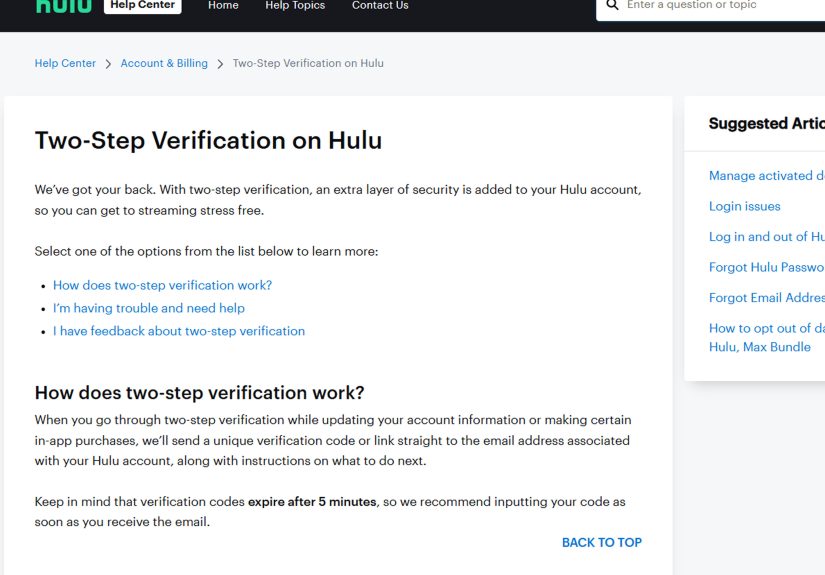
If you receive a verification email, enter the verification code promptly. Also check your spam or promotions folder if the email does not appear. If you recently changed your email, password, or bundle subscription, sign out of Hulu on all devices and sign back in with the updated information.
Activating Hulu After Signing Up for a Disney Bundle
If you purchased a bundle that includes Hulu, you may need to activate the Hulu portion of your subscription before signing in on a TV. Look for an activation link during signup or in your confirmation email. Use the same email address tied to your MyDisney account. If Hulu says it cannot find your subscription, your Hulu access may not be fully activated yet.
This issue is common because users assume that buying the bundle instantly logs every app into every device. Sadly, streaming services are not quite that psychic. Complete the Hulu activation step first, then return to your TV or streaming device and sign in again.
How to Manage or Remove Activated Hulu Devices
If you have activated Hulu on several devices, you can manage them from your Hulu account page. Look for the area related to watching Hulu on your devices or managing activated devices. From there, you can review devices tied to your account and remove old, unused, or unfamiliar devices.
This is especially useful if you signed in on a hotel TV, sold an old streaming stick, gave away a console, or suspect someone else is using your Hulu account. After removing suspicious devices, change your password. A strong password is less exciting than a season finale, but it is far better than discovering that a mystery viewer has been rearranging your watch history.
Special Tips for Hulu + Live TV Activation
Hulu + Live TV users may also need to manage a Home network. Hulu uses this information to provide the correct local and regional channels. If Live TV does not work after activation, check whether your Home network is set correctly. You may need to log in on a supported living room device and confirm your home location through your Hulu account page.
If you recently moved, changed internet providers, switched routers, or started using a VPN, Live TV activation and local channel access may be affected. Turn off VPNs, connect to your home internet, and make sure your device is physically located where your Hulu + Live TV account is set up.
Security Warning: Avoid Fake Hulu Activation Help
Search results for streaming activation can sometimes include fake pages, suspicious support numbers, and websites that look official but are not. A real Hulu activation process does not require you to pay an activation fee to a third-party technician. Do not share your password, payment details, one-time codes, or remote computer access with unknown support agents.
If a website or caller says your Hulu activation failed and demands a credit card, close the page. Go directly to Hulu’s official website or Help Center. When in doubt, type the address manually instead of clicking a questionable link.
Common Hulu Activation Questions
Where do I enter my Hulu activation code?
Enter your Hulu activation code at hulu.com/activate after signing in with your Hulu or MyDisney account.
Can I activate Hulu without a computer?
Yes. You can use a smartphone or tablet browser to visit the activation page. You do not need a desktop computer.
Why does Hulu keep asking me to activate again?
This may happen after app updates, password changes, device resets, expired sessions, account security changes, or bundle login updates. Re-enter a new activation code and make sure your account is active.
Can I use Hulu on multiple devices?
Yes, you can activate Hulu on multiple supported devices. However, streaming limits may apply depending on your plan. If too many people are watching at once, you may see a streaming-limit message.
What should I do if Hulu is not supported on my device?
Use another supported device, such as a newer streaming stick, smart TV, game console, mobile device, or web browser. Updating the app will not restore support on a device Hulu no longer supports.
Experience-Based Tips: What Hulu Activation Is Like in Real Life
In real-world use, the easiest Hulu activation experiences usually happen when you prepare everything before opening the app. Have your Hulu or MyDisney login ready, keep your phone nearby, and make sure your TV is connected to a strong Wi-Fi signal. The people who struggle the most are usually not doing anything “wrong.” They are switching between the TV, the phone, the remote, the password manager, and three different email inboxes while the activation code quietly expires in the background. It is the streaming version of a tiny obstacle course.
One practical trick is to sign in to Hulu on your phone or computer before you even open the Hulu app on the TV. That way, when the activation page asks for your account, you are already logged in and can enter the code quickly. This saves time and reduces password mistakes. It also helps if your Hulu account uses MyDisney login, because you may be asked to verify your email or enter a one-time code.
Another useful habit is to update the Hulu app before starting activation, especially on smart TVs and Fire TV devices. Many activation problems are not dramatic account issues; they are old app issues wearing a fake mustache. If Hulu loads slowly, freezes on the welcome screen, or gives you a blank page after login, updating or reinstalling the app is often faster than trying the same broken code ten times.
For families, roommates, and shared households, device management matters. If Hulu suddenly behaves strangely, check the devices connected to your account. Old TVs, unused streaming sticks, and forgotten logins can pile up over time. Removing devices you no longer use keeps your account cleaner and makes suspicious activity easier to spot. If you see a device you do not recognize, remove it and change your password immediately.
Hulu + Live TV users should pay extra attention to location and Home network settings. A regular Hulu streaming-library subscription is more flexible, but Live TV depends on your home internet setup for local channels. If you activate Hulu on a living room device while traveling, using a VPN, or connected to a different network, you may run into location-related problems. For the smoothest Live TV setup, activate from your home Wi-Fi network and avoid masking your location.
Finally, do not underestimate the classic restart. It sounds boring because it is boring. But boring works. Restart the TV, streaming stick, router, and Hulu app before assuming your subscription is broken. Most Hulu activation problems are temporary: an expired code, a sleepy app, a weak connection, or a confused login session. With the right order of steps, you can usually go from “Why is this not working?” to “Where did we leave off?” in just a few minutes.
Conclusion
Activating Hulu on your device is usually a quick process: open the Hulu app, choose the activation option, visit hulu.com/activate, sign in, enter the code, and start streaming. If something goes wrong, the best fixes are simple and practical: request a new code, check your login, update the app, restart your device, clear cache, reinstall Hulu, or confirm that your account and device are supported.
The biggest rule is to stay official. Use Hulu’s real activation page, protect your MyDisney login, and ignore anyone asking for payment or private information just to activate a streaming app. Once your device is connected, the hard part is over. The only remaining challenge is choosing what to watch, which, scientifically speaking, can take longer than the activation process itself.