Table of Contents >> Show >> Hide
- What Deleting a Label in Gmail Actually Does
- Before You Delete a Gmail Label
- How to Delete Labels in Gmail on a Computer
- How to Delete Gmail Labels on Android
- How to Delete Gmail Labels on iPhone
- What Happens to Emails After You Delete a Label?
- Delete the Label or Delete the Emails Inside It?
- Common Reasons People Delete Gmail Labels
- Smart Alternatives to Deleting Labels
- Troubleshooting: Why Can’t I Delete a Label in Gmail?
- Best Practices for a Cleaner Gmail Label System
- Experiences From Real Gmail Cleanup Routines
- Final Thoughts
- SEO Tags
Gmail labels are wonderful right up until they become tiny digital houseguests who refuse to leave. What started as a neat system like “Work,” “Receipts,” “Travel,” and “Very Important But Somehow Still Ignored” can slowly turn into a cluttered sidebar full of old categories you no longer need. The good news is that deleting labels in Gmail is usually quick. The better news is that removing a label does not mean your emails disappear into the void like a sock in the laundry.
This guide walks through exactly how to delete labels in Gmail on a computer, Android phone, and iPhone. Along the way, we’ll cover what happens to your messages, common mistakes to avoid, troubleshooting tips, and a few smarter alternatives in case deletion feels a little too dramatic for the moment.
What Deleting a Label in Gmail Actually Does
Before you start tapping buttons like you’re defusing a movie bomb, here’s the important part: in Gmail, labels are more like tags than classic folders. A single email can have multiple labels at the same time. So when you delete a label, you are removing the organizer, not automatically deleting the messages that once wore that label.
That distinction matters. Plenty of people assume deleting a label will wipe out every email inside it. Gmail does not work that way. In most cases, the emails remain in your account, usually still searchable and often visible in All Mail or under any other labels they still have. So yes, you can clean your label list without causing a full-blown inbox tragedy.
Before You Delete a Gmail Label
A quick pause now can save you from a “Why did I do that?” moment later. Ask yourself these three questions first:
- Do I still use this label in filters? If you created filters that automatically apply the label to incoming messages, deleting the label can disrupt that workflow.
- Is this label part of a naming system? Labels like “Clients/2025,” “Clients/2026,” and “Clients/Archive” may look boring, but they may also be doing serious organizational labor.
- Would hiding or renaming work better? Sometimes the label is not the problem. Sometimes the real issue is that the sidebar looks like a garage sale.
If you are unsure, rename the label first or hide it from the label list. That gives you a cleaner view without permanently removing the label structure you may want later.
How to Delete Labels in Gmail on a Computer
Desktop is the easiest place to manage Gmail labels. If your label list looks like a filing cabinet designed by caffeine, this is where to fix it.
Method 1: Delete a Label From the Left Sidebar
- Open Gmail in your desktop browser and sign in.
- Look at the left sidebar where your labels appear.
- Hover over the label you want to remove.
- Click the More or three-dot option next to the label name.
- Select Remove label.
- Confirm the deletion if Gmail asks.
This is the fastest method for deleting one label at a time. It works especially well when you already know exactly which label needs to go. Think of it as the inbox equivalent of pulling one weed instead of redoing the whole yard.
Method 2: Delete a Label From Gmail Settings
If you want a bigger picture view of all your labels, Gmail settings is the better route.
- Open Gmail on your computer.
- Click the gear icon in the upper-right corner.
- Select See all settings.
- Click the Labels tab.
- Scroll until you find the label you want to remove.
- Click Remove next to that label.
- Confirm the deletion.
This method is ideal when you’re cleaning up multiple labels because you can scan your whole setup in one place. It is also handy for spotting nested labels, hidden labels, and labels you forgot existed sometime around your third productivity phase.
How to Delete Gmail Labels on Android
For a long time, many people treated mobile Gmail label management like a mythical creature: often discussed, rarely trusted. But on Android, Gmail now offers a direct way to manage and delete labels in the app itself.
- Open the Gmail app on your Android phone or tablet.
- Tap the menu icon in the upper-left corner.
- Tap Settings.
- Select the Gmail account where the label lives.
- Tap Manage labels.
- Select the label you want to delete.
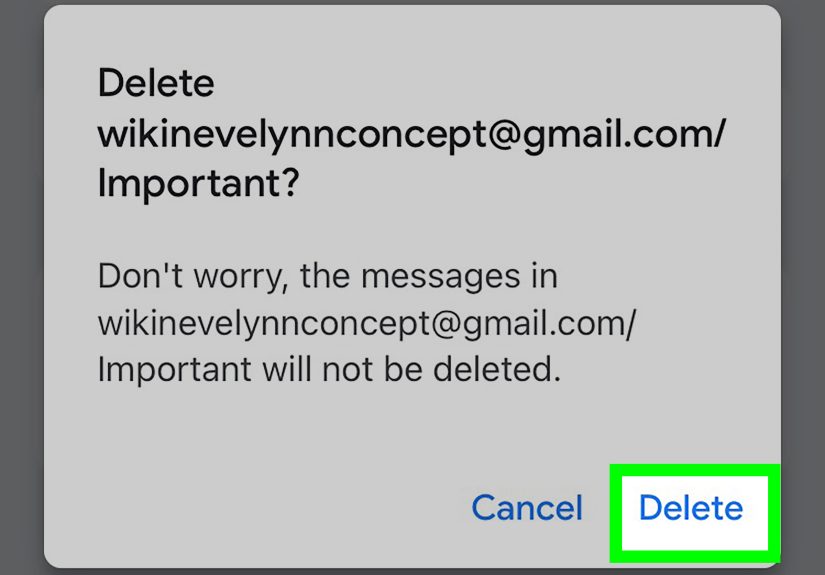
- Tap Delete.
That’s it. No secret handshake. No browser workaround. No need to whisper at your phone and hope Gmail becomes cooperative.
One small reminder: if you have multiple Gmail accounts signed in, double-check that you’re editing the right one. Accidentally deleting a label from your school account while trying to clean your personal inbox is exactly the sort of plot twist nobody asked for.
How to Delete Gmail Labels on iPhone
On iPhone and iPad, the Gmail app also gives you a built-in path for deleting labels, though the menu path is slightly different from Android. Because of course it is. Technology likes keeping us humble.
- Open the Gmail app on your iPhone.
- Tap the menu icon.
- Tap Settings.
- Tap Inbox customizations.
- Tap Labels.
- Select the label you want to remove.
- Tap Delete.
If the label doesn’t appear right away, make sure you’re in the correct Gmail account. People with two or three accounts often blame the app when the real issue is simply being in the wrong mailbox. Gmail is not always the villain. Sometimes it’s just extremely literal.
What Happens to Emails After You Delete a Label?
This is the question people ask right after deleting a label and right before panic-refreshing the page twelve times.
In normal Gmail use, deleting a label removes that label from the messages, but it does not automatically delete the emails themselves. The messages can still remain in your inbox, in All Mail, or under other labels if they have any. So if you delete a label named “Coupons,” the emails do not burst into confetti. They simply lose that organizational tag.
That said, label cleanup can still make messages harder to spot if you relied on that label to find them quickly. A message that once sat neatly under “Travel Plans” might still exist, but now you may need search, sender names, dates, or other labels to locate it.
Delete the Label or Delete the Emails Inside It?
These are two very different chores, and Gmail does not bundle them together. If your goal is to remove the label only, follow the steps above. If your real goal is to delete the emails that carry that label, open the label, select the messages, and move those emails to Trash.
Here’s a simple example:
- Delete the label “Newsletters”: the label disappears, but the emails remain in your account.
- Delete emails under “Newsletters”: the messages go to Trash, regardless of the label.
This difference is why label management in Gmail is powerful. It lets you reorganize without automatically erasing content. That is excellent for safety, though slightly less excellent if you were hoping one tap would solve five years of inbox regret.
Common Reasons People Delete Gmail Labels
Not every label deserves lifelong employment. Here are the most common reasons users remove them:
- Old project labels that are no longer relevant
- Temporary labels created for travel, school terms, or events
- Duplicate labels with similar names like “Bills,” “Bill,” and “Monthly Bills”
- Auto-created labels from abandoned filter experiments
- Nested labels that made sense once and now look like a family tree drawn during a power outage
A good label system should reduce friction, not create archaeology. If your sidebar feels like a museum of old intentions, deletion may be the most reasonable cleanup move.
Smart Alternatives to Deleting Labels
Sometimes deleting a label is right. Sometimes it is just a little too final for your comfort. In that case, try one of these options instead:
1. Hide the Label
In Gmail settings on desktop, you can hide labels from the label list or message list. This is perfect for labels you still use in filters but do not need to stare at all day.
2. Rename the Label
If a label name is unclear, rename it instead of deleting it. “Stuff” might have sounded efficient at the time, but “Tax Documents” is much kinder to your future self.
3. Merge Your System
If you have three labels doing the job of one, move toward a cleaner naming style. For example, replace “Receipts,” “Online Orders,” and “Purchases” with a single “Shopping” label.
4. Adjust Filters
If labels keep reappearing in your workflow through filters, update the filter rules before deleting the label. Otherwise, you may end up recreating the same clutter by accident.
Troubleshooting: Why Can’t I Delete a Label in Gmail?
If Gmail refuses to cooperate, one of these issues is usually responsible:
- You are on the wrong account. Double-check the account selected in Gmail settings.
- You are looking at a built-in area, not a custom label. Some Gmail sections behave differently from user-created labels.
- The app needs refreshing. Force-close and reopen Gmail, then try again.
- Your browser is acting up. On desktop, try refreshing the page, clearing cache, or using another browser.
- The label is tied to an active workflow. Filters or automation may be recreating similar organization patterns after you remove one.
When in doubt, use the desktop settings page. It gives the clearest view of your label structure and is usually the easiest place to diagnose what’s happening.
Best Practices for a Cleaner Gmail Label System
Deleting labels is helpful, but avoiding label chaos in the first place is even better. A smarter setup usually follows a few simple rules:
- Keep names short and obvious
- Use broad categories before creating hyper-specific ones
- Review labels every few months
- Delete temporary labels when a project ends
- Use filters carefully so labels stay useful instead of multiplying like rabbits
A tidy Gmail account is not about having more labels. It is about having the right ones. Good organization should feel invisible. If your inbox system requires a tutorial every time you open it, the system is doing too much.
Experiences From Real Gmail Cleanup Routines
One of the most common experiences people have with Gmail labels is realizing they built their system during a burst of motivation that lasted roughly one weekend. At first, labels feel brilliant. You create “Important,” “Important-Work,” “Important-Work-This Week,” “Receipts,” “Receipts-2024,” and maybe “Read Later,” which is often just a polite way of saying “Never.” Months later, the sidebar becomes a monument to good intentions. Deleting labels is less about losing organization and more about admitting that the original system became too complicated to maintain.
Another common experience happens on mobile. People assume label cleanup must be a desktop-only job, so they keep postponing it until they are back at a computer. Then the day gets busy, the cleanup never happens, and the label list keeps growing like a vine in a science fiction movie. Discovering that Android and iPhone now let you manage labels directly inside the Gmail app feels surprisingly liberating. It turns a task that used to sound annoying into something you can finish while waiting in line for coffee or pretending to listen during a group chat about dinner plans.
There is also the emotional side of label cleanup, and yes, email absolutely has an emotional side. Deleting a label called “Job Search,” “Moving,” “Wedding,” or “School Applications” can feel oddly symbolic. A label is not just a digital tag. Sometimes it marks a stressful season, a big project, or a chapter you are finally done with. Removing it can feel satisfying, like cleaning out a drawer and finding out you no longer need half the stuff in it. It is inbox maintenance with a tiny side of personal growth, which is both efficient and a little dramatic.
Many users also discover that their real problem was never too many emails. It was too many labels competing for attention. A crowded label list can make Gmail feel busier than it actually is. Once unused labels are deleted, the inbox often becomes easier to scan, filters make more sense, and search feels more reliable. In other words, Gmail suddenly stops acting like an overstuffed junk drawer and starts behaving like a tool again.
The best cleanup experiences usually end with a simpler system: a few strong labels, fewer nested categories, and a promise not to create a new label every time life gets mildly inconvenient. That promise is not always kept, of course. But even so, learning how to delete labels on computer, Android, and iPhone gives you an escape hatch. When your organization plan gets a little too ambitious, Gmail no longer wins. You do.
Final Thoughts
Deleting Gmail labels is one of those tiny tasks that can make your entire inbox feel calmer. On desktop, you can remove labels from the sidebar or the Labels settings page. On Android, you can delete them through Settings > account > Manage labels. On iPhone, the path runs through Settings > Inbox customizations > Labels. The process is simple once you know where Google hid the buttons this time.
The big takeaway is this: deleting a label is usually a cleanup move, not a content-destruction move. Your emails stay put, your account gets tidier, and your sidebar stops looking like a to-do list written by five different versions of you. That is a win for organization, sanity, and everyone who has ever stared at Gmail and thought, “Why do I even have a label called Misc 2?”