Table of Contents >> Show >> Hide
- What Changed With iOS 18 Call Recording?
- Can Your iPhone Use It?
- How to Enable iOS 18 Call Recording on Your iPhone
- How Transcripts and Summaries Work
- Why the Call Recording Option Is Missing
- Privacy, Etiquette, and Legal Basics
- When iOS 18 Call Recording Is Actually Useful
- Experiences With iOS 18 Call Recording in Real Life
- Final Thoughts
If you have spent years staring at your iPhone wondering why it could do cinematic video, satellite messaging, and approximately 9,000 things with your photos, but still made call recording weirdly difficult, iOS 18 finally brought some good news. Apple now offers built-in call recording on iPhone, which means you no longer have to rely on sketchy third-party workarounds, awkward speakerphone tricks, or that one friend who says, “Just use another phone to record it.” Very 2009. Not very elegant.
The catch is that the feature is not simply “tap once and live happily ever after.” Availability depends on your software version, your region, your language, and whether you want only a recording or the full transcript-and-summary treatment. In other words, iOS 18 call recording is genuinely useful, but it comes with a few Apple-style footnotes printed in invisible ink.
This guide breaks down exactly how to enable call recording on your iPhone, how it works in real life, what you can expect from transcripts and summaries, why the option may be missing, and when this feature is actually worth using. Spoiler: it is incredibly handy for interviews, work calls, medical follow-ups, customer service headaches, and those conversations where someone says, “I never said that,” and your eyebrow immediately rises.
What Changed With iOS 18 Call Recording?
Apple introduced built-in call recording starting with iOS 18.1, not the original iOS 18.0 release. That detail matters because a lot of people update to iOS 18, go hunting for the feature, and then conclude their iPhone is being dramatic. In reality, the feature arrived in the 18.1 update.
Once available on your device, call recording works directly in the Phone app during a live call. Apple also supports recording FaceTime audio calls, which makes the feature more flexible than a simple cellular-call recorder. When you begin recording, all participants hear an automatic audio notice that the call is being recorded. Apple clearly chose the “let’s avoid lawsuits and chaos” route, which is honestly fair.
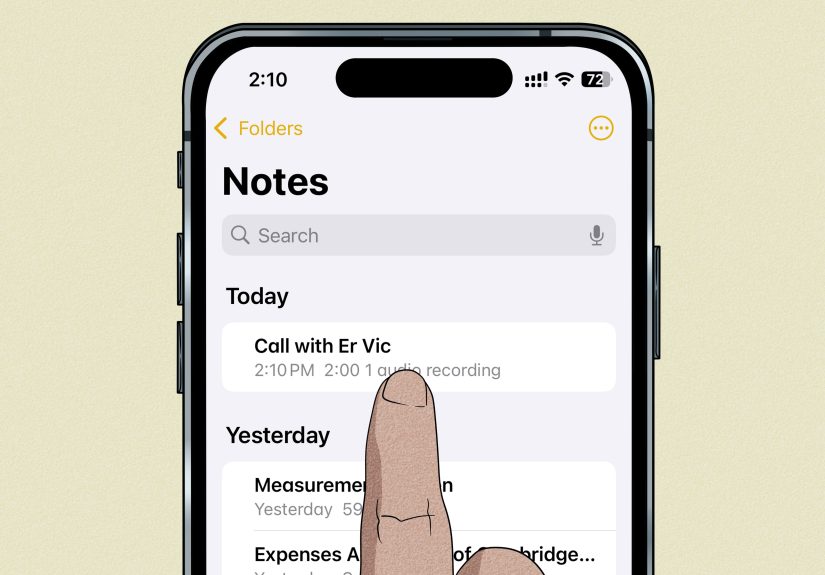
After the call ends, the recording is saved to the Call Recordings folder in the Notes app. If your language, region, and device support transcription, you can also read a transcript. If you have Apple Intelligence enabled on a supported iPhone, you may also get a generated summary. So the feature has three levels:
- Level 1: audio recording
- Level 2: transcript
- Level 3: AI-generated summary
That layered setup explains why some users can record calls but cannot see transcripts, and why others can read transcripts but do not get summaries. Apple did not make this confusing on purpose. It just happened naturally, like tangled charging cables.
Can Your iPhone Use It?
Before you try to enable anything, check these basics.
1. You need iOS 18.1 or later
If your iPhone is still on iOS 18.0, the feature is not fully there. Go to Settings > General > Software Update and install the latest iOS 18 version available to your device.
2. Your region and language matter
Call recording is not universal in every language and region. Apple maintains separate availability lists for Call Recording, Call Transcription, and Call Transcription Summaries. That means basic recording may be available while transcription or summary is not.
In plain English: your iPhone may let you record a call, but it might not produce a transcript if the spoken language is unsupported or if the feature is not offered in your region.
3. Summaries require Apple Intelligence
If you want an AI summary after the call, you need Apple Intelligence turned on. On iPhone, that means a supported model such as iPhone 15 Pro, iPhone 15 Pro Max, iPhone 16 models, or later, plus compatible software and enough free storage. Basic recording is the easy part. AI summaries are the VIP section.
4. A work or school iPhone may block it
If your iPhone is managed by an employer or school, call recording can be disabled through device management policies. So if the option is mysteriously missing on a company phone, it may not be a bug. It may be your IT department doing what IT departments do best: turning fun into a policy document.
How to Enable iOS 18 Call Recording on Your iPhone
Here is the clean, practical version.
Step 1: Update your iPhone
Open Settings > General > Software Update and make sure your iPhone is on iOS 18.1 or later. If you are not updated, stop here and do that first. No update, no recording.
Step 2: Check the Call Recording setting
Apple says Call Recording is on by default, but it can be turned off. To check:
- Open Settings
- Tap Apps
- Tap Phone
- Tap Call Recording
- Make sure it is turned on
If the toggle is off, switch it on. That is the actual “enable” part many people are looking for.
Step 3: Start or answer a call
Open the Phone app and place a call, or answer one. You can also use this feature on a supported FaceTime audio call.
Step 4: Start recording during the call
During the live call, tap the More button, then tap Call Recording. Your iPhone will announce that the call is being recorded, and the other participant will hear that announcement too.
This is important for both privacy and etiquette. Nobody has to guess what is happening. Apple’s system makes it very obvious, which is either wonderfully transparent or slightly awkward depending on who is on the other end.
Step 5: Stop recording or end the call
To stop, tap the Stop button, or simply hang up. The audio file is then saved automatically.
Step 6: Find the recording in Notes
After the call, open the Notes app and look for the Call Recordings folder. Your saved call should be there. From that note, you can:
- Play the audio
- Open the transcript if available
- Search the transcript
- Copy the transcript
- Save the audio elsewhere
- Share the audio
- Delete the recording
One important detail: if you delete the audio recording, the transcript goes with it.
How Transcripts and Summaries Work
This is where things get slightly more sophisticated.
If your call is in a supported language and your device meets the necessary requirements, your iPhone can generate a transcript in Notes. The transcript may not appear instantly. Sometimes you will see a message that the transcription is still in progress. So if it does not pop up right away, do not panic and assume your iPhone has abandoned you emotionally.
Once the transcript is ready, the Notes app identifies speakers and lets you jump to specific points in the recording by selecting text. That is especially useful during long calls, where finding one sentence manually would otherwise feel like digging for a single french fry at the bottom of a takeout bag.
If you have Apple Intelligence enabled on a supported device, you may also see a summary of the call. This can be a major time-saver, especially for interviews, project updates, and appointment follow-ups. Still, do not treat the summary as sacred scripture. Apple itself notes that transcription may not be perfect, so the summary should be treated as a convenience, not a legal-grade record.
Why the Call Recording Option Is Missing
If you cannot find the feature, one of these reasons is usually to blame.
You are on the wrong iOS version
The most common issue is simple: the iPhone is on iOS 18.0 instead of 18.1 or later.
Your region or language does not support it
Apple’s availability rules matter here. The recording feature itself supports more languages than transcription and summaries do. So a user might have no transcript because the spoken language is unsupported, even though the recording worked perfectly.
Your iPhone is managed by work or school
Managed devices can block call recording entirely. If this is a company-issued phone, ask your admin before assuming something is broken.
Apple Intelligence is not enabled
If you can record but cannot get a summary, check whether Apple Intelligence is turned on and whether your iPhone model supports it.
The transcript is still processing
Sometimes the call ends, the audio saves, and the transcript shows up a little later. Give it a minute before declaring technological betrayal.
Privacy, Etiquette, and Legal Basics
Call recording can be incredibly useful, but it is also one of those features that can go from “productive” to “messy” in about two seconds if you use it carelessly.
Apple handles part of this by automatically notifying everyone when recording starts. That built-in announcement is one of the smartest parts of the feature. It reduces confusion and gives the other person immediate notice.
Even so, you should still follow local laws and common-sense etiquette. If the call involves sensitive health information, business negotiations, private family matters, or anything else delicate, it is wise to say clearly why you are recording. A quick line like, “I’m recording this so I don’t miss details,” usually makes the conversation feel less creepy and more practical.
And yes, there will always be someone who becomes dramatically formal the moment the recording announcement plays, as if they have suddenly been cast in a courtroom drama. That is normal.
When iOS 18 Call Recording Is Actually Useful
This feature is not just a shiny demo for keynote season. It solves real problems.
- Medical calls: helpful when you need to remember medication instructions, follow-up dates, or test results
- Work calls: useful for capturing project decisions, deadlines, and action items
- Customer service: great for documenting refund promises, case numbers, and policy explanations
- Interviews: valuable for journalists, students, and researchers who need accurate notes
- Home services: handy when contractors, movers, or repair companies give verbal estimates or scheduling details
The best part is not just the recording itself. It is the combination of audio, searchable transcript, and optional summary. That workflow turns a phone call from a fleeting conversation into something you can actually reference later without relying on your memory, which, let’s be honest, is sometimes powered by coffee and wishful thinking.
Experiences With iOS 18 Call Recording in Real Life
In real-world use, iOS 18 call recording tends to create two immediate reactions. The first is relief: “Finally, the iPhone can do this without an app circus.” The second is surprise at how normal it feels once you start using it. After the novelty wears off, the feature becomes less of a flashy trick and more of a quiet productivity tool that saves time and prevents misunderstandings.
People who handle a lot of detail-heavy calls usually appreciate it the most. A freelancer talking with clients can record a planning call and later confirm what was actually approved. A caregiver can review instructions from a clinic instead of scribbling notes while stressed. A parent juggling school calls, doctor appointments, and schedule changes can revisit the exact wording instead of reconstructing the conversation from memory like a detective in sweatpants. In these situations, the transcript is often more useful than the raw audio because it lets you search for a specific phrase, name, or number without listening to the full call all over again.
There are also a few predictable annoyances. The announcement that the call is being recorded is great for transparency, but it definitely changes the tone of some conversations. Some people become more cautious. Some start speaking like they are leaving a voicemail for a government agency. Others immediately ask, “Wait, why are you recording this?” which means you should be ready with a simple answer. The most effective approach is usually honesty: tell them you want accurate notes. That keeps the recording from feeling sneaky and makes the conversation smoother.
Another common experience is discovering that transcripts are helpful but not magical. Background noise, accents, fast speech, poor cellular quality, and people talking over each other can all make the transcript less accurate. That does not make the feature bad; it just means users should treat it as a strong first draft, not a flawless legal transcript. The summary feature is similar. When it works well, it can save real time by pulling out the main points. When the call is messy or filled with interruptions, the summary may miss nuance. That is why experienced users often skim the transcript even if the summary looks good at first glance.
One especially practical advantage is how neatly everything lands in Notes. Instead of hunting through a separate app, exporting files, or managing a weird subscription, you open Notes and the recordings are right there in a dedicated folder. That makes the whole experience feel more “Apple” in the best sense: built in, tidy, and hard to mess up. For people who already use Notes for work logs, interview prep, class material, or personal organization, the call recording feature fits naturally into an existing workflow.
Overall, the lived experience of iOS 18 call recording is less about spying and more about clarity. It helps users remember details, reduce note-taking stress, and verify what was actually said. The feature is not perfect, and availability rules can still frustrate some people, but when it works on your iPhone, it feels like one of those updates that should have existed years ago. Better late than never, Apple.
Final Thoughts
If you want to enable call recording on your iPhone, the formula is simple: update to iOS 18.1 or later, make sure Call Recording is turned on in Phone settings, start a live call, and choose Call Recording from the in-call controls. From there, your recordings are saved in Notes, where you may also get transcripts and summaries depending on your setup.
The bigger story is that Apple finally made call recording practical for everyday iPhone users. It is built in, easy to access, and much more polished than the patchwork solutions people used before. If your device, language, and region support it, this is one of the most genuinely useful iOS 18 features for work, organization, and everyday life.