Table of Contents >> Show >> Hide
- What Does “JPG to PDF” Actually Mean?
- Why Convert Photos to PDF?
- Method 1: Convert JPG to PDF on Windows for Free
- Method 2: Convert JPG to PDF on Mac Using Preview
- Method 3: Convert JPG to PDF on iPhone or iPad
- Method 4: Use Google Drive on Android to Scan and Save as PDF
- Method 5: Use a Free Online JPG to PDF Converter
- Which Free JPG to PDF Method Should You Choose?
- How to Keep Image Quality High When Converting JPG to PDF
- How to Convert Multiple JPGs into One PDF
- Can You Convert JPG to Searchable PDF?
- Common JPG to PDF Problems and Easy Fixes
- Security Tips Before Converting Photos to PDF
- Extra Experience: What I’ve Learned from Converting JPGs to PDFs in Real Life
- Conclusion
Turning a JPG into a PDF sounds like the kind of tiny digital chore that should take five seconds, yet somehow it can become a full-blown side quest. You start with one photo of a receipt, a school form, a passport page, a pet vaccination record, or a beautifully chaotic whiteboard. Then someone says, “Please send it as a PDF,” and suddenly your phone feels like it was designed by a committee of raccoons wearing lab coats.
Good news: converting JPG to PDF for free is much easier than it looks. You do not always need paid software, a fancy scanner, or a dramatic sigh aimed at your laptop. Whether you use Windows, Mac, iPhone, Android, Google Drive, or a free online JPG to PDF converter, there are several simple ways to turn photos into clean, shareable PDF files.
This guide covers five practical methods, when to use each one, how to keep your image quality sharp, and what to watch out for when privacy matters. By the end, your photos will be marching into PDF format like they just graduated from document school.
What Does “JPG to PDF” Actually Mean?
A JPG, sometimes written as JPEG, is an image file format commonly used for photos. It is lightweight, easy to share, and supported almost everywhere. A PDF, short for Portable Document Format, is designed to preserve layout, formatting, and page structure across devices. In plain English: a JPG is usually one image, while a PDF behaves more like a digital document.
When you convert JPG to PDF, you are placing the image inside a PDF page. The photo does not magically become editable text unless you use OCR, or optical character recognition. If your JPG is a photo of a printed document, a regular conversion will usually create an image-based PDF. It may look professional, but you may not be able to search the words unless your app includes OCR.
Why Convert Photos to PDF?
There are plenty of reasons to convert photos to PDF, especially when you need something more polished than a loose image file. A PDF is often better for printing, emailing, uploading to forms, organizing multi-page documents, and keeping pages in the correct order.
For example, one JPG receipt is fine. Ten JPG receipts sent separately? That is not a document; that is a digital confetti cannon. A single PDF keeps everything together, which is helpful for school assignments, job paperwork, invoices, insurance documents, travel records, and personal archives.
PDFs also help reduce confusion. A person opening your file on a phone, tablet, laptop, or office computer should see roughly the same layout. That consistency is the reason PDFs remain popular for forms, scanned documents, contracts, and printable files.
Method 1: Convert JPG to PDF on Windows for Free
If you use Windows, you probably already have a free JPG to PDF converter hiding in plain sight: Microsoft Print to PDF. It is built into modern Windows systems and works from many apps that can open images.
How to Convert a JPG to PDF on Windows
- Open your JPG image in the Photos app or another image viewer.
- Press Ctrl + P or choose the Print option.
- Select Microsoft Print to PDF as the printer.
- Choose your paper size, orientation, and layout.
- Click Print.
- Name the file and choose where to save it.
Despite the word “Print,” nothing has to come out of your printer. Windows is simply using the print system to create a PDF file. It is like pretending to print, but instead of wasting paper, you get a neat digital document. Your printer can go back to sleeping dramatically in the corner.
Best For
This method is great for quick conversions, single photos, receipts, ID copies, and images you do not want to upload to an online service. Since the conversion happens on your computer, it is a good choice for files with personal information.
Limitations
Microsoft Print to PDF is simple, but it does not offer advanced editing. If you need to rearrange many images, compress the final PDF, add OCR, or adjust margins carefully, another method may be better. Still, for everyday use, this is one of the fastest free ways to convert a JPG to PDF on Windows.
Method 2: Convert JPG to PDF on Mac Using Preview
Mac users have a wonderfully underrated tool called Preview. It can open images, view PDFs, export files, and handle basic document tasks without requiring extra software.
How to Convert a JPG to PDF on Mac
- Open the JPG image in Preview.
- Click File in the menu bar.
- Choose Export.
- Select PDF from the Format menu.
- Rename the file if needed.
- Click Save.
You can also use File > Print, then choose Save as PDF from the PDF menu in the print dialog. This is helpful when you want more control over page layout.
Converting Multiple JPGs into One PDF on Mac
If you need one PDF with several photos, open the images in Preview, show thumbnails, drag the pages into the order you want, and use the print or export options to save them as a PDF. The exact workflow can vary slightly depending on your macOS version, but Preview remains one of the easiest free tools for image-to-PDF conversion.
Best For
Preview is ideal for Mac users who want a free, offline, privacy-friendly way to convert photos to PDF. It is also convenient for basic rearranging and page handling. No account. No upload. No “please subscribe to unlock breathing” nonsense.
Method 3: Convert JPG to PDF on iPhone or iPad
Your iPhone can convert photos to PDFs without needing a third-party app. The option is not always obvious, because Apple likes to hide useful features in places where only determined tap explorers can find them.
How to Convert a Photo to PDF on iPhone
- Open the Photos app.
- Select one or more images.
- Tap the Share button.
- Choose Print.
- Use the preview area to open the PDF-style preview.
- Tap Share again.
- Select Save to Files or send it through Mail, Messages, or another app.
On iPhone and iPad, the print preview method often works as a hidden PDF creator. You do not need an actual printer. The device prepares the selected image as a printable document, then lets you save or share it as a PDF.
Best For
This method is perfect for quick mobile conversions, especially when you need to send a PDF from your phone. It works well for school forms, handwritten notes, receipts, tickets, and simple documents.
Limitations
The built-in iPhone method is convenient, but it is not a full PDF editor. If you need to crop heavily, merge many files, compress the final document, or scan pages with automatic edge detection, a scanner app or Google Drive may be better.
Method 4: Use Google Drive on Android to Scan and Save as PDF
Android users can use Google Drive to scan paper documents and save them as PDFs. This is especially useful when the “JPG” starts as a real-world object, like a receipt, letter, worksheet, or form. Instead of taking a normal camera photo and converting it later, you can scan directly into PDF format.
How to Scan a Document as a PDF with Google Drive
- Open the Google Drive app.
- Tap the camera or scan button.
- Point your phone at the document.
- Capture the image.
- Adjust the crop, rotation, or page edges if needed.
- Save the scan as a PDF in Google Drive.
Google Drive’s scanning feature is useful because it can detect document edges and create a cleaner result than a casual camera shot. That matters when you are photographing a paper on a table and your shadow is trying to join the document like an unpaid intern.
Best For
This method works well for Android users who want to scan documents, receipts, letters, and forms directly into PDF format. It is also helpful if you already use Google Drive for storage and sharing.
Limitations
Because files are stored in Drive, this method uses cloud storage. That is convenient, but for very private files, you may prefer an offline tool. Also, if you already have JPG images saved in your gallery, you may find an online converter or a built-in print-to-PDF option more direct.
Method 5: Use a Free Online JPG to PDF Converter
Free online converters are popular because they work in a browser and usually do not care whether you are using Windows, Mac, Chromebook, iPhone, Android, or a toaster with Wi-Fi. Well, maybe not the toaster. Let’s not give the toaster ideas.
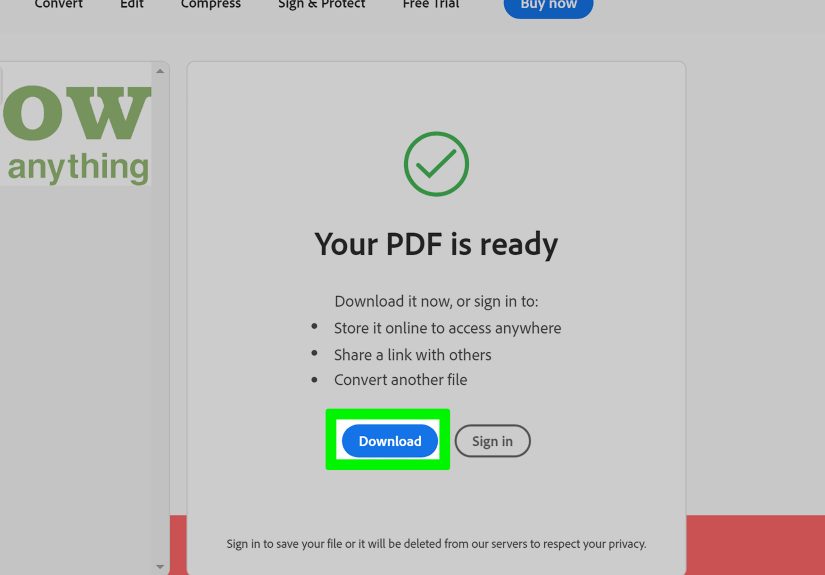
Common online JPG to PDF tools include Adobe Acrobat online, Canva, iLovePDF, Smallpdf, and similar web-based PDF services. These tools usually let you upload one or more JPG images, choose settings like page size or margins, and download the finished PDF.
How Online JPG to PDF Converters Usually Work
- Open the JPG to PDF converter in your browser.
- Upload your image or drag and drop it into the tool.
- Choose layout options such as portrait, landscape, page size, or margins.
- Select whether to merge multiple images into one PDF.
- Click the convert button.
- Download the PDF file.
Best For
Online converters are excellent when you need a fast, no-install solution. They are also useful for merging several JPG files into one PDF, changing page size, or creating a cleaner document from multiple photos.
Privacy Tip
Before uploading sensitive documents, think carefully. A photo of your lunch? Fine. A tax form, passport, medical record, bank statement, or private school document? Use an offline method when possible. Online tools can be reputable, but privacy still matters. The internet is wonderful, but it does not need to know everything about your paperwork.
Which Free JPG to PDF Method Should You Choose?
The best JPG to PDF method depends on your device, your file type, and how much control you need.
Choose Windows Print to PDF If…
You are on a Windows PC, you need a quick conversion, and you prefer not to upload files. This is the simplest offline method for many users.
Choose Mac Preview If…
You use a Mac and want a clean, built-in way to export images as PDFs. Preview is fast, free, and surprisingly capable for basic document tasks.
Choose iPhone Print Preview If…
You need to convert photos while using your iPhone or iPad. It is handy for sending a PDF quickly from your camera roll.
Choose Google Drive Scan If…
You are on Android and need to scan paper documents directly into PDF format. It is especially useful for receipts, letters, and forms.
Choose an Online Converter If…
You want the easiest cross-device option, especially for merging multiple JPGs into one PDF. Just be careful with sensitive files.
How to Keep Image Quality High When Converting JPG to PDF
Converting a JPG to PDF should not destroy your image quality, but poor settings can make the result look blurry, stretched, or oddly cropped. To avoid that, start with the highest-quality JPG you have. If the original photo is tiny, dark, tilted, or blurry, the PDF will preserve those problems with impressive loyalty.
For documents, take photos in good lighting. Place the paper on a flat surface, keep the camera parallel to the page, and crop out the background. If possible, use a scanning feature rather than a normal photo. Scanner tools often improve contrast, straighten edges, and make text easier to read.
When choosing PDF settings, use the correct page size. In the United States, Letter size is common. For international documents, A4 may be better. If your image is a full-page document, avoid large margins unless you want the page to look like it is hiding in a snowfield.
How to Convert Multiple JPGs into One PDF
Many people convert JPG to PDF because they want several images combined into one file. This is useful for multi-page forms, homework, receipts, project photos, and scanned records.
Most online converters allow batch uploading, then merging all images into a single PDF. Some let you drag pages into the correct order before conversion. On Mac, Preview can also help arrange multiple images. On Windows, you can select multiple images, print them together, and choose Microsoft Print to PDF, although the layout options may be limited.
Before you convert, rename your images in order, such as page-1.jpg, page-2.jpg, and page-3.jpg. This small step can prevent page-order chaos. Nobody wants page 7 appearing before page 2 unless the PDF is trying to become a mystery novel.
Can You Convert JPG to Searchable PDF?
A normal JPG to PDF conversion usually creates a PDF that contains an image. If the JPG includes text, that text may not be searchable or selectable. To make a searchable PDF, you need OCR software.
OCR reads text from an image and adds a text layer to the PDF. Some scanning apps and PDF tools include OCR, but free versions may limit the feature. If you need searchable PDFs for school, work, or archiving, look for a converter or scanner that clearly mentions OCR.
For casual use, OCR may not matter. If you only need to upload a photo as a PDF, a standard conversion is enough. But if you plan to search inside the document later, OCR can save you from manually hunting through pages like a detective with worse lighting.
Common JPG to PDF Problems and Easy Fixes
The PDF Is Too Large
Large images create large PDFs. Try reducing image resolution before converting, using a PDF compressor, or choosing a smaller file-size option if your tool provides one. For online forms, check the upload limit before sending.
The Image Is Sideways
Rotate the JPG before converting or use a converter that lets you change orientation. If the PDF is already created, many PDF viewers and editors can rotate pages afterward.
The Text Looks Blurry
Retake the photo in better lighting, clean your camera lens, and hold the device steady. For paper documents, use a scanning app instead of a normal camera photo.
The PDF Has Weird Margins
Choose “fit to page,” “actual size,” or “no margin” depending on your goal. If the document is being printed, leave enough margin so nothing important gets cut off.
The Pages Are Out of Order
Rename images before merging, or use a converter that lets you reorder thumbnails. Always preview the final PDF before sending it to someone important, such as a teacher, client, boss, or that one family member who notices everything.
Security Tips Before Converting Photos to PDF
JPG to PDF conversion is usually safe, but the safest method depends on the content. For everyday photos, online converters are convenient. For private paperwork, offline tools are smarter.
Use built-in tools like Microsoft Print to PDF, Mac Preview, or iPhone’s print-to-PDF option when working with sensitive files. Avoid uploading documents that include Social Security numbers, financial details, medical information, passwords, private IDs, or confidential business data unless you fully trust the service and understand its privacy policy.
After converting, store your PDF in a safe location. If the file is important, back it up. If it contains sensitive information, avoid leaving it in public downloads folders or shared devices. Digital organization may not be glamorous, but neither is trying to find “final-final-really-final-document.pdf” at midnight.
Extra Experience: What I’ve Learned from Converting JPGs to PDFs in Real Life
The first practical lesson about converting JPG to PDF is that the conversion tool is rarely the biggest issue. The real problem is usually the photo itself. A clean photo becomes a clean PDF. A blurry photo becomes a blurry PDF wearing a little PDF hat. Before converting, take ten extra seconds to improve the image. Flatten the paper, move it closer to a window, remove clutter from the background, and make sure the corners are visible. Those tiny steps make the final PDF look dramatically more professional.
The second lesson is that page order matters more than people expect. When sending multiple photos, always arrange them before converting. If the file is for a teacher, office, government form, or job application, a properly ordered PDF makes you look organized. A scrambled PDF makes the recipient feel like they have been invited to solve a puzzle they did not ask for.
The third lesson is to choose the method based on privacy. For a random image, an online JPG to PDF converter is fast and convenient. For personal documents, use offline tools. Windows Print to PDF and Mac Preview are boring in the best possible way: they do the job without uploading your file anywhere. Boring can be beautiful when your document contains private information.
The fourth lesson is that file size can sneak up on you. A few high-resolution phone photos can create a surprisingly huge PDF. If you are uploading to a website with a file limit, check the size before submitting. If it is too large, compress the PDF or reduce the image size first. This is much easier than angrily re-uploading the same oversized file five times while the website judges you in silence.
The fifth lesson is to preview before sending. Open the finished PDF and check every page. Look for sideways images, cut-off edges, missing pages, unreadable text, and accidental background objects. A PDF preview takes less than a minute and can save you from sending a document that includes your desk, your thumb, and half a snack wrapper.
Finally, remember that free tools are usually enough. Most people do not need expensive software just to convert JPG to PDF. Built-in options on Windows, Mac, iPhone, and Android can handle everyday tasks. Online converters are helpful when you need extra layout controls or quick merging. The best workflow is not the fanciest one; it is the one that gives you a clean PDF with the least stress.
Conclusion
Converting JPG to PDF for free is simple once you know where to look. Windows users can rely on Microsoft Print to PDF. Mac users can use Preview. iPhone users can turn photos into PDFs through the share and print options. Android users can scan documents directly with Google Drive. Anyone with a browser can use a free online JPG to PDF converter for quick merging and layout control.
The smartest choice depends on your situation. Use offline tools for private files, online converters for convenience, and scanning apps for paper documents. Keep your images clear, arrange pages correctly, choose the right page size, and preview the final PDF before sharing. Do that, and your photos will become polished PDFs without costing a centor requiring a ceremonial sacrifice to the printer gods.
Note: This article is based on current practical guidance from reputable software and support resources, including Microsoft, Apple, Google, Adobe, Canva, iLovePDF, Smallpdf, Dropbox, and established technology publications. Source links are intentionally not included in the article body as requested.